 Flowpaja
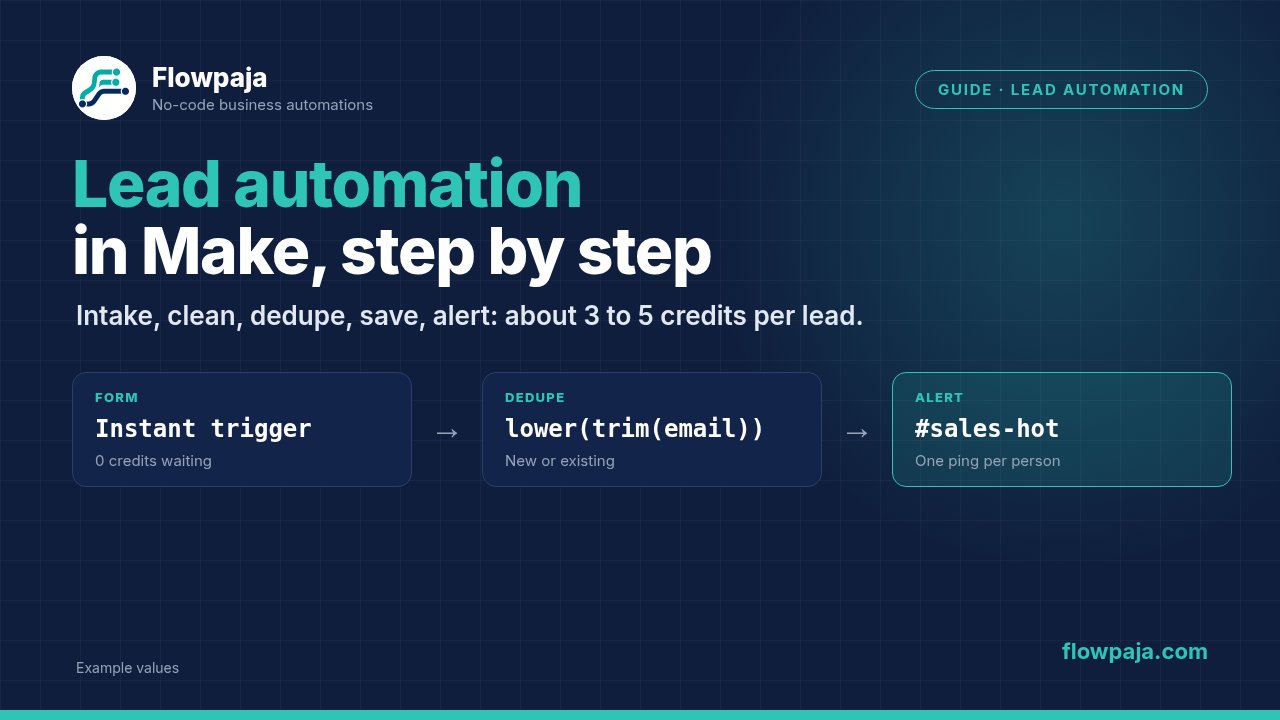
- Intake: a trigger for your form (instant where possible).
- Clean: stop rows without a valid email; lowercase and trim the email.
- Dedupe: check whether you've seen this person (email) or this exact delivery (request ID) before.
- Save: create or update the contact in your CRM or sheet.
- Alert: post to Slack, with hot leads in their own channel, plus an alert when a step fails.
This page shows each step once and links to the detailed guide for your tools. A typical lead costs 3–5 credits. What decides whether it fits the Free plan is mostly the trigger: instant triggers cost nothing while waiting, while a sheet checked every 15 minutes uses about 2,880 credits a month before any lead arrives.
Step 1: Pick the trigger for your form
| Form or source | Make trigger | Waiting cost | Detailed guide |
|---|---|---|---|
| Google Forms | Google Sheets › Watch New Rows on the response sheet, or Google Forms › Watch Responses (both scheduled) | 1 credit per check | Google Forms to HubSpot and Slack, Google Forms to Slack |
| Typeform (affiliate link) | Typeform › Watch Responses (instant) | 0 | Typeform to HubSpot, Typeform to Google Sheets |
| Tally (affiliate link) | Tally › Watch New Responses (instant) | 0 | Tally to HubSpot, Tally to Google Sheets |
| Facebook Lead Ads | Facebook Lead Ads › New Lead (instant) | 0 | Facebook Lead Ads to Sheets without duplicates |
| Webflow | Webflow › Watch Events, or a Custom webhook | 0 | Webflow form submissions to HubSpot |
| Any site or app that can send a webhook | Webhooks › Custom webhook (instant) | 0 | Make webhook tutorial |
Still choosing a form tool? Fillout vs Tally vs Typeform compares free plans, native integrations and Make triggers.
For webhook triggers, decide early between parallel runs (Make's default) and Process data in order in the scenario settings. In order is safer for dedupe and rotation, because two submissions from the same person can't be checked at the same moment.
Step 2: Clean and check the email
Right after the trigger, add a filter: the email exists and contains @. Everything else stops there for 1 credit (the trigger), or goes to a review alert if you'd rather see it.
Then use the cleaned value everywhere, in searches and in writes: {{lower(trim(1.email))}} (click your form's email field instead of typing 1.email). A lookup for jamie@example.com doesn't find a row that says Jamie@Example.com .
Step 3: Dedupe on the right key
There are two kinds of duplicates, and they need different keys:
| Duplicate | Example | Key | Where Flowpaja shows it |
|---|---|---|---|
| Repeat delivery | The sender retries after a timeout, a double click sends the form twice | The request or lead ID | Webhook to Sheets with a duplicate check (free, request_id) |
| Repeat person | Someone fills in the form again next week | The cleaned email | Lead Capture to Sheets + Slack (free), Lead Router ($19) |
An email check catches both kinds, which is what you want for a contact list and a "new lead" Slack channel. Use the ID instead when every enquiry should be its own row, for example in a log of submissions.
Where to check:
- Google Sheets: Search Rows on the key column, then a router on Total number of bundles: = 0 → new, > 0 → existing. Search Rows with no match still outputs one empty bundle, so never route on an aggregator's length. (Search Rows returns nothing)
- HubSpot: Create or Update a Contact matches on email by itself. Or Search for Contacts with Email equal to first, when new and returning leads need different steps.
- Data store: a record per key, if you'd rather not scan a sheet. The Free plan includes one 1 MB data store.
Step 4: Save the contact
HubSpot. Use Create or Update a Contact when every lead is handled the same way (1 credit), or search first and route to Create a Contact / Update a Contact (2 credits) when you need to know who's new. Two things go wrong most often:
[409] Contact already exists: a plain create hit an email HubSpot already has, sometimes as another contact's additional email. All causes and fixes: Fix HubSpot "Contact already exists" (409) in Make.[400] Property values were not valid: a dropdown answer was sent as its label instead of HubSpot's internal value. Fix in Google Forms to HubSpot and Slack, Step 2.
Pipedrive: search the person by email first; see Pipedrive + Make.
Google Sheets only: Add a Row on the new route, Update a Row (with the found row number) on the existing route.
Map only the fields the form should own. A resubmission shouldn't overwrite the owner your sales team set by hand.
Step 5: Qualify with the answers you already have
Keep it to one to three answers the lead gave you, such as budget, company size or timeline. You don't need enrichment or AI to start.
Simplest: route on one answer. A router after the save step: Budget equal to $10k+ → #sales-hot, everything else → #leads. This is exactly what Lead Router does.
A points column, if you use more than one answer. In a Google Form response sheet, put this in the first empty header cell (here column H) and adjust the columns and answers to your form:
={"Score"; ARRAYFORMULA(IF(A2:A="", "", IF(F2:F="$10k+", 2, 0) + IF(E2:E="50+", 1, 0)))}Then filter in Make on Score greater than or equal to (Numeric) 2 for the hot route. The formula lives in the sheet, so changing the rules doesn't mean editing the scenario. (Formula syntax is Google Sheets, where text in quotes is correct.)
Want a written summary of each lead too? Google Sheets + ChatGPT in Make shows the credit and token cost.
Step 6: Alert and assign
- Slack › Send a Message with name, company, the qualifying answers and email. If the channel is private, the Slack user who connected Make must be a member, or you'll get
channel_not_found(fix). - One alert per person: put Slack only on the new route of your dedupe router, so a repeat submission updates the record without a second ping.
- Taking turns between reps: a counter and a router assign each new lead to the next person: Round-robin lead assignment in Make.
Step 7: Make failures visible
A lead that fails silently is worse than one that never came in, because everyone thinks it was handled.
- Right-click each CRM and Sheets module → Add error handler → Slack › Send a Message to
#automation-alertswith the error and the lead's email → Skip (formerly Ignore). The run continues and you know which lead to check. For temporary errors, Retry (formerly Break) tries again later; it needs Store incomplete executions on, which is available on the Free plan. - A scenario with an instant trigger is switched off after its first unhandled error. A scheduled one is switched off after 3 consecutive errors by default.
- With Process data in order on, an unresolved incomplete execution holds new webhook requests in the queue. Check the queue if leads stop arriving after an error.
Details: Make error handling, Scenario stopped or disabled, Make error cheat sheet.
Step 8: Budget the credits
Make's Free plan includes 1,000 credits a month and 2 active scenarios, with a 15-minute minimum interval for scheduled scenarios.
| What uses credits | Credits |
|---|---|
| Instant trigger while no leads arrive | 0 |
| Scheduled check, every 15 minutes, 30 days | about 2,880 |
| Scheduled check, hourly, 30 days | about 720 |
| Scheduled check, daily, 30 days | 30 |
| Each lead (trigger, check, save, Slack) | about 3–5 |
| Routers and filters | 0 |
Measured examples from Flowpaja's templates: Lead Capture uses 4 credits for a new lead with Slack, 3 for a repeat and 1 when the email is missing; Lead Router uses 1 credit per scheduled check plus about 3 per lead. So 100 leads a month through an instant trigger is roughly 400 credits, while the same leads through a 15-minute sheet check would blow the Free plan on checks alone. Work out your own in the Make credits calculator and see Make credits explained.
Before you switch it on
Test with fictional names and @example.com emails:
- A brand-new lead → one record, one Slack alert.
- The same email again, in capitals with a trailing space → the same record updated, no second alert.
- A hot answer (e.g.
$10k+) → the hot channel. - A submission without an email → stopped by the filter.
- A forced error (e.g. a Slack channel that doesn't exist) → an alert in
#automation-alerts, and the scenario still on.
Templates for this flow
| Template | What it does | Price |
|---|---|---|
| Lead Capture → Sheets + Slack, with dedupe | Custom webhook → email dedupe in Sheets → one Slack alert per new email; repeats update the row | Free |
| Webhook to Sheets with a duplicate check | Saves each webhook request once, keyed on request_id | Free |
| Google Form to Slack | Posts each new Google Form response to one Slack channel | Free |
| Lead Router | Google Form → exact-email search in HubSpot → create or update → $10k+ budgets to #sales-hot, the rest to #leads → failure alerts to #automation-alerts | $19, 30-day money-back guarantee |
Lead Router doesn't do round-robin or owner assignment; it routes by channel. Add rotation with the round-robin guide if you need it.
No Make account yet? Create a free Make account (affiliate link). Flowpaja may earn a commission if you sign up through it, at no extra cost to you. Links marked "affiliate link" include our partner code for Typeform, Tally or Make.