 Flowpaja
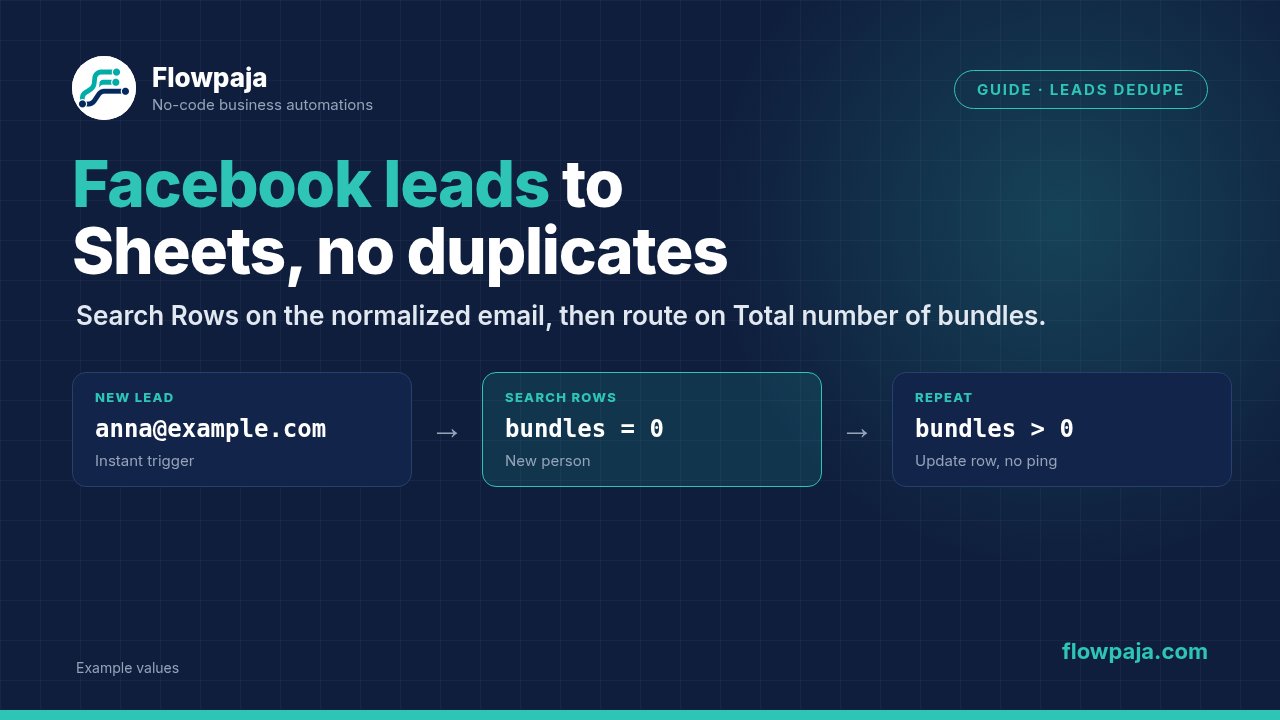
- = 0 → new person: Add a Row, then one Slack › Send a Message.
- > 0 → already in the sheet: Update a Row (last seen, latest lead ID), and no second Slack alert.
Search Rows with no match still outputs one empty bundle with Total number of bundles = 0, so route on that number, never on an aggregator's length. Cost: 4 credits for a new lead, 3 for a repeat, and nothing while no leads arrive, because New Lead is an instant trigger.
New to Facebook Lead Ads in Make, or are leads not arriving at all? Start with Facebook Lead Ads and Instagram with Make, which covers the connection, Leads Access, the testing tool and the common errors. This page is only about duplicates.
Why duplicates happen with Facebook leads
There are two kinds, and they need different keys:
| Duplicate | Example | Same lead ID? | Same email? |
|---|---|---|---|
| Repeat delivery | Meta sends the same lead again, for example after you reconnect | Yes | Yes |
| Repeat person | Someone fills in your form again next week, or fills in two of your forms | No | Usually |
A lead-ID check stops only the first kind. The live guide linked above uses one. An email check stops both, which is what you want for a contact list and a "new lead" Slack channel. Keep the lead ID in the sheet anyway, as a reference you can look up in Meta.
What you need
- A working Facebook Lead Ads › New Lead trigger (Make's Facebook Lead Ads app needs a Facebook account and a Facebook Business Manager account, with Make assigned under Settings › Integrations › Leads Access)
- A Google Sheet, and optionally a Slack channel such as
#leads - At least one test lead. A form must have been submitted once before it appears in the module, so use Meta's Lead Ads Testing Tool.
Step 1: Prepare the sheet
Tab Leads, row 1 headers:
| A received_at | B email | C name | D phone | E form | F lead_id | G last_seen_at | H times_seen |
|---|
Column B always holds the normalized email (Step 3). If the sheet already has older rows, clean them once: a helper column with =LOWER(TRIM(B2)), then paste the values back over column B. Otherwise old mixed-case rows won't match.
Step 2: Get the email out of the lead
Run one test lead and open the New Lead output bubble.
- If you see
emailas its own field, map it directly. - If the answers arrive as a field_data list (each item has a
nameand a list ofvalues), pick the email by name:
{{first(first(map(1.field_data; "values"; "name"; "email")))}}map() returns the values list of the item whose name is email, and the two first() calls turn that into plain text. Use the raw field names from your output (email, full_name, phone_number for Meta's standard questions; custom questions use the names you gave them).
Quotes: paste or type? Paste the formula whole, braces included: the quotes are part of Make's copy-and-paste format, and 1.field_data must point at your trigger (module 1 here). If you build it in the mapping panel instead, type the keys without quotes, as in Make's docs: map(field_data; values; name; email). Quotes you type there become part of the key, and map() returns nothing.
Step 3: Normalize once, use it everywhere
Wrap the email in lower() and trim() so Anna@Example.com and anna@example.com become the same key:
{{lower(trim(first(first(map(1.field_data; "values"; "name"; "email")))))}}To avoid repeating this formula, add Tools › Set variable (name: email_key) right after the trigger. It costs 1 credit per lead. Or paste the formula into both Search Rows and Add a Row and keep the credit.
Don't strip dots or +tags from addresses. anna+ads@example.com may be a deliberate separate address, and merging it would hide a real person.
Step 4: Stop leads without an email
Add a filter right after the trigger (or after Set variable): email Exists AND email Contains @. A lead without an email would otherwise search for an empty value, and every email-less lead would match every other one. Leads stopped here cost 1 credit (the trigger). If your form makes email optional, log those leads to a second tab instead.
Step 5: Search Rows and the router
- Google Sheets › Search Rows: sheet
Leads, Table contains headers = Yes. Filter:emailEqual to (case insensitive) the normalized email. Limit: 1. One match is enough to know the person exists. - Router with two routes:
- New lead: filter Total number of bundles (from Search Rows), Equal to (numeric),
0. - Repeat lead: Total number of bundles Greater than
0.
- New lead: filter Total number of bundles (from Search Rows), Equal to (numeric),
Map the new row's values from the trigger, not from Search Rows. On the new-lead route the empty bundle holds no row data. Don't put an Array aggregator here: it turns the empty bundle into a list with one empty item, so a "length = 0" check never matches. More in Search Rows returns nothing.
Step 6: The two routes
New lead route:
- Google Sheets › Add a Row:
received_at={{formatDate(now; "YYYY-MM-DD HH:mm")}},email= the normalized email, name, phone, form name,lead_id= the lead ID from the trigger,times_seen= 1. - Slack › Send a Message to
#leads, placed after Add a Row, so you're only alerted about leads that were actually saved. For example:New lead: {{name}} ({{email}}) from {{form}}.
Repeat lead route:
- Google Sheets › Update a Row: Row number = Row number from Search Rows. Set
last_seen_at= now,lead_id= the new lead ID (or append it), andtimes_seen= Search Rows'times_seen+ 1. - No Slack message. If you want to hear about returning leads, send them to a separate quiet channel, not
#leads.
Step 7: Test the four cases
Use Meta's Lead Ads Testing Tool. It allows one test lead per form at a time, so delete the previous test lead in the tool before you send another. Check which email the test lead actually carries in the New Lead output bubble, then:
| Test | How | Expected result | Credits |
|---|---|---|---|
| New person | Empty Leads tab, send a test lead | One new row, one Slack message | 4 (New Lead, Search Rows, Add a Row, Slack) |
| Repeat person | Delete the test lead in the tool and send it again | No new row; last_seen_at and times_seen updated; no Slack | 3 (New Lead, Search Rows, Update a Row) |
| Case doesn't matter | Change the stored email to upper case, send again | Still the repeat route | 3 |
| Different person | Change the stored email to another address, send again | A second row and a second Slack message | 4 |
If your form makes email optional, a lead without one stops at the Step 4 filter and costs 1 credit.
Routers and filters cost nothing. Add 1 credit per lead if you use Set variable. While no leads arrive, the instant trigger uses no credits. At 100 new leads a month that's about 400 credits, well inside the Free plan's 1,000.
Two edge cases worth knowing
- Two leads with the same email at the same moment. Search-then-add isn't a database lock: two runs can both search before either one writes. The webhook behind an instant trigger can process requests one by one if you switch on sequential processing in the scenario settings, which closes this gap for this scenario. Other scenarios writing to the same sheet can still race.
- The row was added but Slack failed (for example
channel_not_found). If you replay the lead, it now takes the repeat route, so you get no second row, but also no alert. Turn on Store incomplete executions so the failed Slack step can be resumed instead. Note that with sequential processing on, a pending incomplete execution holds new leads in the queue until you resolve it. See Slack channel not found and Make error handlers.
A scenario that starts with an instant trigger is switched off after the first unhandled error. "Errors before deactivation" doesn't apply to it. Check History after the first few real leads. See Why a Make scenario stopped.
Start from a tested dedupe template
Free: Lead Capture → Google Sheets + Slack, with dedupe. One row and one Slack alert per new email; a repeat email updates its row with no second ping. It starts with a Custom webhook. Swap it for Facebook Lead Ads New Lead and map the email as in Step 2.
Leads coming from a Google Form and going to HubSpot instead? Lead Router ($19) does exact-email dedupe in HubSpot, sends hot leads to Slack and alerts you when a step fails.
No Make account yet? Create a free Make account (affiliate link). Flowpaja may earn a commission if you sign up through it, at no extra cost to you.