 Flowpaja
What you need
- The Make.com scenario with the Google Sheets → Search Rows module. No account yet? Create a free Make account (affiliate link).
- Edit access to the Google Sheet
- A few test runs with Run once. Each run uses credits, like any other run.
Ad disclosure: links marked "affiliate link" are ads. If you sign up or buy through them, Flowpaja may earn a commission at no extra cost to you.
First: what "returns nothing" means in Make
When Search Rows finds no matching rows, there's no error, and the route doesn't stop either. The module outputs one empty bundle: no row data, no Row number, and Total number of bundles = 0. The modules after it still run once with that empty bundle. A following Update a Row then fails with "Missing value of required parameter 'rowNumber'", and an Add a Row or Slack module may write a blank row or send an empty message. (For real error messages, see 10 common Make scenario errors.)
To check, open the run in History and click the Search Rows output bubble. A real "nothing found" is a single bundle that shows Total number of bundles: 0 and no row fields.
Step 1: Check the spreadsheet and the tab
In the module, check:
- Spreadsheet. Copies can share a name but have different IDs. For a file in a shared drive or shared with you, use Select from all and enter the spreadsheet ID (the part of the URL between
/d/and/edit). - Sheet name (tab). The module reads only that tab. If it was renamed or replaced, reselect it.
- File type. The modules need a native Google Sheet. An uploaded
.xlsxopened in Sheets is still an Excel file: use File → Save as Google Sheets and select the new file. - Connection. The connected Google account must be able to open the file.
Step 2: Check the header and range settings
- Table contains headers. With Yes, the first row is used as field names, not data. With No, fields are called A, B, C. A title in row 1 and headers in row 2 gives wrong field names and a broken filter, so move the headers to row 1.
- Column range. The module only works with columns in this range. Filtering on column AB with a range ending at Z can't work; widen it.
Step 3: Debug with a test filter
Before guessing, see what Make actually receives:
- Remove the filter, or test on a copy of the module.
- Set Limit to 5 and click Run once.
- In the output bubble, look at the exact value in the column you filter on. A space at the end? Different capitals? A number where you expected a date?
- Add the filter back one condition at a time, re-running after each. The condition that empties the result is the problem.
Step 4: Trailing spaces and different case
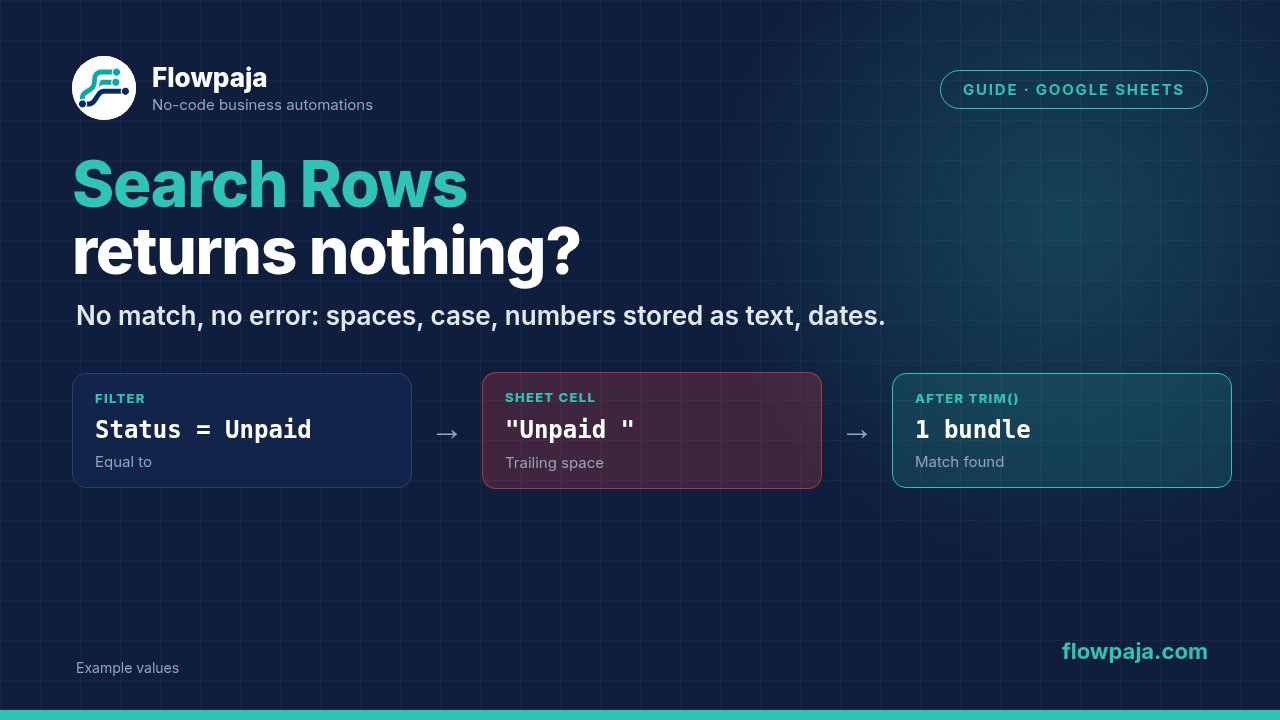
The most common mismatch is invisible: Unpaid (with a space) isn't Unpaid. Capitalisation matters too. Make's text operators come in two versions: Equal to is case-sensitive, and Equal to (case insensitive) isn't. With plain Equal to, unpaid doesn't match Unpaid.
Fixes:
- Clean the sheet. In a helper column,
=LEN(H2)shows the real length (Unpaid= 6) and=TRIM(H2)removes extra spaces. Paste the values back. - Prevent it. Use a dropdown (Data → Data validation) for status columns.
- Use the case-insensitive operator for hand-typed values such as emails.
Step 5: Numbers vs text
A cell can look like 1200 but be stored as text, for example when imported from a CSV or typed with a leading apostrophe. A number condition won't match text, and a text condition won't match a number.
- Check with
=ISNUMBER(D2)(TRUE means a number). - Changing the format may not convert existing text; use
=VALUE(D2)in a helper column and paste the values back. - Match the operator to the data. Text operators have no "less than" or "greater than", so amounts need real numbers and a number operator.
Step 6: Dates in a different format
Google Sheets stores dates as serial numbers, counting days since 30 December 1899, so 46291 is 26 September 2026. What Make receives depends on two advanced options in the module:
- Value render option: Formatted value, Unformatted value or Formula.
- Date and time render option: Serial number or Formatted string. Google ignores this one when Formatted value is selected. Dates then arrive as text in the spreadsheet's locale format.
A filter for 2026-09-26 matches neither 46291 nor 26/09/2026. Either format the column as YYYY-MM-DD and filter with exactly that text, or return the rows and use a Make filter with parseDate() and a date operator.
More detail: Google Sheets date errors in Make.
Step 7: Check the limit and sort order
Limit caps how many matching rows Make returns per execution cycle. The module also has Sort order and Order by settings. With a limit of 1, these decide which match you get, and it may not be the row you expect. Raise the limit while debugging.
Step 8: Handle "not found" on purpose
Sometimes "no match" is the right answer ("is this email already in the sheet?"). Because Search Rows still passes one empty bundle on, you can branch right after it. Set Limit to 1, so a match also produces exactly one bundle, then use one of these options:
- Filter on Total number of bundles (recommended). Add a router right after Search Rows. On the "not found" route, add a filter: Total number of bundles, Equal to (number), 0, then Add a Row. On the "found" route: Total number of bundles, Greater than, 0. Map the new row's values from the trigger (webhook, form, previous module), not from Search Rows, because the empty bundle holds no row data.
- Or check the row number. "Found" route: Row number Exists. "Not found" route: Row number Does not exist (or make it the fallback route). This also works with a limit above 1, but then the "found" route runs once per matching row.
- Don't use an Array aggregator for this. It receives the empty bundle and outputs an array with one empty item, not an empty array, so a "length = 0" check never matches and the row is never added. If you already have one, route on whether the first item's Row number exists. Background: iterator vs. aggregator.
- For simple duplicate checks, use a data store keyed on the unique value (e.g. the email) instead of searching the sheet.
Test with a value you know isn't in the sheet. Updating the row you found? See the missing row number fix. If the scenario stops completely instead, see why a Make scenario stopped running.
Common errors and fixes
| What you see | Likely cause | Fix |
|---|---|---|
| Search Rows shows Total number of bundles: 0, no error | Filter doesn't match any row | Debug with no filter and a limit of 5 (step 3) |
| Matches some rows but not others | Trailing spaces or different case | =LEN() / =TRIM(), dropdowns, case-insensitive operator |
| Number filter never matches | Numbers stored as text | =ISNUMBER(), then =VALUE() |
| Date filter never matches | Serial numbers or another date format | YYYY-MM-DD in Sheets, or parseDate in a Make filter |
| Wrong field names in the output | Header setting or header row position | Fix "Table contains headers" / move headers to row 1 |
| Data from another file | A copy of the spreadsheet is selected | Reselect the file and tab |
| Can't read an uploaded Excel file | It's an .xlsx, not a Google Sheet | File → Save as Google Sheets, select the new file |
| Next module fails with "Missing value of required parameter 'rowNumber'", or writes a blank row | Search Rows passed on its empty "not found" bundle | Router with filters on Total number of bundles (= 0 / > 0) or Row number exists (step 8) |
| Add a Row never runs after an Array aggregator | The aggregator outputs one empty item, not an empty array | Route on Total number of bundles instead (step 8) |
Sending new rows to Slack? See how to send Google Form responses to Slack, or use the free Form to Slack template.