 Flowpaja
What you need
- Access to the scenario in Make.com, with permission to edit it
- Access to the organization's usage and connection pages
- The notification emails Make sends to the account owner, if you still have them
Step-by-step: find out why it stopped
1. Check the switch and the schedule
Open the scenario. Is the ON/OFF toggle on? Then look at the scheduling control at the bottom. If it is set to run on demand, or the schedule was switched off, the scenario will never start by itself. Cloned or imported scenarios often arrive inactive or with scheduling turned off, so a "new" copy that never runs is a common case.
2. Open the History tab
Each run is listed with a status. Look for the last successful run and the first failure after it. Click the failed run and find the module with the red marker. The error message there is usually the whole answer. If there are no runs at all after a certain time, the cause is not an error in a module: look at scheduling, deactivation or credits.
3. Check whether Make disabled the scenario
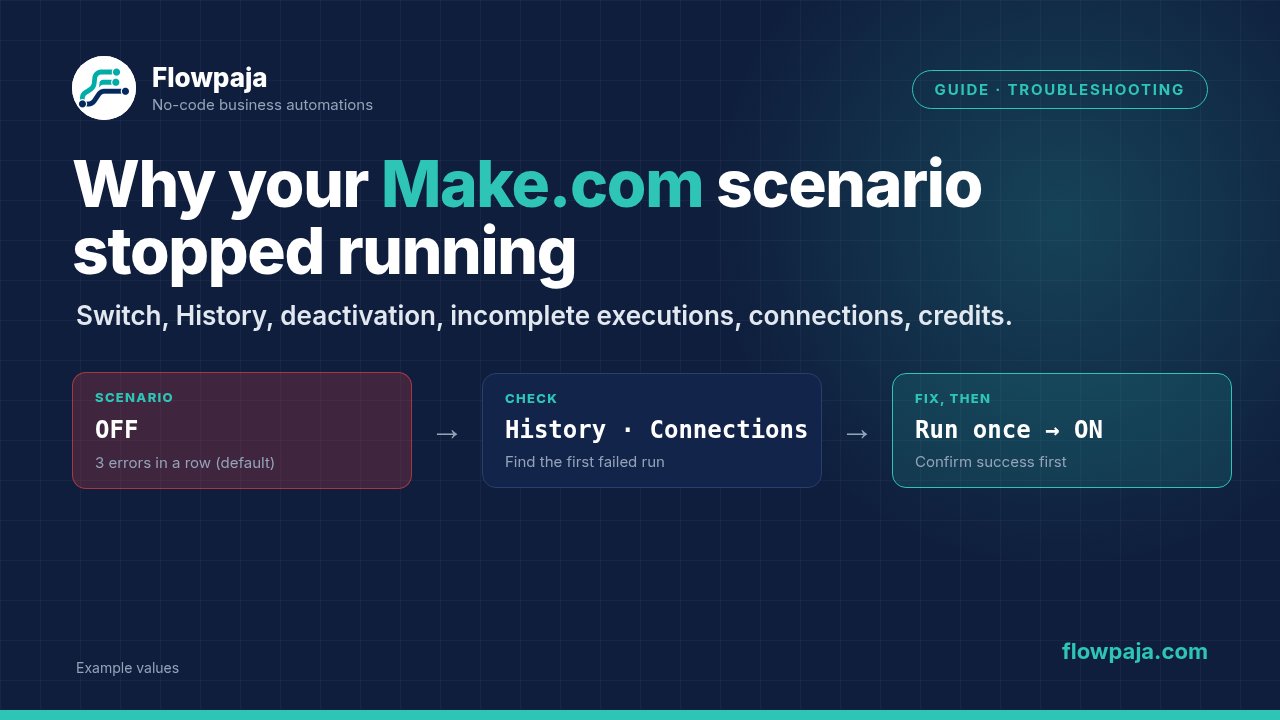
Make switches a scenario off when it ends with an error several runs in a row. You set the number in the scenario settings (Number of consecutive errors, shown as Errors before deactivation in newer versions), and Make's help center gives 3 as the default. Some cases skip the count: a scenario that starts with an instant trigger, such as a webhook, is deactivated after the first error, and fatal errors such as AccountValidationError, OperationsLimitExceededError and DataSizeLimitExceededError switch off scheduling immediately. Runs that end with a warning do not count. The account owner normally gets an email when it happens. Fix the cause of the error first, then switch the scenario on. If you only switch it on, it will fail and stop again.
4. Look at incomplete executions
Open the Incomplete executions tab of the scenario. Runs that failed while Store incomplete executions is enabled in the scenario settings, or that hit a Retry error handler (called Break in older versions), wait here. Stored incomplete executions count toward your plan's storage. You can open each one, see the error, fix the problem and retry or delete it. This matters for two reasons: unresolved items can pile up unnoticed, and if Process data in order (sequential processing) is enabled, Make pauses new runs until all incomplete executions are resolved. If new data arrives but nothing is processed, check this tab.
5. Check the connections
Go to the Connections page in Make and look for a warning on any connection used in the scenario. Google connections expire when you change your Google password, when access is revoked, or when you use your own Google OAuth app that is still in "Testing" status (Google can expire those tokens after about a week). Reauthorize the connection, then run the scenario once manually.
6. Check credits
Make counts usage in credits (older plans and docs say operations). On the organization's dashboard or usage page you can see how much of the monthly allowance is used. When credits run out, modules fail with OperationsLimitExceededError and Make switches off the scenario's scheduling straight away. After the allowance renews or you buy extra credits, check that the scenario is switched on again. If it ran out early, open the History of your busiest scenarios and look for one that runs every minute on a trigger that rarely has data.
7. Check data store limits
Open the Data stores page. Each store has a size, and your plan has a total storage limit. When it is full, writes fail with an error, and that can trigger the consecutive-error shutdown from step 3. Delete old records, add a cleanup step that removes records past a certain age, or raise your storage allowance.
8. Add alerts so you find out first
For important scenarios, add an error handler route on the risky module that sends you an email or a Slack message with the scenario name and the error text. A silent failure is the expensive kind.
Common errors and fixes
"Token has been expired or revoked" or a 401 from Google. The connection lost its authorization. Reauthorize it in Connections. If it keeps happening every week, you are probably on a custom Google app in Testing status, so publish the app or use the default Make connection if your use case allows it.
OperationsLimitExceededError: the credit limit is reached. Make treats this as a fatal error and switches off scheduling right away, without waiting for the consecutive-error count. Buy extra credits, upgrade or wait for renewal, then switch the scenario back on. Also find the scenario that used them up: a schedule of every minute on a Watch trigger that finds nothing still uses a credit on every check. Lowering the frequency is often enough.
A data store error mentioning storage or size. The store or your total storage is full. Delete records first, then enable the scenario. Check the current limits for your plan.
The scenario switched itself off after repeated errors. One failing module, often a connection or a changed field in the source sheet, produced several errors in a row. The consecutive-errors setting did what it is meant to do. Fix the cause, run once manually and confirm success before enabling it.
New data arrives but nothing runs, and there are no errors. Check incomplete executions if Process data in order is enabled, and check that the webhook or trigger still points at the active scenario. A scenario that was duplicated may have a new webhook URL.
Runs time out or end with "scenario execution time exceeded". A single run took longer than the limit for your plan. Lower the number of items processed per run, or split the work across two scenarios. The exact limit depends on the plan, so check the current Make documentation.