 Flowpaja
Your automation ran fine for weeks, and today a client says they never got their welcome email, or your Slack channel has gone quiet. Something broke in Make.com (formerly Integromat), and the error messages don't explain much.
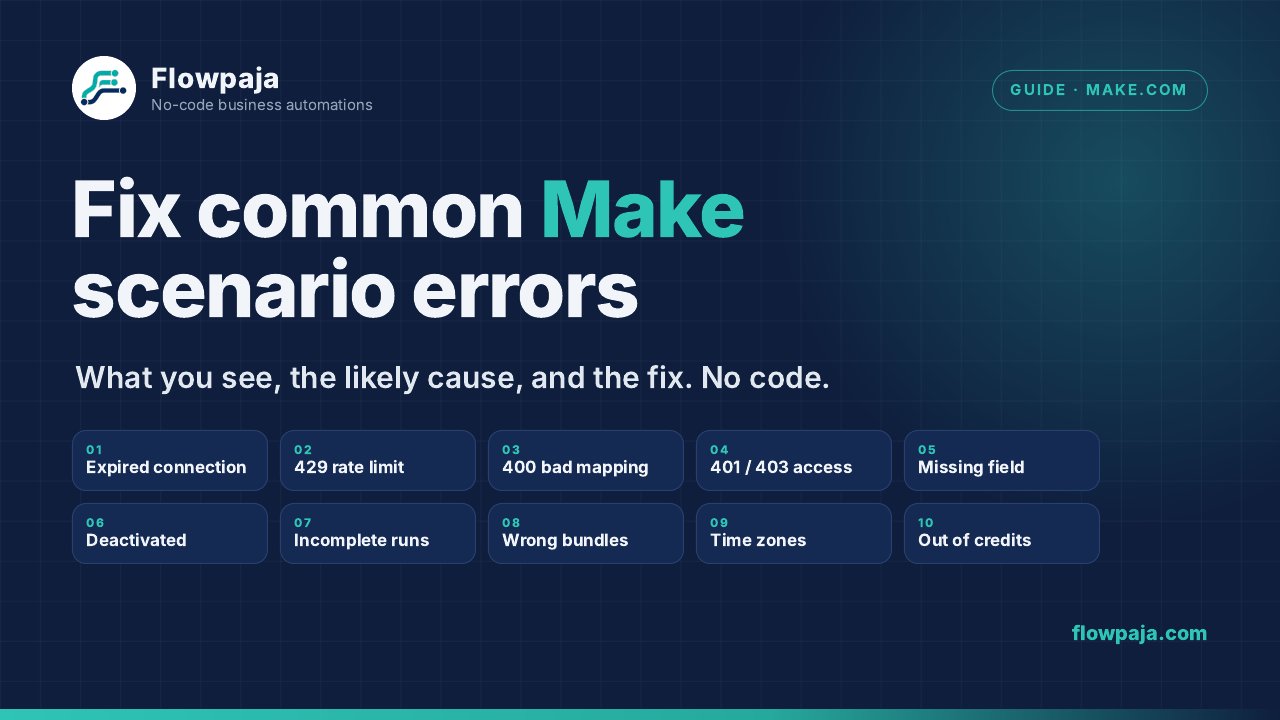
This guide covers the ten errors non-technical users run into most often. For each one you'll see what you'll notice, the likely cause, and how to fix it step by step. You don't need to write code.
Before You Start: Where to Look
Almost every fix starts in the same place:
- Open the scenario and go to its History tab (the list of past runs).
- Click the failed run to open its details.
- Look for the module with a red warning icon. That's where it broke.
- Click the bubble above that module to see the input it received and the error it returned.
The error name, such as DataError or RateLimitError, and the message under it usually point straight to one of the causes below.
The 10 Errors
1. Connection Expired / invalid_grant
What you see: An error mentioning invalid_grant, "token expired", "token has been revoked", or a ConnectionError/InvalidAccessTokenError on a Google, Microsoft or similar module.
Likely cause: Make lost permission to use your account. Common reasons: you changed your password, removed Make's access in your account security settings, your company admin changed a policy, or the authorization simply expired.
Fix:
- In Make's left menu, open Connections.
- Find the connection used by the failing module. Make usually flags broken ones.
- Use the option to reauthorize it and sign in again with the same account.
- If reauthorizing fails, create a new connection, select it in the module, and save.
- Click Run once to confirm the fix.
2. 429 Too Many Requests / RateLimitError
What you see: 429, "rate limit exceeded", or "too many requests", often only on busy days.
Likely cause: Your scenario is sending requests faster than the other app allows. This is common when an iterator processes a long list, or when several scenarios use the same account at once.
Fix:
- Add a Sleep module (under Tools) inside the loop to pause a second or two between items.
- Lower the trigger's Limit so fewer items are processed per run.
- Spread your scenario schedules out so they don't all run at the same minute.
- Add a Break error handler to the failing module and switch on its automatic completion (retry) option (see "Preventing Errors" below). The failed item is saved as an incomplete execution and retried later instead of lost.
3. 400 Bad Request from Wrong Mapping
What you see: A DataError or 400 Bad Request, often with a vague note like "invalid value", "invalid JSON", or "parameter is not valid".
Likely cause: The data you mapped into a field isn't what the app expects. Examples: text where a number is required, an empty value, a whole array where one item is needed, or a field that no longer exists because someone renamed a column or form question.
Fix:
- Open the bubble on the failing module and check the input. Look for empty fields or odd values.
- Compare it with the output of the module that supplies the data.
- Remap any field that shows a missing or grey item. This happens after headers or form questions change.
- Use built-in functions to clean data. For example,
ifempty()supplies a default value, andparseNumber()turns text like "1,200" into a number. - Run once with real test data.
4. 401 Unauthorized / 403 Forbidden
What you see: 401, 403, "insufficient permissions", "access denied", or "the caller does not have permission".
Likely cause: The connection works, but the account behind it can't access that specific item. Examples: a Google Sheet shared with someone else, a Shared Drive you're not a member of, a private Slack channel, or an app plan that doesn't include API access. 401 usually means authentication failed (see error 1). 403 usually means you're signed in but not allowed.
Fix:
- Check which account the connection uses. Open Connections and look at its name or email.
- Log in to the app as that account and confirm it can open the file, channel, or record by hand.
- Share the item with that account, invite the Make app to the channel, or ask your admin for access.
- If the app requires special permissions (scopes), recreate the connection and approve every requested permission.
5. BundleValidationError / Missing Required Field
What you see: A BundleValidationError with messages like "Validation failed for 1 parameter(s)" or "Missing value of required parameter".
Likely cause: A required field in the module received nothing. Usually the source data was empty for that run, for example someone skipped an optional form question that you mapped into a required field.
Fix:
- Note the parameter name in the error and find that field in the module.
- Check the input bubble to see whether the mapped value was empty.
- Give it a fallback with
ifempty(your field; "Not provided"). - Or add a filter before the module so runs without that value are skipped.
6. Scenario Deactivated After Repeated Errors
What you see: The scenario's on/off switch is off, and you may have received an email from Make saying it was deactivated.
Likely cause: Make stops scenarios that keep failing, so they don't waste operations or cause damage. Depending on the error type and trigger, this can happen on the first error or after several consecutive failed runs. The scenario settings include a Number of consecutive errors option that controls how many failed runs in a row are allowed; scenarios that start with an instant trigger (webhook) can be deactivated right after the first error.
Fix:
- Open History and find the first failed run.
- Fix the underlying cause, usually one of the other errors in this list.
- Use Run once to confirm it works.
- Switch the scenario back on with its on/off toggle.
- Check that the schedule is still correct.
Turning the scenario back on without fixing the cause will just get it deactivated again.
7. Incomplete Executions Piling Up
What you see: A number next to Incomplete executions in the scenario, or data that seems to be stuck halfway.
Likely cause: When storing incomplete executions is enabled in the scenario settings, Make saves failed runs instead of discarding them. Runs caught by a Break handler are saved there too.
Fix:
- Open the scenario's Incomplete executions tab.
- Open an item to see which module failed and why.
- Fix the cause, whether a connection, a mapping, or a missing value.
- Use the option to retry each saved execution. For some you can edit the stored data before retrying.
- Delete executions you don't need, such as test data or items you've handled by hand.
If you don't want this, turn off storing incomplete executions in the scenario settings. Be aware that failed data will then be lost rather than saved for later.
8. Iterator/Aggregator Gives the Wrong Number of Bundles
What you see: You expected one email with a list of ten items. Instead you got ten emails, or one email with a single item.
Likely cause: An Iterator splits an array into separate bundles, and everything after it runs once per bundle. An aggregator, such as the Array aggregator or Text aggregator, combines them back into one. It only works properly if its Source Module is set to the module that started the split, usually the iterator.
Fix:
- Open the aggregator and check the Source Module setting. Point it at your Iterator, or at the search module that returns multiple items.
- Make sure the module that should run only once, such as "Send email", comes after the aggregator.
- If you're getting too few items, check that no filter between the iterator and the aggregator is dropping bundles.
- Only use Group by if you really want separate groups, for example one per customer.
- Run once and count the bundles in each bubble.
9. Date and Time Zone Mismatches
What you see: Appointments that are one or more hours off, "yesterday's" orders showing today's date, or filters on dates that behave strangely.
Likely cause: Make works with dates internally in a standard format based on UTC. Each app may assume a different time zone, and Make itself has time zone settings for your profile and your organization.
Fix:
- Check the time zone settings in your profile and your organization in Make, and make sure they match where you work.
- When writing dates, use
formatDate()with an explicit time zone, e.g.formatDate(your date; "YYYY-MM-DD HH:mm"; "Europe/London"). - When reading dates that arrive as text, use
parseDate()with the correct format and time zone. - Check the time zone setting in the connected apps too, such as the Google Sheet (File → Settings) and your calendar.
10. Running Out of Operations or Credits
What you see: Scenarios stop running, an OperationsLimitExceededError, or a warning from Make about your usage limit.
Likely cause: Each module action uses part of your monthly allowance. Make now counts usage in credits rather than operations. Polling triggers that check frequently, big iterators, and forgotten test scenarios drain it fastest.
Fix:
- Check your usage on the organization dashboard to see which scenarios use the most.
- Increase the time between runs for scheduled triggers that don't need to be fast.
- Use instant (webhook-based) triggers where the app offers them, so a run only happens when something actually changes.
- Put filters early in the scenario so unwanted items stop before the expensive modules.
- Turn off test or duplicate scenarios.
- If you still need more, upgrade your plan or buy extra credits. Check Make's pricing page for current options.
Preventing Errors
Error Handlers
Right-click a module and choose the option to add an error handler. Make offers five directives:
- Ignore: skips the error and continues with the next bundle. Use it only when losing that item doesn't matter.
- Resume: replaces the failed output with a substitute value you define, then continues.
- Break: stops processing that bundle and saves the rest of the run as an incomplete execution. With automatic completion switched on, Make retries it after a delay you set, which makes it the best choice for temporary problems like rate limits.
- Rollback: stops the run and marks it as an error. Only modules that support transactions (such as Make's data stores) can have their changes undone; changes already made in apps like Gmail or Google Sheets stay. When a module has no error handler, Make's default behaviour is similar to Rollback, unless storing incomplete executions is enabled, in which case many failed runs are saved there instead.
- Commit: stops the run, keeps changes already made, and marks the run as successful.
Filters
Add filters on the links between modules (click the connecting line) to stop bad or empty data early. For example, you can require that "Email exists" before sending a message.
Testing with Run Once
Before turning a scenario on, submit real test data and click Run once. Open every bubble and check the inputs and outputs. Test again after any change to the connected apps, such as a new sheet column or a renamed form question.
Wrapping Up
Most Make.com failures come down to a handful of causes: expired connections, missing permissions, changed data, or limits being hit. Start with the History tab, find the red module, and read its bubble. Fix the cause before switching the scenario back on. Add a few filters and error handlers, and test with Run once after every change.