 Flowpaja
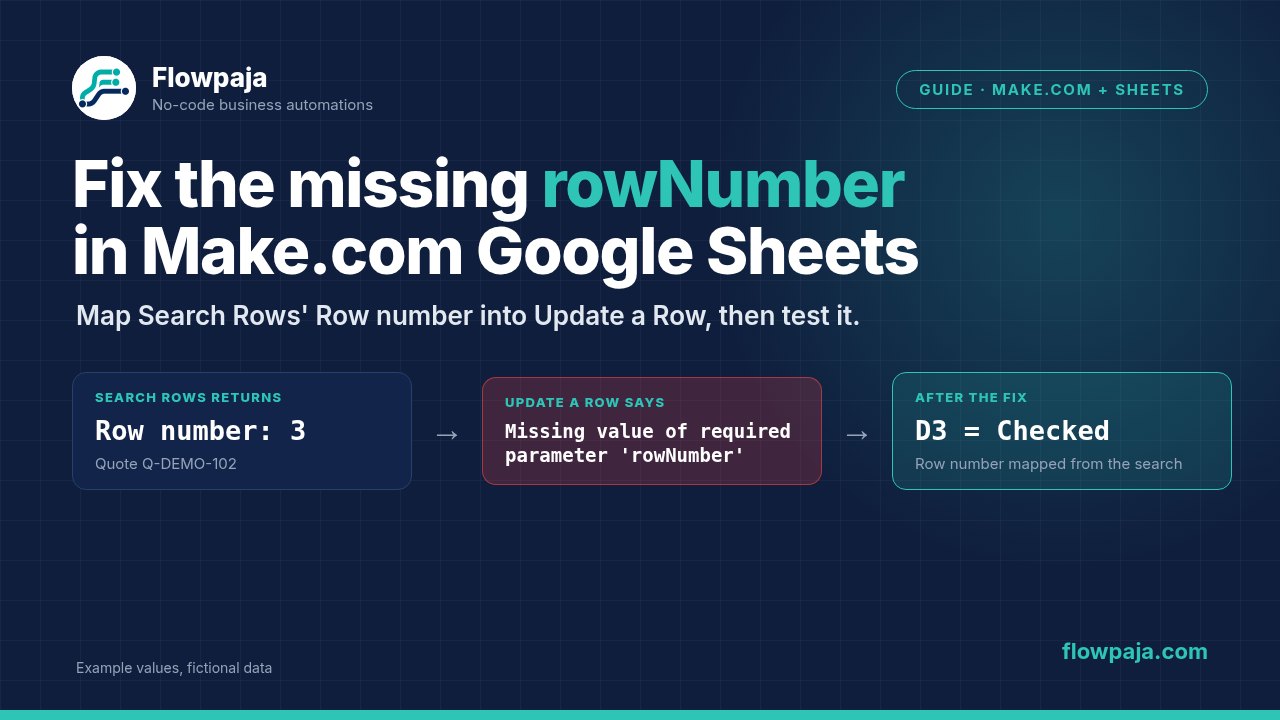
Your Google Sheets search finds the quote, but the next module stops with BundleValidationError: Validation failed for 1 parameter(s). Missing value of required parameter 'rowNumber'. Or the scenario runs without errors and updates row 2 every time.
The usual fix is to map Row number from Google Sheets → Search Rows into the Row number field of Google Sheets → Update a Row. Use the number that belongs to the current search result, not a typed number or the quote's ID.
This question keeps coming up in Make's community, for example a 2024 row-mapping question and a 2026 case with an unnecessary Iterator. Here's a small, repeatable way to check your own mapping.
What rowNumber means
rowNumber identifies a physical row in the selected sheet. A quote ID such as Q-DEMO-102 identifies your business record. They aren't interchangeable.
Suppose the quote is on sheet row 3 and is the only search result:
| Value | Example | Use as the update's Row number? |
|---|---|---|
| Quote ID | Q-DEMO-102 | No |
| Row number returned by Search Rows | 3 | Yes |
| Position among returned bundles | 1 | No |
| Total returned bundles | 1 | No |
A missing required value is a mapping problem to investigate first. Before a module processes a bundle, Make checks that required fields aren't empty; if one is, the module outputs a BundleValidationError. Reconnecting Google won't fill an empty Row number field. Make's error reference describes this validation.
Step 1: Make a separate demo sheet
Create a new Google spreadsheet with a tab named QuotesDemo. Put these four headers in A1:D1, then enter the fictional rows below. The first column of the table only shows the sheet row; don't add it to your data.
| Sheet row | A: Quote ID | B: Client | C: Project | D: Review flag |
|---|---|---|---|---|
| 2 | Q-DEMO-101 | Demo Client A | Sample project A | New |
| 3 | Q-DEMO-102 | Demo Client B | Sample project B | New |
| 4 | Q-DEMO-103 | Demo Client C | Sample project C | New |
Use plain text values. Don't add formulas, dates or other filled columns to this demo.
Create a new Make scenario and leave scheduling off. The test only changes a review flag, with no Gmail modules and no real quotes. You need a Google connection that can edit this test spreadsheet.
Step 2: Search for one known quote
Add Google Sheets → Search Rows as the first module. Choose the demo spreadsheet and the QuotesDemo tab.
Set these fields:
- Table contains headers: Yes.
- Column range: any range that covers columns A to D.
- Filter: Quote ID, Equal to,
Q-DEMO-102. - Limit: 10 is plenty for this three-row test.
You don't need to sort the results. Click Run once, then open the module's output bubble. Check that it returns the right quote, its client and project, and Row number: 3.
Do this before you add the module that writes. If two rows match the same quote ID, fix that duplicate first. A limit of 1 would hide the second match; it wouldn't make the ID unique.
Use the standard Search Rows module for this build. Search Rows (advanced) doesn't return a row number, according to Make's Google Sheets module reference.
Step 3: Keep the search result intact
Connect the search directly to Google Sheets → Update a Row, with no Iterator or aggregator between them:
Google Sheets: Search Rows → Google Sheets: Update a RowSearch Rows already outputs each matching row as a separate bundle, and the next module runs once per bundle. An Iterator is for splitting an array inside a bundle, such as a list of attachments. You don't need one just because a search can find several rows. See Make's module types and Iterator documentation.
If you're repairing a larger scenario, rebuild this short route in the demo first. That separates a row-mapping mistake from problems elsewhere in the workflow.
Step 4: Map the row and its values
Open Google Sheets → Update a Row and select the same spreadsheet and QuotesDemo tab.
In Row number, delete any typed test number. Open the mapping panel and click the Row number item under the Search Rows module. Don't type a guessed expression such as {{1.rowNumber}}: module numbers and internal field names aren't a reliable recipe, and in the 2026 community case typing it gave the same error. Make's mapping guide shows how to select items from earlier modules.
Set Table contains headers to Yes. Fill the four columns like this:
| Destination column | Value to enter or map |
|---|---|
| Quote ID | Quote ID from the same Search Rows result |
| Client | Client from the same Search Rows result |
| Project | Project from the same Search Rows result |
| Review flag | Type Checked |
Set Value input option to Raw for this text-only example, then save the module. The first three fields write the existing values back; only the review flag changes.
This demo has exactly four value columns on purpose. In a real sheet with formulas or extra columns, don't rely on assumptions about what happens to cells you leave empty in Update a Row. When only one flag needs to change, use the single-cell method in Step 6.
Step 5: Test more than the happy path
Run the whole scenario with Run once. Check the update module's input and the sheet. You should see Checked in D3, with A3:C3 unchanged. Rows 2 and 4 should still say New.
Then test these cases by changing the search filter:
| Test | Expected result |
|---|---|
| Search for Q-DEMO-103 | D4 becomes Checked; D3 stays Checked |
| Search for Q-DEMO-MISSING | Search Rows returns no bundles, so Update a Row doesn't run and no row changes |
| Repeat the Q-DEMO-103 test | The same flag stays Checked |
In a bigger scenario, other steps can sit between the search and the update. If anything could let the route continue without a search result, add a filter right before the update: select the returned Row number and choose the Exists operator. An empty search must never fall back to a guessed row number.
Always run the whole short route when you test the mapping. Running only the update with a typed number proves it can write, not that the search supplied the right number.
Step 6: Update just one cell when that fits better
For a review flag next to formula columns, replace the row update with Google Sheets → Update a Cell. Select the same demo spreadsheet and the QuotesDemo tab.
Set the search filter back to Q-DEMO-102, and manually reset D3 to New before this comparison.
In Cell, type D, then map the search's Row number item right after it. For this quote, the result must be D3. Set Value to Checked and Value input option to Raw.
Use your own flag column's letter in your sheet. D is only the column in this demo.
Run the whole route again. D3 should change to Checked, and no other cell should change.
This writes one cell instead of writing the other columns back. It doesn't make the lookup unique, and it doesn't protect against rows moving. Make lists the fields under Update a Cell in its Google Sheets module reference.
Common errors
The Row number item is missing from the mapping panel. Check the source module. Search Rows (advanced) doesn't provide it. Run the standard Search Rows with the demo ID and look at its output before mapping again.
The item exists, but this run has no value. Check the failed run's input in History, not an older successful output bubble. The search may have found nothing, or the mapping may still point to a module you've replaced.
Every run updates the same row. Remove a typed number. Also check that you've mapped the row number, not the bundle position, the result count or an ID column.
The value disappears after an aggregator. An aggregator changes what later modules can map. If you need row-specific fields after it, they must be part of the aggregated output. For this fix, go back to the direct route first. Make's aggregator documentation explains how aggregators combine bundles.
The right number updates the wrong record. Check both the spreadsheet and the tab: row 3 in one tab isn't row 3 in another. Don't sort, insert or delete rows between the search and the update. A row number is a position, not a lock, so a stored row number can go out of date.
Related guides
- How to fix Google Sheets date errors in Make.com: when the row is right but the date in it isn't.
- 10 common Make.com scenario errors and how to fix them: BundleValidationError, expired connections, 429s and more.
- How to automate quote follow-up emails with Google Sheets, Gmail drafts and Make.com: a build that saves a Draft ID back to the quote's row.
- How to send automatic invoice payment reminders from Google Sheets with Make.com: Search Rows and Update a Row in a daily reminder scenario.