 Flowpaja
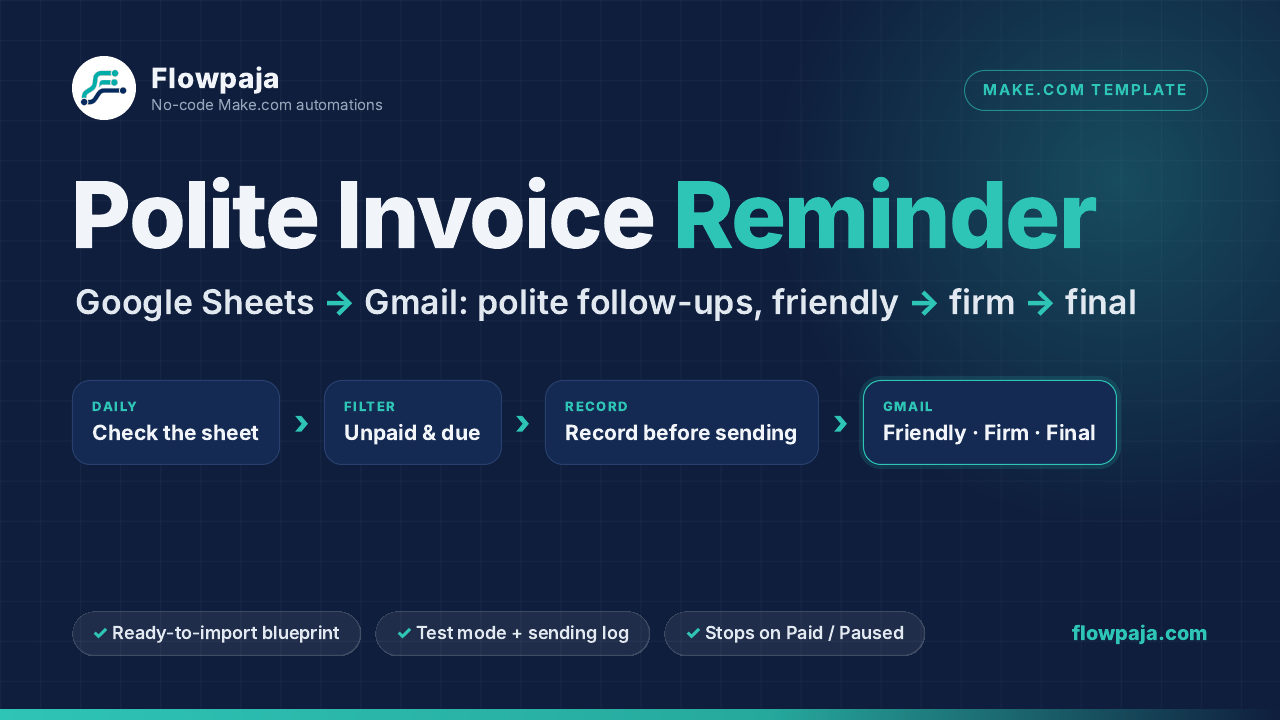
If you keep your invoices in a Google Sheet, Make.com can check that sheet every morning and send a short, polite payment reminder from your own Gmail when an invoice is overdue. This guide walks through the build step by step: the modules, the filters, the schedule and the parts that usually go wrong. If you would rather not build it yourself, there is a ready-made template at the end.
What you need
- A Make.com account. The Free plan is enough for a daily reminder scenario. At the time of writing it includes 1,000 credits a month, 2 active scenarios and a 15-minute minimum interval between scheduled runs (see make.com/pricing for current limits). No account yet? Create a free Make account (affiliate).
- A Google account with Google Sheets and Gmail. A personal @gmail.com address or Google Workspace both work.
- An invoice list with one row per invoice.
How the automation works
One scenario runs once a day. It reads the sheet, keeps only the invoices that are unpaid and due for a reminder, writes the reminder into the row, then sends the right email from Gmail:
Schedule (daily) → Google Sheets: Search Rows → filter → Google Sheets: Update a Row → Router → Gmail: Send an Email (friendly / firm / final)
Step 1: Set up the invoice sheet
Create a native Google Sheet (not an uploaded .xlsx file) with a tab called Invoices and these headers in row 1:
AInvoice number,BClient name,CClient emailDAmount (a plain number such as1250, no currency sign),ECurrencyFDue date (a real date;YYYY-MM-DDis easiest for Make to read)GPayment link (optional),HStatusIReminders sent andJLast sent at. The scenario fills these two in.
Give columns F and J the same date format (Format → Number → Custom date and time → YYYY-MM-DD). Make reads dates as the text you see in the cell, so one consistent format keeps the filters below simple.
Make Status a dropdown (Data → Data validation) with Unpaid, Paid, Paused and Disputed. Make compares text exactly, so a typed “unpaid ” with a trailing space would quietly fail the filter.
Step 2: Find unpaid invoices
In Make, create a new scenario and add Google Sheets → Search Rows. Connect your Google account, pick the spreadsheet and the Invoices tab, and set “Table contains headers” to Yes. In the module’s own filter, set Status (H) Equal to Unpaid.
Search Rows outputs one bundle per matching row, including the row number, which you will need in step 4. Any module can start a scheduled scenario in Make, so you don’t need a separate trigger. Set “Maximum number of returned rows” explicitly (for example 500) so a long sheet isn’t cut short. The search uses 1 credit per run, even on days when nothing is due.
Step 3: Filter: is a reminder due today?
Click the line after Search Rows and choose Set up a filter. Add three conditions joined with AND:
- Fewer than three reminders sent:
{{ifempty(1.`8`; 0)}}, Numeric operators: Less than,3. - The reminder date has arrived: for reminders 3, 7 and 14 days after the due date, a starting point is
with Date operators: Earlier than,{{addDays(parseDate(1.`5`; "YYYY-MM-DD"); switch(trim(toString(ifempty(1.`8`; 0))); "0"; 3; "1"; 7; 14))}}{{now}}. Thetrim(toString(…))part matters: the sheet sends column I as text (“1”), so the formula compares text with text instead of risking a silent fall-through to the 14-day branch. - Not already sent today: Last sent at (
1.`9`), Text operators: Not equal to,{{formatDate(now; "YYYY-MM-DD")}}.
In these formulas 1.`5` means “module 1, column F” (columns count from 0). In the editor you click the fields from the mapping panel instead of typing them. If your sheet shows dates in another format, change "YYYY-MM-DD" to match. Filters and routers don’t use credits.
Step 4: Record the reminder before sending
Add Google Sheets → Update a Row. Map the row number from Search Rows, set Reminders sent (I) to {{ifempty(1.`8`; 0) + 1}} and Last sent at (J) to {{formatDate(now; "YYYY-MM-DD")}}.
Why before the email? If Gmail sends but the sheet update fails afterwards, the row still looks due tomorrow and the client gets the same email twice. Recording first means the worst case is a missed email you can see and resend. To make failures visible, right-click each Gmail module, choose Add error handler, and add a route that writes “NOT sent” into the row. End that route with a Skip handler (Make’s newer name for “Ignore”) so the other invoices in the run still get processed.
Step 5: Pick the right email with a router
Add Flow Control → Router with three routes. Filter each route on the Reminders sent value from Search Rows (the value before the update): 0 for the friendly reminder, 1 for the firm one, 2 for the final one. On each route add Gmail → Send an Email. Map To to Client email (C), and put the invoice number, amount and due date into the subject and body.
Keep the tone polite. A line such as “If you’ve already paid, thank you, and please ignore this email” covers the common case of a payment crossing in the post. Leave threats and invented consequences out of the final reminder. If you add late-fee wording, check it against your contract and local rules.
While testing, type your own address into To and add the client’s address to the subject, so you can see which row each email came from. Switch To back to the client email field only when you go live.
Step 6: Test, then schedule it daily
Keep the scenario off and add a few fictional rows with @example.com addresses and due dates in the past. Click Run once and check three things: the right rows got an email, columns I and J were updated, and a second Run once on the same day sends nothing.
Then click Every 15 minutes in the scenario toolbar (the default schedule), choose Daily (or Weekdays (Mon-Fri)) and set a time such as 09:00. The time uses your Make organization’s time zone. Save, then switch the scenario on.
Credits: a daily run costs 1 credit for the search, plus 2 per reminder (update + Gmail), or 3 if you also log each email to a second tab. That is roughly 30 credits a month plus 40 for 20 reminders (60 if you log each one). Scheduled every 15 minutes, the search alone would run about 2,880 times a month, far more than the Free plan’s 1,000 credits.
What usually goes wrong
- Dates arrive as text in another format. The filter never passes. Click the bubble on Search Rows after a run to see exactly what Make received.
- Gmail re-authorization. Personal Gmail connections in Make need re-authorizing about every six months (see Make’s Gmail docs). Gmail’s own daily sending limits also apply.
- It doesn’t know when a client pays. You update Status yourself. This build doesn’t read your bank, payment provider or client replies.