
Make.com template · Google Sheets + Gmail drafts

Follow up on sent quotes with Gmail drafts from Google Sheets and Make.com

You sent the quote. Then the week got busy, and three quotes later you can’t remember who you’ve already chased. This Make.com template keeps your open quotes in one Google Sheet and, when a follow-up is due, prepares a short, polite Gmail draft for that quote.

It never sends anything. You check whether the client has replied, review the wording and send it yourself. Made for freelancers, trades and small studios who send quotes by email and want a simple follow-up routine without a CRM.
Get the template on Gumroad: $19 (opens in a new tab) One-time purchase · v1.0 · 30-day money-back guarantee
What’s included
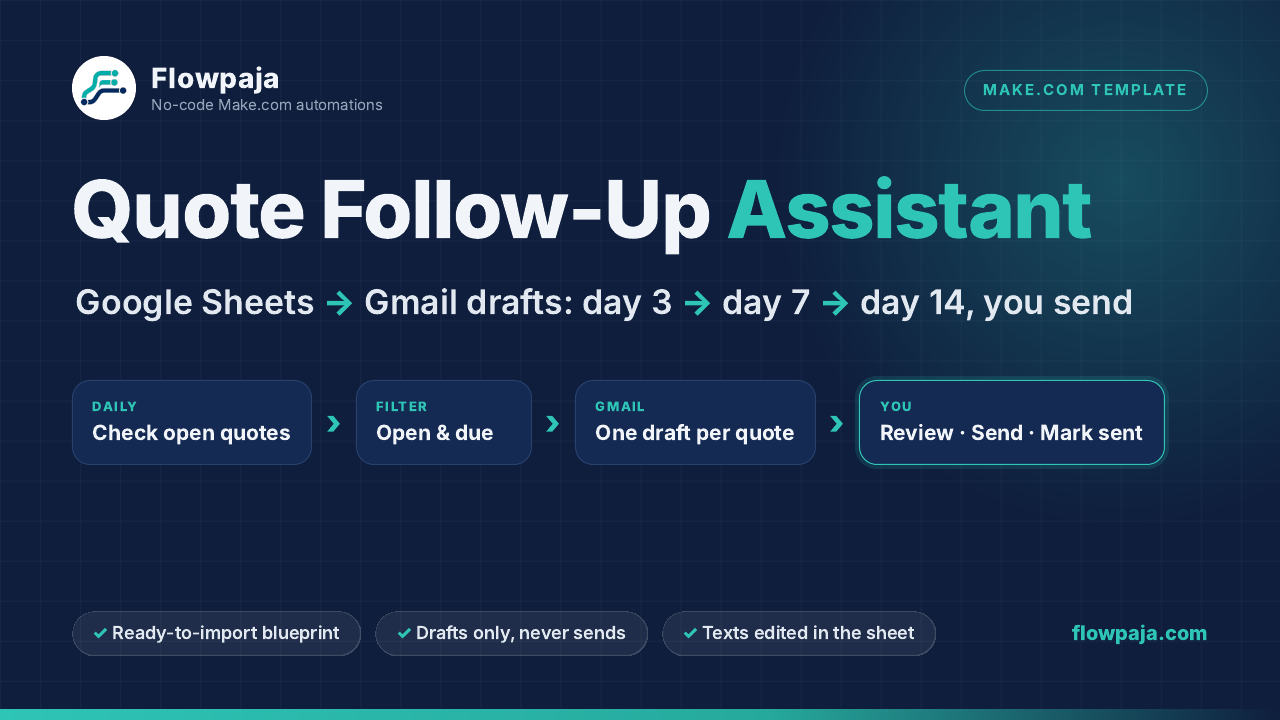
Quote Follow-Up Assistant flow: open quotes in Google Sheets, a daily check in Make.com, one Gmail draft per due quote, and you review, send and mark it sent
Google Sheets quote list → daily check → one Gmail draft per due quote → you review, send and mark Sent.

What it does

One daily Make.com scenario that reads your Google Sheets quote list and creates drafts in your connected Gmail. It runs in your own accounts; nothing runs through Flowpaja.

Daily check

Finds follow-ups that are due

Once a day it picks quotes with Status Open whose next follow-up date has arrived and that have no draft waiting.

Drafts only

Never sends by itself

The scenario has no send step. It prepares one Gmail draft per due quote; nothing reaches a client until you press Send.

Three follow-ups

Day 3, 7 and 14 by default

A quick check-in, an offer to answer questions, then a friendly note that you’ll pause follow-ups. After #3 it stops.

You stay in control

Moves on only when you say so

After you send a draft, choose Sent in the sheet. The next run moves that quote to the next follow-up and sets its date.

What you get

A ready-to-import package for a DIY setup, with fictional examples and a test plan.

  • Make.com blueprint (.json)A ready-to-import scenario with no connections or account IDs inside. Connect your own Google account.
  • Example Google Sheets file11 fictional quotes that show every case, plus a blank copy for your own quote list.
  • Three editable follow-up textsEdited right in the sheet’s Settings tab, no Make editing needed. Also included as plain text.
  • 9-page PDF setup guideImport, connection and schedule steps, a test plan, a pre-send checklist and recovery steps.
  • README.txtA one-page quick start with the setup in short.

How it works

The sheet is the source of truth. You decide whether a client has replied and when each email goes out.

Keep one row per quote

Quote ID, client, email, project (Quote ID and project are required), the date you sent it, and Status Open.

Let it check once a day

At a time you choose, the scenario finds Open quotes whose next follow-up is due and that have no draft waiting.

Get one Gmail draft

It prepares one draft per due quote, with a subject like “Quote Q-101 — kitchen tiling”, and saves the Draft ID in the row.

Check, send, mark Sent

Check for a reply, send the draft from Gmail Drafts (or paste the text into your original conversation), then choose Sent in the sheet.

Timing: if you send each draft and mark it Sent the same day (daily schedule), the follow-ups land on day 3, 7 and 14 after the quote. With the Weekdays schedule or a missed run, a date can move 1–2 days later, never earlier. The days are editable in the sheet; the defaults are a sensible starting point, not a proven formula.

The three default follow-ups

Short and polite, in English, and fully editable in the Settings tab. Placeholders such as [client_name] and [project] are filled in for each quote.

  • #1, day 3: a quick check-in. “Just checking that you received the quote for [project] I sent on [quote_date]. Is there anything you’d like me to clarify?”
  • #2, day 7: an offer to help. “Have you had a chance to review the quote for [project]? I’m happy to answer questions about the scope or timing. If you need more time, that’s fine too.”
  • #3, day 14: a friendly pause. “I’ll leave the quote for [project] with you and pause my follow-ups for now. If you’d like to revisit it later, you’re welcome to reply here.”

Built so nothing goes out by surprise

Safety rules decide what happens when something is unclear.

  • Drafts only. The scenario has no send step. Nothing reaches a client until you press Send.
  • One draft per quote at a time. A quote with a draft waiting never gets a second one, and existing drafts are never edited or replaced.
  • Marked before it’s made. The row is set to “Creating” before the draft is created, and the Draft ID is saved after. If anything is uncertain, the quote goes to Needs check with a note. It never retries by itself.
  • The sequence only moves when you say you sent it. Stop any quote by setting Status to Replied, Won, Paused or Closed. After #3 it stops.
  • Tested with fictional data. Tested live in Make on 25 Sep 2026 with fictional sample quotes, including real Gmail drafts that were checked and then deleted. Nothing was sent.

Please read before buying

It is a practical DIY template, not a CRM or a setup service.

  • DIY setup. No code is needed, but you import the blueprint, connect your Google account, select your sheet and run the test yourself. Allow about 30–45 minutes with the guide.
  • Start small. On the first live run every overdue Open quote gets a draft, so keep it to about 20 due quotes and pause the rest (the guide shows how).
  • It doesn’t read your inbox. You check for replies (email, phone, messages) before sending; the guide has a short checklist.
  • Drafts are new emails, not replies inside the original Gmail conversation. If you prefer one thread, paste the draft text into your reply.
  • Gmail permissions. The Gmail connection needs permission to create drafts, not just to send. Create it from the template’s Gmail module and Make asks for that permission. Personal Gmail connections need re-authorizing about every six months; see Make’s Gmail docs.
  • Accounts needed. You need a Make.com account (the Free plan works) and a Google account with Google Sheets and Gmail.
  • Who it is not for. If your CRM or quoting tool already does follow-up reminders, use that. If you want fully automatic sending, this template only prepares drafts, by design. Follow-ups can’t guarantee a reply or a sale.

FAQ

Why drafts instead of sending automatically?
Because quotes get answered in many places: by email, by phone, on WhatsApp. An automatic email to a client who already said yes (or no) on the phone looks careless. Drafts keep you in control: you glance at the draft, check for replies, and send in a few seconds.
What technical skills do I need?
No code. You should be comfortable importing a file into Make, signing in to Google from Make, choosing a spreadsheet from a dropdown and clicking “Run once”. The guide walks through each step.
What does it cost to run each month?
The template is a one-time $19. Make’s Free plan currently includes 1,000 credits a month and 2 active scenarios; check make.com/pricing for current limits. With the recommended daily schedule, a month costs about 60 credits, plus about 4 per follow-up you send (3 for the draft, 1 when you mark it sent). For example, about 140 credits for 20 follow-ups.
Can I change the timing or the wording?
Yes. The days (default 3, 7 and 14 after the quote) and all three texts are in the Settings tab of your sheet. If you send each draft and mark it Sent the same day (daily schedule), they land on day 3, 7 and 14. With the Weekdays schedule or a missed run, a date can move 1–2 days later, never earlier.
Will it notice when a client replies?
No, and it doesn’t pretend to. You set the Status to Replied (or Won or Closed), and no more drafts are prepared for that quote.
Does it work with Google Workspace accounts?
Make’s Gmail app supports both personal Gmail and Google Workspace accounts. On Google Workspace, your admin may need to allow Make as a third-party app first.
Need help, or is something broken?
Reply to your Gumroad receipt email and we’ll help you get it working. 30-day money-back guarantee: if the template isn't right for you, reply to your Gumroad receipt email within 30 days of purchase for a full refund.

Want to see how this kind of scenario is built first? Read our step-by-step guide: How to automate quote follow-up emails with Google Sheets, Gmail drafts and Make.com.

Get Quote Follow-Up Assistant for $19

Make.com blueprint, example and blank Google Sheets files, three editable follow-up texts and a 9-page setup guide. Delivered as a download on Gumroad.

30-day money-back guarantee: if the template isn't right for you, reply to your Gumroad receipt email within 30 days of purchase for a full refund.

Make, Google, Gmail and Google Sheets are trademarks of their owners. Flowpaja is independent and not affiliated with them.