 Flowpaja
Short answer
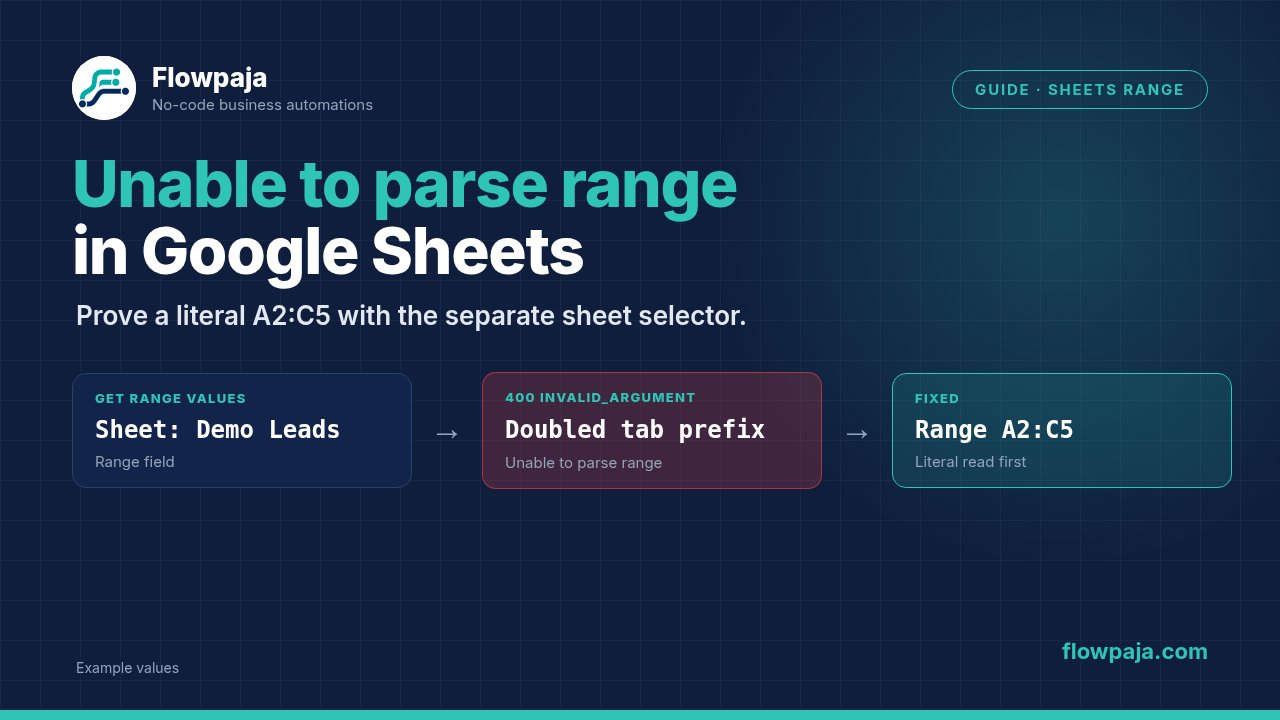
“Unable to parse range” means Google Sheets cannot interpret the range sent by Make. Check the selected spreadsheet and tab, then test a small literal A1 range. When a module has a separate Sheet Name field, avoid adding the tab name again to its Range field. Reintroduce dynamic row numbers only after the literal test succeeds.
What the error means
The request reaches the spreadsheet API, but its range is malformed or refers to a sheet that the spreadsheet does not contain. The important part of the message is the actual range shown after the error:
400: INVALID_ARGUMENT - Unable to parse rangeA public Make report contains a doubled sheet prefix. That is useful evidence of one failure pattern, not proof that every parse-range error has the same cause. Other causes include a renamed tab, an empty mapped value, a timestamp inserted where a row number belongs, or quotation marks that change the final A1 expression.
Google's A1 notation identifies columns and rows, optionally qualified by a sheet name. At the API boundary, a sheet with spaces can be represented as 'Demo Leads'!A2:C5. A Make connector may construct the sheet prefix from its separate Sheet Name selection. Inspect the final request or reported failing range to understand what the module actually sent.
This failure precedes matching rows or updating cells. Increasing the search limit or adding an Iterator cannot make an invalid range parse correctly.
60-second checks
- Copy the failing range from the error, with sensitive tab names removed from any public screenshot. Look for two sheet prefixes or two exclamation marks.
- Confirm that the selected Spreadsheet ID and Sheet Name belong together. A valid tab name in another file is still wrong here.
- Replace dynamic range mapping in the test copy with a small literal range, such as
A2:C5, when the module already has a separate sheet selector. - Inspect dynamic row values. They must be row numbers, not formatted dates, request keys, or an entire collection.
- Compare the current tab name with the configured value. Reselect a renamed or deleted-and-recreated tab.
Perform these checks in a disabled copy. A repaired range can suddenly make a previously failing write work, so disconnect destructive downstream actions before testing.
Fix it step by step
1. Establish the module's range contract
Open Google Sheets → Get Range Values. Confirm Connection, Search Method, Spreadsheet ID and Sheet Name. Use a new native spreadsheet named P11 range lab, with a tab called Demo Leads and columns request_key, email, and status.
The documented Range field uses a range such as A1:B5. Its Row with headers field is separate and identifies the header row, for example A1:C1. Do not map the entire data range into the header field. Header configuration affects column interpretation; it is not an alternative place to construct an API URL.
With a separate sheet selection, start with Range A2:C5. If working directly with an API endpoint instead, use the complete A1 notation required by that endpoint. The connector's Range field and a raw API path should not be treated as identical text fields.
2. Prove a literal read
Put request key P11-R01, email mira@example.invalid, and status new in row 2. Run Get Range Values once with the literal range. Inspect the output values, not just the success indicator.
If the literal read fails, the fault is still in spreadsheet identity, sheet selection, the range contract, or resource access. Keep all dynamic formulas out until this test works. That prevents unrelated mapping changes from obscuring the original problem.
If it succeeds, write down the accepted literal range and the selected tab. This is your known-good baseline. A later failure can then be compared against one small, concrete example.
3. Repair repeated sheet names
Suppose the module selects Sheet Name Demo Leads and its Range field contains 'Demo Leads'!A2:C5. If the error shows a constructed value like 'Demo Leads'!'Demo Leads'!A2:C5, remove the sheet prefix from Range and keep A2:C5 there.
Do not remove legitimate quoting from a raw Google API request merely because it looks similar. The repair depends on which component builds the prefix. Read the module configuration and the final failing expression together.
For a tab with a simple name, full API notation might be Demo!A2:C5. For a tab with spaces, use the A1 quoting rules. Avoid using spreadsheet filenames as tab names: the file title and the worksheet title are separate resources.
4. Add dynamic rows one boundary at a time
Replace the start row with an upstream numeric row value while leaving the end row literal. In Make's text field, type A, insert the mapped row-number token, and type :C5. Ensure the resulting range shown in the input is something like A2:C5.
Then map the end row, if the workflow requires it. Check that both values exist and the end is not before the start. Build a small bounded range before trying a whole-column or very large read.
Avoid guessing raw mapping names from a screenshot. Map the actual token exposed by the preceding successful module. A row number from Search Rows represents that sheet's current row position; an event timestamp or external invoice identifier does not.
5. Refresh selection after a tab change
If someone renamed Demo Leads to Demo Intake, reselect Sheet Name in the test copy and rebuild header mapping where necessary. A deleted and recreated tab may also require new selection even if its visible name matches the old one.
Confirm downstream modules target the same intended tab. Fixing a read against one tab while leaving an update pointed at another can create a successful but incorrect workflow.
Document who may rename the automated tab. A stable tab contract is often easier to maintain than trying to reconstruct arbitrary names from incoming data.
Fictional before and after
Before: Sheet Name is Demo Leads, and Range repeats that name; the reported final range contains two prefixes and fails.
After: Sheet Name remains Demo Leads, Range is A2:C5, and the output includes P11-R01, mira@example.invalid, and new. Changing only the dynamic row token to 2 produces the same accepted range and values.
Prevent it next time
Validate that a mapped start and end row exist before the read. Reject a request whose range cannot be built from the agreed numeric inputs. Keep user-supplied tab names separate from the module's selected Sheet Name unless a deliberate dynamic-tab design requires them.
Retry does not fix a malformed range. Hold the item, correct the mapping and rerun only that item. Skip is appropriate for a deliberately rejected input with a durable log, not for pretending the range returned no data. Resume with empty values can turn a failed read into an incorrect downstream update.
When a repaired range feeds a write, check whether earlier work already succeeded. A stable request key in a ledger lets you distinguish a corrected replay from a new request. Search-plus-create is not atomic; concurrent requests still need serialization or a store with a real uniqueness guarantee.
What it costs in credits
Assume an event trigger, one Get Range Values read and one standard downstream action, each at one credit: 1 + 1 + 1 = 3 credits for that illustrative run. Reading a single range avoids a separate action for every cell, but downstream per-row actions can still multiply consumption.
One repeated read adds one attempted module execution under that assumption. Replaying the entire three-module path adds up to three more executions. Inspect the actual execution history rather than inferring cost from the number of visible modules alone.
If a polling trigger checks every fifteen minutes, thirty days of checks means 4 × 24 × 30 = 2,880 possible charged checks. The Free plan includes 1,000 credits monthly, two active scenarios, a fifteen-minute minimum interval and a five-minute execution limit. Avoid long waiting loops as a range-repair strategy.
Test it safely
Use the P11 range lab spreadsheet. Test a small literal read, a mapped start row, a mapped end row, and a deliberately renamed tab. Restore the test tab name after observing the failure.
Also test a missing row input. It should be rejected before Google Sheets, with enough context to repair the request. It should not become a broad whole-column read by accident.
Pass means the final range is valid, the output corresponds to the expected rows, missing inputs are held, and no downstream write happens during the diagnostic tests. For production writes, add a separate acceptance check proving the target row and request key agree before enabling the scenario.
Related errors
- No matching rows: Search Rows returns empty explains the zero-count bundle after a valid search.
- Missing
rowNumber: row-number mapping explains how to preserve the search result for an update. Invalid requests[0]: batch request errors cover request-body types and endpoint mismatches.
Identify the next Sheets failure quickly. Keep the Make Error Cheat Sheet nearby while testing ranges, row mappings and authorization.
No Make account yet? Create a free Make account (affiliate link). Flowpaja may earn a commission at no extra cost to you.