 Flowpaja
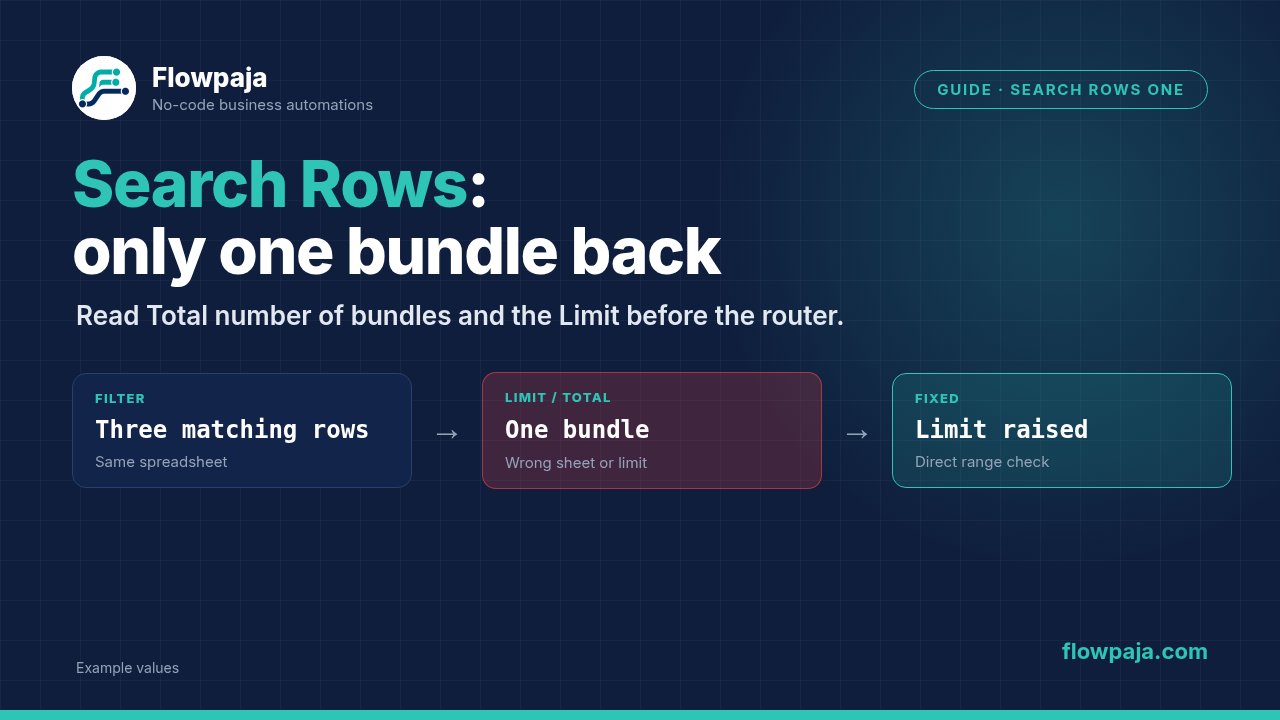
Diagnose one returned row before touching the router
When Google Sheets > Search Rows returns one row despite a limit of ten, start at the search output. Do not rebuild a three-route router until you know whether the search actually returned one result or the downstream filters accepted only one.
An October 2026 Make Community question reports several filled rows, no intended search filter and a limit of ten, but only one returned bundle. A suggestion to use an explicit spreadsheet ID appears in the discussion; it is a diagnostic option, not a confirmed universal root cause.
This guide covers a one-of-many result: several real rows should match, yet one appears. It does not repeat the separate empty-search problem. The aim is to identify the exact file, table boundary and selection that the module read, then verify the result count with a small controlled fixture.
1. Read the result count and row identities
Run the search in a read-only test branch and open its output. Inspect the bundle selector, Total number of bundles, returned row numbers and identifying cell values. A visible “bundle 1” can mean you are looking at the first of several results; it is not by itself the total.
Write down the unique IDs of the rows you expected. For a fictional fixture, use TEST-ROW-101, TEST-ROW-102 and TEST-ROW-103. Names and email addresses may repeat, so they are less useful for distinguishing rows during diagnosis.
Compare three counts separately: rows returned by Search Rows, bundles that pass a downstream filter, and actions completed by the destination. If three search bundles become one destination action, the reduction happened after the search. If the search output itself contains only one identified row, inspect the module's selection.
Do not infer result count from the number of credits alone. A single search can emit several row bundles, and downstream actions can each run on those bundles. Credit accounting and output cardinality are related, but they answer different questions.
2. Confirm the spreadsheet, tab and connection
Check the actual spreadsheet ID used by the module. A familiar displayed name is not enough when you have copies with the same name. Open the expected spreadsheet and compare its ID with the resolved value in Make.
Keep the spreadsheet ID separate from the tab's gid. They identify different objects. Selecting the correct file but the wrong tab can return a perfectly valid result from a different table.
Use the current module's explicit-ID selection path where available. Make documents selection modes in its Google Sheets module reference. After changing selection mode, reselect the sheet and inspect all dependent header and range settings; do not assume the old table metadata followed the new file correctly.
Confirm the connected Google account can read the expected file. If a test works under a different connection, record that difference before replacing production credentials. A changed account can alter which similarly named spreadsheets appear in the selector.
For the first comparison, use one dedicated test sheet with a distinctive name. A sheet named TEST_SearchRows_ThreeRecords is easier to identify than another copy of Leads. Record its file ID and tab name in the test notes.
3. Establish a simple table boundary
Use one header row and three consecutive plain data rows. Start with columns such as record_key, budget and status. Keep the headers unique, nonempty and unmerged.
Configure Table contains headers according to the real table. If the header is above a title, merged banner or empty spacer, do not assume the first visible row is the first data row Make uses. Inspect the header mapping that the module actually exposes.
Check Column range against your fixture. A very wide range is not evidence that the correct rows were read. For a three-column test, select only the intended columns. A narrow, known range makes misplaced data or an unexpected schema easier to spot.
Inspect blank rows and formulas separately. A formula returning an empty string may look empty while still differing from a genuinely blank cell. Move the test records together for a controlled comparison. Do not claim that every Search Rows version universally stops at the first blank row; test the selected module's behavior rather than importing a rule from Watch New Rows.
After the basic fixture works, restore the original spacing, formulas and wider table one change at a time. The first change that alters the returned IDs is more useful than an unsupported guess about “Google Sheets being unreliable”.
4. Inspect the resolved filter, not your intention
Open the search configuration and the execution input. Check whether a filter condition remains from an earlier test or resolves to an unexpected value. A blank-looking mapped token can still change the selection compared with a genuinely unfiltered search.
Compare text as text and numbers as numbers. A budget returned as formatted currency can differ from an unformatted numeric value. Select a deliberate value-render option and inspect the actual output before adding budget filters to a router.
Check whitespace and case in status values. Open, open and Open may behave differently under the operator you selected. Normalize deliberately where appropriate, but do not globally rewrite the sheet while debugging a selection problem.
Temporarily remove the search filter in the test branch and confirm the three known record keys appear. Add one exact condition, then repeat the count. Keep sort order and ordering column unchanged during that comparison so you can attribute the result difference to the filter.
Remember that Limit is a maximum. Ten eligible results are not created simply because you type ten. If only one row satisfies the actual criteria, one is the correct result. Write the expected matching keys before running the test so you do not adjust expectations after seeing the output.
5. Compare a direct range read
If the controlled search still returns one row, use Google Sheets > Get Range Values in a separate read-only branch against the exact fixture range. This checks whether the expected data is visible at that file, tab and range.
Inspect the returned shape instead of assuming it matches Search Rows. A range read and a search are different interfaces. If a range result contains an array, handle that array according to its actual structure; do not add an Iterator to Search Rows merely because another module needs one.
If the range read contains all three fixture records but the search returns one, narrow the remaining investigation to search settings, metadata and module version. If the range read also lacks records, investigate file identity, selected range or actual cell contents before blaming search filtering.
Try a freshly added Search Rows module against the same fixture without deleting the production module. Compare its fields and output. A fresh module is a control experiment, not permission to lose the old field mappings and downstream references.
Preserve the old configuration until the new search returns the expected IDs. Replacing a module can change mapped references elsewhere in the scenario; review those references before reconnecting any write branch.
6. Reattach row-level actions deliberately
When Search Rows emits separate row bundles, each can reach the following module. You do not need an aggregator merely to obtain “all the rows”. Aggregation deliberately changes several bundles into a grouped result and can hide which row needs an update.
For Google Sheets > Update a Row, map the row number returned by the regular search. Do not substitute the first, second or third position in the result list. Sorting and filters mean the first result could correspond to physical sheet row 40.
Search Rows (advanced) is a different module and does not return the same row-number reference. If you need physical-row updates, choose a compatible lookup or carry a stable business key through another explicit lookup. Do not invent a row number from the advanced query result's order.
Add downstream routing only after the returned rows are correct. For a budget-based router, define boundary conditions that do not overlap accidentally. Test an exact threshold as well as values below and above it. A router delivering one action from three rows can be a filter issue even when the search is healthy.
Common errors and misleading fixes
Limit ten still gives one result
Check the actual total and matching keys. Then confirm file, tab, headers, range and resolved criteria. The limit caps selection; it does not prove ten source rows were eligible.
The output shows the expected first row only
Inspect whether additional bundles are available in the output selector. If total really equals one, continue with the fixture. Do not conclude from the first visible card that Make ignored the remaining rows.
A copied sheet behaves differently
Compare spreadsheet IDs, header settings and connection. Copying can leave the scenario reading the original. A displayed file name alone is not sufficient evidence of the selected source.
An update changes the wrong row
Inspect the mapped physical row number. A bundle position is not a sheet position. Also check whether a manual row insertion or another writer changed the sheet between search and update; stable keys help you detect that race.
Blank rows seem to change the count
Use a consecutive fixture, then insert one spacer and repeat. Record the exact selected module and range. Keep the finding specific to that observed configuration rather than stating a universal stop-at-blank rule.
A zero-match search looks like one empty result
Inspect Total number of bundles. Zero belongs to the no-match path even though an empty bundle is visible. This is distinct from one genuine matched row and must not be treated as a usable row number.
Acceptance test: three rows, one filter, one update
- Create three fictional records with unique keys in a dedicated sheet. Keep one header row and consecutive data rows. Record expected physical row numbers.
- Run an unfiltered Search Rows with limit ten. Confirm the total and all three keys in the output. Do not run destination writes yet.
- Set limit one. Confirm one returned result, then restore ten. This distinguishes a functioning limit from a missing-record issue.
- Add an exact status filter that should match two records. Confirm the two expected keys, not merely a total of two.
- Run Get Range Values on the same fixture range and compare source visibility. Document any difference in output shape.
- Add one row update in the test sheet. Map the returned physical row number and change only a test status. Confirm the intended record changed.
- Test a zero-match condition and a spacer-row variant. Keep their outcomes separate from the original one-of-many test.
- Restore the production source only after reviewing remapped fields and downstream filters. Record the actual source IDs used.
These steps are an owner-run test plan. No live Sheets read or update was executed while preparing this guide.
Credits and a useful limit
A single search is one ordinary module execution even when it emits several rows. If three returned rows each run one ordinary update, the simple estimate is one search plus three updates, or four credits. Additional lookups, routing actions and aggregation modules change that count.
Use a small limit when the requirement is a duplicate existence check; use a sufficient deliberate limit when processing a batch. Those are different jobs. A limit chosen for dedupe should not silently become the batch-processing limit.
For scheduled polling, one credit every 15 minutes for 30 days equals 2,880 credits before downstream work. Free currently permits 1,000 credits per month, two active scenarios, a 15-minute minimum scheduled interval and a five-minute maximum execution time. Measure actual execution cost before choosing a batch size and schedule.
For an existing budget-routing workflow, see Lead Router. Its routing is budget-based; it is not round-robin assignment, and a healthy source search still matters before routing.
No Make account yet? Create a free Make account: affiliate link. Flowpaja may earn a commission at no extra cost to you.