 Flowpaja
Short answer
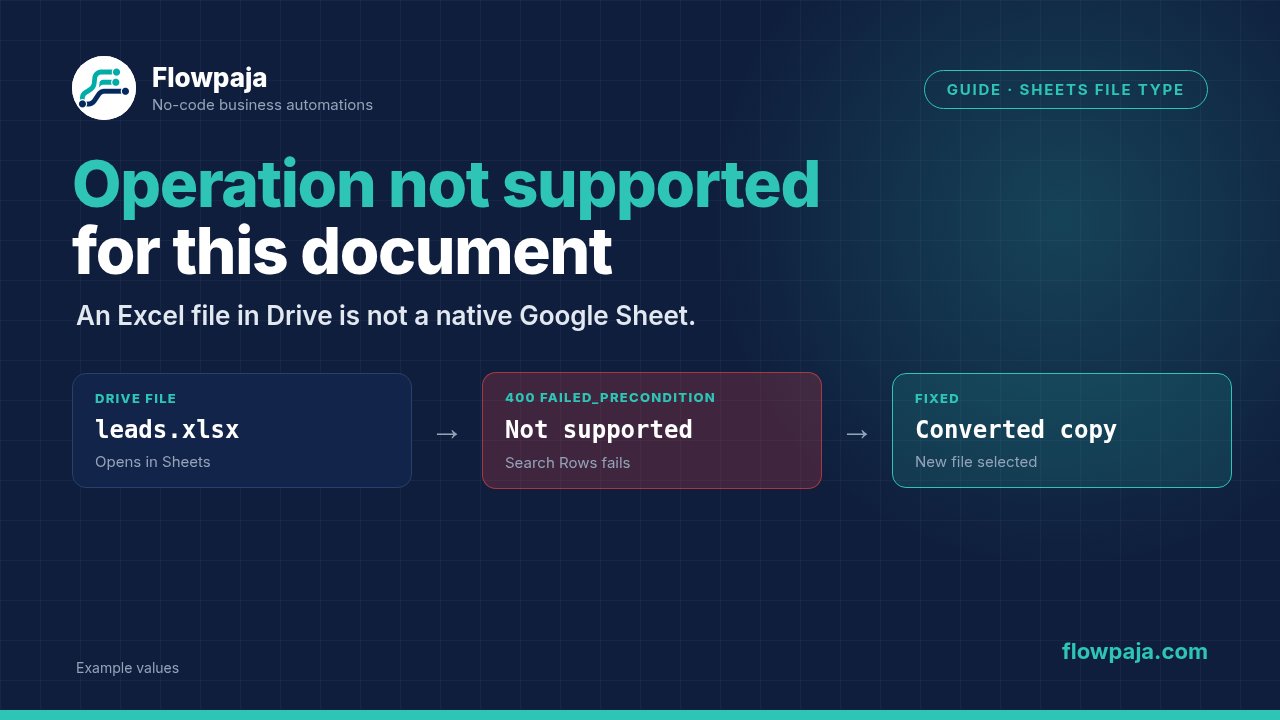
Google Sheets can reject an Excel file stored in Drive with “This operation is not supported for this document.” A file opening in Google's editor is not proof that it is a native spreadsheet. Convert a disposable copy to Google Sheets, select the converted file in Make, and rebuild its tab and header mappings before testing again.
What the error means
The file identifier reaches Google, but the requested spreadsheet operation is unsuitable for that document. A real Make report shows Search Rows receiving an identifier for an uploaded .xlsx file. Its visible failure was:
400: FAILED_PRECONDITION - This operation is not supported for this documentThis is different from a successful search finding zero matching rows. It is also different from an expired Google connection. Repeating the search with another filter cannot turn the underlying Excel document into a native Google spreadsheet.
Keep the diagnosis conditional. The message establishes a failed precondition; the filename, resource type and module input establish whether the Excel-file explanation applies. If the failing input already points to a native spreadsheet, investigate that specific resource rather than automatically converting it again.
The distinction matters when a scenario receives files from another module. Downloaded bytes, a Drive file identifier, a spreadsheet identifier and a worksheet's numeric tab identifier serve different purposes. They are not interchangeable just because the same document is involved.
60-second checks
- Open the failed Google Sheets module's input bundle. Identify the exact value mapped to Spreadsheet ID, including its source module.
- Open that file in Drive and check whether it is still an Excel document. An
.xlsxextension or Office editing mode is a useful clue; do not rely only on the document's title. - Confirm that Spreadsheet ID contains a file identifier, not downloaded file data, the entire browser address, or the numeric
gidparameter for a tab. - Create a native Google spreadsheet manually and test the same connection with one small read. This separates resource format from account access.
- Check that the selected sheet and headers belong to the native test file. Cached mappings from the original Excel file can survive a file-selection change.
These checks narrow the problem without changing production data. Do not delete the original workbook or revoke a working account connection as an initial troubleshooting step.
Fix it step by step
1. Preserve the source workbook
Make a disposable copy of the Excel file. Name the copy P11 format test and put two fictional rows in it: request key P11-F01, email sam@example.invalid, and status new; then request key P11-F02, email lee@example.invalid, and status review.
Use a separate folder so nobody mistakes the copy for the original business workbook. Record where the original came from and whether another process replaces it periodically. A one-time manual conversion does not automatically convert tomorrow's upload.
2. Save the copy as a native spreadsheet
Open the copy with Google Sheets and use Google's documented conversion workflow to save it as Google Sheets. Confirm that a native spreadsheet now exists. Keep the original Excel document while checking formulas, dates and formatting in the converted copy.
The converted spreadsheet has its own identifier. Copy that identifier from the converted file's address or select the converted file directly in Make. Continuing to map the original Drive file's identifier reproduces the old failure even though a native copy now sits beside it.
Conversion is a business-data boundary. Excel-specific formulas, macros and formatting may not behave identically after conversion. Verify the fields your scenario actually consumes. This guide does not promise that every workbook feature survives unchanged.
3. Rebind the failing Google Sheets module
In a disabled copy of the scenario, open Google Sheets → Search Rows. Select the native file through its documented Search Method and Spreadsheet ID options. Select the correct Sheet Name and configure Table contains headers and the header range to match the new test file.
If you use Get Range Values instead, select the converted spreadsheet and its sheet, then use a small literal range such as A1:C3. Prove the resource selection before mapping a dynamic range from earlier modules.
Do not paste an entire spreadsheet URL into a field that expects only an identifier. Equally, do not map gid=0 as Spreadsheet ID: that identifies a tab within a spreadsheet, not the spreadsheet itself.
4. Rebuild mappings from a successful sample
Run the native-file read once. Inspect the output and remap downstream columns from this successful bundle. Check the request key, email and status individually. Column positions and header names can differ after a conversion or a test-sheet edit.
For Search Rows, filter on the fictional request key P11-F01. Start with one expected match. After that succeeds, search for P11-F99, which does not exist. A no-match search is normal routing data, not the original unsupported-document failure.
Search Rows returns one empty bundle when there are no matches, with Total number of bundles equal to zero. Use that count for a not-found route. An aggregator does not repair either the file-format failure or the search's no-match result.
5. Choose the ongoing file contract
If the process should use native spreadsheets, make that an explicit intake requirement. Ask the upstream process to provide the converted spreadsheet's identifier, not whichever uploaded file was last created. Store the source-file reference separately for audit purposes.
If the process must work with Excel workbooks, choose a documented Excel integration that supports their storage location and table structure. Switching file formats blindly is not a substitute for choosing the correct application's modules. Keep this decision outside the running scenario until the owner approves the expected data representation.
Fictional before and after
Before: an upstream file lookup supplies the identifier for P11-format-test.xlsx; Search Rows fails before it can evaluate P11-F01.
After: the module targets the converted native spreadsheet; Search Rows returns the row containing P11-F01, sam@example.invalid and new. The original Excel file remains available, and the source identifier is no longer used as the spreadsheet target.
Prevent it next time
Keep source identity and working-spreadsheet identity in separate fields. Treat a new upload as a new resource that requires an explicit format decision. A spreadsheet title alone is a poor key because several files can share it.
Place an intake check before downstream writes. If a source does not meet the agreed native-spreadsheet contract, record the request key and route it for correction. Do not send a success notification before the read has returned the expected data.
Retry is inappropriate while the same incompatible document remains selected. Fix the resource first, then deliberately rerun the affected work. Skip is suitable only when the owner explicitly accepts rejecting that input and the rejected request is logged. Resume with an empty row would manufacture a successful-looking result and can cause later steps to act on missing data.
Rollback does not undo arbitrary external spreadsheet or messaging actions. If earlier modules already performed writes, inspect those actions before replaying the whole scenario. This particular read failure may occur after another branch has already changed something.
What it costs in credits
For a small event-driven example, assume one trigger execution and one Get Range Values execution, each charged at one standard credit: 1 + 1 = 2 credits. Adding one downstream standard action makes that example 2 + 1 = 3. These are conditional module-execution estimates, not a price guarantee.
A repeat of the failed read adds another attempted module execution; a full replay can add the trigger and downstream executions too. Manual file conversion outside Make does not itself add a Make module execution.
Polling is separate. One charged check every fifteen minutes for thirty days gives 4 × 24 × 30 = 2,880 checks, already more than the Free plan's 1,000 monthly credits before useful work. Choose the schedule for the actual workload and confirm usage in execution history.
Test it safely
Use only the disposable workbook and its converted copy. Keep downstream mail, payment and customer-record actions disconnected during the initial read test. Confirm the selected account can access both test resources.
Test the original Excel identifier, the converted spreadsheet identifier, a known request key and an absent request key. The first should reproduce the format failure when that cause applies; the second should permit the read; the known key should return the intended row; the absent key should take the explicit not-found route.
Pass means the supported resource returns the expected values, no production file changes, and a no-match result is handled separately. Save the successful input/output bundle with secrets removed. A green module alone is insufficient if it read the wrong spreadsheet.
Related errors
- Zero matching rows: use Search Rows returns empty for filters and empty-bundle routing.
invalid_grantor permission errors: use Google connection errors after confirming the native resource.Invalid requests[0]: use Docs and Sheets batch request errors when the request body fails instead of the file format.
Keep nearby failures easy to identify. Use the Make Error Cheat Sheet to separate file-format failures, authorization problems and ordinary search results.
No Make account yet? Create a free Make account (affiliate link). Flowpaja may earn a commission at no extra cost to you.