 Flowpaja
Some links on this page are affiliate links. If you sign up through them, Flowpaja may earn a commission at no extra cost to you.
What you need
- A Make account. The free plan (1,000 credits a month, 2 active scenarios) covers both examples at low volumes. Sign up here if needed: Make (affiliate link)
- For Lead Ads:
- a Facebook Page where you're an Admin, Moderator or Editor (Advertiser and Analyst roles get an OAuthException 200 error),
- a lead form (Instant Form) on that Page,
- a Meta Business Manager account, with Make given access to the Page's leads under Leads Access (Step 1).
- For Instagram:
- an Instagram business account. Make's docs say Creator accounts aren't supported by this app,
- linked to a Facebook Page where your Facebook account has admin-level access,
- and images or videos hosted at a public URL.
- Google Sheets, and Gmail (or another email app) for the follow-up.
What Meta does NOT allow (read this first)
Meta's rules decide what's possible, not Make:
- No cold DMs. You can't send Instagram or Messenger direct messages to people who haven't messaged you first. Replies to people who did message you go through Meta's official messaging APIs, generally within 24 hours of their last message.
- No scraping or mass following, liking or commenting. Automations that act like a person browsing Instagram break Meta's terms and can get accounts restricted.
- Personal Instagram accounts can't publish through the API. Switch to a business account first.
- Publishing limits. Meta caps API-published posts per account in a rolling 24-hour period. Its docs currently say 100 (some older pages still say 50), and a carousel counts as one post. A normal content queue never gets close.
- Lead data is personal data. Use it only for what the lead form's privacy notice says, and only email leads in the way they agreed to.
If a tool promises "automated Instagram DMs to anyone", it's either breaking these rules or using an unofficial method that can get your account banned.
Part 1: Facebook Lead Ads → Google Sheets + email follow-up
Step 1: Connect Facebook Lead Ads
- Create a scenario, click +, and choose Facebook Lead Ads → New Lead. It's an instant trigger, so click Create a webhook, then Create a connection.
- Sign in with the Facebook account that manages the Page. On Meta's permission screen, select the Page and allow the requested permissions. Unticking a Page is the most common reason it's missing from the dropdown later.
- In Meta Business Manager, go to Settings → Integrations → Leads Access, open CRMs, click Assign CRMs, tick Make and click Assign.
- Back in Make, choose the Page and the form.
(Watch Leads is the polling version. It runs on a schedule and uses a credit on every check, so use New Lead unless instant delivery doesn't work for you.)
Step 2: Send a test lead
Don't wait for real ads to run. Use Meta's Lead Ads Testing Tool (in Meta for Developers tools):
- Pick your Page and form.
- Create a test lead.
- Watch the scenario run in Make.
A form has to have been submitted at least once before it loads in the Make module, so a test lead also fixes an empty form list.
If nothing arrives:
- check in the testing tool that the Make app is subscribed to your Page,
- check that Make (for partners) or you (for people) still has Leads Access to the Page,
- in Facebook Settings → Business Integrations, open the Make app and make sure the Page is ticked,
- as a last resort, remove the Make app in Business Integrations, delete the connection in Make, and connect again.
Step 3: Map the answers
Run one test lead and look at the trigger's output. Standard questions usually come through with names like full_name, email and phone_number, and your custom questions use the names you gave them.
If the answers arrive as a list of fields (each with a name and a list of values) instead of separate items, pick each answer by name:
{{first(map(1.field_data; "values"; "name"; "email"))}}values is itself a list, so if the result still shows as a list, wrap it in another first().
Step 4: Add the row and send the follow-up
Sheet "Leads" (row 1 headers): Received | Lead ID | Form | Name | Email | Phone | Answer 1 | Follow-up sent
Scenario:
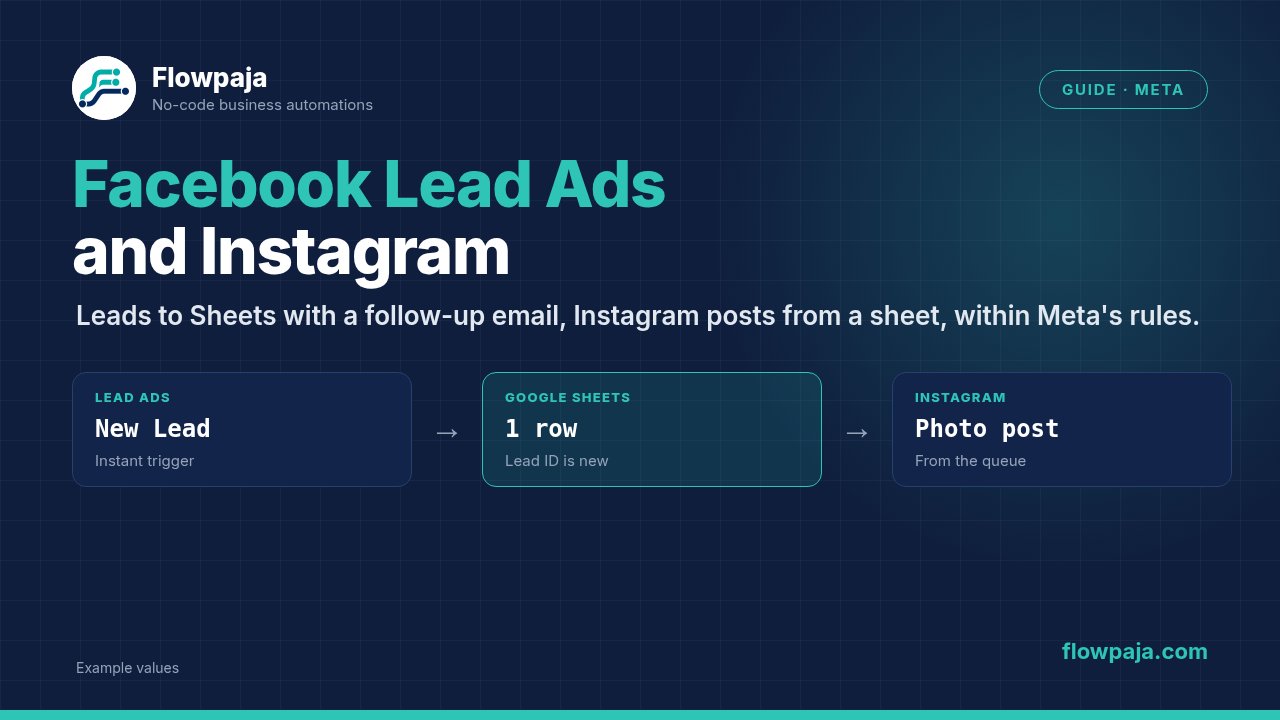
- Facebook Lead Ads → New Lead
- Google Sheets → Search Rows on the
Lead IDcolumn (duplicate check, see below) - Filter:
Total number of bundlesequals 0 ANDemailexists - Google Sheets → Add a Row: received time, lead ID, form name, the mapped answers, and
Follow-up sent= the current time - Gmail → Send an email to the lead. Keep it short and clearly related to the form: "Thanks for your request about X. Here's what happens next…". Include your contact details and an easy way to say "no thanks".
Should the email go out automatically? For "here's the guide you requested" or "we'll call you within one working day", yes. For anything sales-heavy, use Gmail → Create a draft email instead, and send it after a quick look.
Why the duplicate check: Meta can occasionally deliver the same lead again, for example after a reconnection. Search Rows outputs one empty bundle with Total number of bundles = 0 when the lead ID isn't in the sheet, and the scenario keeps running. The filter lets new leads through and stops repeats. See Search Rows returns nothing.
Credits per lead
| Version | Modules | Credits per lead |
|---|---|---|
| Basic (no duplicate check) | New Lead + Add a Row + Send an email | 3 |
| With duplicate check | New Lead + Search Rows + Add a Row + Send an email | 4 |
| Duplicate lead (stopped) | New Lead + Search Rows | 2 |
No credits are used while no leads arrive, because the trigger is instant. See Make credits explained.
Part 2: Instagram posting from a sheet
How it works
You keep a content sheet. On a schedule, Make finds the next row that's due and publishes it with Instagram for Business (Facebook login) → Create a photo post (there are also Create a carousel post and Create a reel post).
Sheet "Instagram queue" (row 1 headers): Publish at | Image URL | Caption | Status | Post ID
After connecting, pick the Page linked to your Instagram account in the module. If no Pages show up, the Page and the Instagram business account usually aren't linked properly in Meta Business Suite.
The image URL problem
The Instagram API downloads the image from a public URL. This is where most setups fail:
- Google Drive doesn't work, even with public sharing. Make's docs say the Instagram API can't download files from Drive.
- Use a host that gives a direct file URL (one that opens the raw image), such as your own website's media folder or a storage service with public file links.
- Use JPEG for photos. Meta's API supports only JPEG for images.
Test the URL in a private browser window. It should show only the image, not a page around it.
The scenario
- Schedule: e.g. every day at 09:00, or every few hours.
- Google Sheets → Search Rows:
StatusequalsReady, sorted byPublish atascending, limit 1. - Filter:
Total number of bundlesgreater than 0 ANDPublish at(as a date) is less than or equal tonow. StorePublish atas a real date in the sheet so the date operator works. Nothing ready or nothing due means nothing else runs. - Instagram for Business → Create a photo post: the Page, the image URL and the caption.
- Google Sheets → Update a Row:
Status=Published,Post ID= the returned ID.
If the Page requires Page Publishing Authorization (PPA) in Meta, posts fail until that's completed.
Credits per run:
- Nothing due: 1 (Search Rows).
- One post published: 1 + 1 + 1 = 3.
- Daily schedule: about 30–90 credits a month, depending on how often something is due.
Tokens and reconnecting
Meta connections rely on access tokens that can expire or become invalid when you change your password, remove the Make app in Business Integrations, or lose your Page role. Meta's long-lived user tokens last about 60 days.
When the scenario fails with an authorisation error, open Connections in Make and reauthorize the Facebook or Instagram connection. The scenarios keep using it, so you don't need to rebuild anything.
Common errors
| Error | Cause | Fix |
|---|---|---|
| New Lead never triggers | Make lacks Leads Access, Page not ticked, or app not subscribed | Assign Make under Leads Access; tick the Page in Business Integrations; check the testing tool; reconnect |
| Form missing in the module | Form never submitted | Send one test lead |
| OAuthException 200 | Your Page role is Advertiser or Analyst | Get Admin, Moderator or Editor access |
| 400 GraphMethodException (100) "Unsupported get request" | Leads Access is customised and doesn't include you or Make | Business Settings → Integrations → Leads Access: add the right person, CRM or partner |
| Lead fields empty | Answers mapped by the wrong field name | Check the names in the trigger output; use map() by name |
| Duplicate lead rows | Lead delivered again | Search the lead ID first; filter Total number of bundles = 0 |
| Instagram media or image URL error | Not a direct, public JPEG, or a Drive link | Use a direct file URL; test it in a private window |
| No Pages in the Instagram module | Creator or personal account, or Page not linked | Switch to a business account; link it to the Page in Meta Business Suite |
| Publishing limit reached | Too many API posts in 24 hours | Spread posts out |
| OAuth / token expired | Token lifetime ended, or a password or role changed | Reauthorize the connection under Connections |
| Scenario switched off | An instant trigger errored, or the Errors before deactivation limit was reached | Fix the cause in History; switch it back on |
More error types: Make error cheat sheet.
Related guides: WhatsApp automation with Make · All Make integration guides