 Flowpaja
Some links on this page are affiliate links. If you sign up through them, Flowpaja may earn a commission at no extra cost to you.
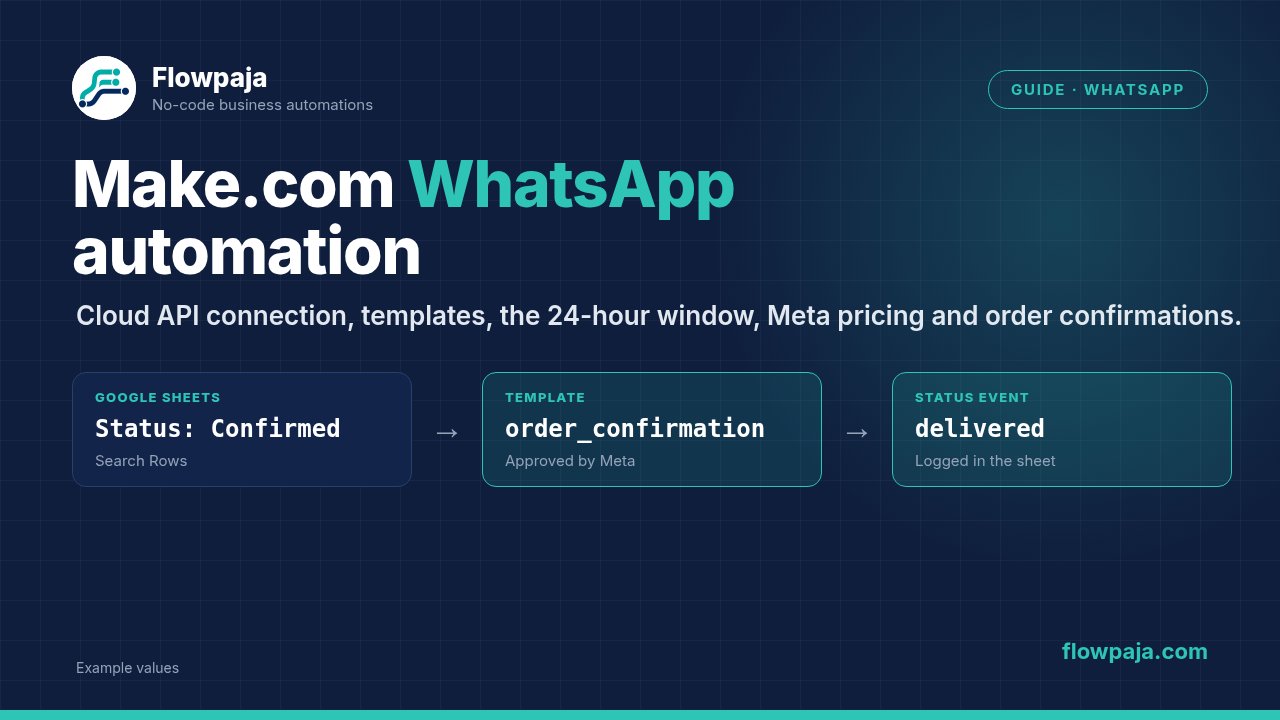
This guide covers the setup, the Make modules, templates, the 24-hour window and what Meta charges. The worked example sends order confirmations from a Google Sheet.
What you need
- A Make account. The free plan is enough to test. Sign up here if needed: Make (affiliate link)
- A Facebook account and a Meta business portfolio (created at business.facebook.com).
- A WhatsApp Business phone number with two-step verification turned off while you connect it. If you already use the number in the WhatsApp Business app, Make's Coexistence mode can keep the phone app working alongside the API. It isn't available in every country.
- Customer opt-in: people must have agreed to receive WhatsApp messages from you. That's a Meta policy requirement, and in many countries also a legal one.
- A payment method in Meta (Billing & payments in Meta Business Suite). Meta charges per delivered message. See the pricing section below.
Honest limits:
- WhatsApp isn't a free bulk-messaging channel. Templates need approval, marketing messages are paid and restricted, and numbers with many blocks or reports get limited.
- You can't automate a personal WhatsApp account with the Cloud API.
- Meta reviews your business and display name before you can send freely. Make's docs say this can take up to 1 business day. During the review you can send only 5 business-initiated test messages per 24 hours.
Step 1: Connect WhatsApp in Make
Make's current connection no longer requires a Meta developer app or a hand-made access token. Make's setup flow handles the token, the account ID and the webhooks for you.
- In a scenario, click +, search for WhatsApp Business Cloud, add a module and click Create a connection. For an instant module like Watch Events, click Create a webhook first, then create the connection.
- Connection type: WhatsApp Business Cloud (not "legacy").
- Signup Mode: Regular (recommended), or Coexistence if you actively use the WhatsApp Business mobile app on that number.
- Click Save → Continue, then pick your Business portfolio and either an existing WhatsApp Business account or Create a new WhatsApp Business account.
- Click Next → Confirm → Finish.
If you get "Resource not found" at the end, retry and select the accounts you just created. They already exist.
Older tutorials describe the legacy connection: a Meta developer app, a System User permanent token and the WhatsApp Business Account ID. Make supports that connection only until April 2027, so use the new one for anything you build today. (The token on Meta's old Getting Started page was valid for only 24 hours, which is why so many old scenarios stopped after a day.)
Moving from another WhatsApp platform? A WhatsApp Business account can only be managed by one partner at a time. If yours doesn't show in the dropdown, remove the other partner in Meta Business Suite (Settings → Accounts → WhatsApp Accounts → Partners) or migrate the number through Make's flow. The number then stops working on the other platform.
Step 2: The modules
| Module | What it does |
|---|---|
| Watch Events (instant) | Starts the scenario when a message or status event arrives. Choose the events, or leave them all unchecked to get everything. |
| Send a Template Message | Sends an approved template. This is the only way to start a conversation. |
| Send a Message | Sends free-form text, images and so on, but only inside an open 24-hour window. |
| Upload a Media / Download a Media | Handles files by media ID. |
| Register a Sender, Verify a Sender, Get / Update a Business Profile | Number and profile management. |
The trap: if you use Send a Message outside the 24-hour window, Make's docs say the module can still show success while the message never reaches the customer. Don't trust a green tick. Watch the delivery status events (see below).
Step 3: Receive messages and delivery statuses
Add WhatsApp Business Cloud → Watch Events, click Create a webhook, select the connection and the events you want (incoming messages, statuses), and save. With the current connection, Make registers the webhook with Meta for you. You don't need to paste URLs or verify tokens in Meta's dashboard.
Use it for two things:
- Incoming messages: route them to Slack, a sheet or a helpdesk, or reply with Send a Message within 24 hours.
- Status events (sent, delivered, read, failed): log them next to the original row so you can see which messages actually arrived.
For general webhook problems, see Make webhook not receiving data.
Step 4: Message templates and the 24-hour window
This is the part that trips everyone up.
- Customer writes to you: a 24-hour customer service window opens, and every new customer message resets it. Inside the window you can send free-form messages with Send a Message.
- Outside that window, including every message you start (order confirmations, reminders), you must send an approved template with Send a Template Message.
Templates:
- You create them in WhatsApp Manager, choose a category (marketing, utility or authentication), a language, and write the text with variables, such as
{{1}},{{2}}. - Meta reviews each template. Only approved templates can be sent.
- Utility templates (order updates, delivery notices) fit transactional messages. Don't dress marketing up as utility, because Meta can re-categorise or reject it.
Example utility template, named order_confirmation, in English:
Hi {{1}}, thanks for your order {{2}}. We've received it and will send it by {{3}}. Reply to this message if you have questions.
Step 5: What Meta charges
- Since July 1, 2025, Meta charges per delivered message instead of per conversation. Template rates depend on the category and the recipient's country code.
- From October 1, 2026, service messages (free-form replies inside the 24-hour window) are charged too, at the same rate as utility messages in that market. Each business number gets 1,000 free service messages a month. They don't roll over.
- Make's docs add a warning: without a payment method in Meta's Billing Hub, messages beyond the free tier aren't delivered, even though the Make module shows success.
Check Meta's current rate card for your recipients' countries before you estimate costs. Meta can update rates up to quarterly.
Step 6: Phone number format
- With your own business number: Make accepts any dialable format with the country code and recommends a leading
+, e.g.+358401234567. - With Meta's test number: digits only, with no
+, spaces or brackets (358401234567), and the recipient must be registered as a test number in Meta.
Either way, a local number like 0401234567 won't work. To convert Finnish local numbers in Make, type +358 in the field and map the rest after it (this drops spaces, dashes and the leading zero):
+358{{substring(replace(replace(1.Phone; " "; ""); "-"; ""); 1)}}That only fits numbers stored in local format with a leading zero. If your sheet mixes formats, store numbers in international format from the start. It's far less fragile than fixing them in the scenario.
Worked example: order confirmations from a Google Sheet
Goal: when an order row is marked "Confirmed", send a WhatsApp template message once, then mark the row as sent.
Sheet "Orders" (row 1 headers): Order | First name | Phone | Delivery date | Status | WhatsApp sent | WhatsApp message ID
Store Phone in international format, e.g. +358401234567.
Scenario (scheduled, e.g. every hour):
- Google Sheets → Search Rows:
StatusequalsConfirmedANDWhatsApp sentis empty, limit 20. - Filter:
Total number of bundlesgreater than 0. When nothing matches, Search Rows outputs one empty bundle with total 0, and this filter stops the run there. See Search Rows returns nothing. - Filter:
Phoneexists. - WhatsApp Business Cloud → Send a Template Message:
- Sender ID: your business number
- Receiver:
{{1.Phone}} - Message Template:
order_confirmation(English) - Variables in the template's order: first name, order number, delivery date (e.g.
formatDate(…; "D MMM"))
- Google Sheets → Update a Row:
WhatsApp sent={{formatDate(now; "YYYY-MM-DD HH:mm")}},WhatsApp message ID= the message ID from step 4's output.
Delivery check (optional, second scenario): Watch Events for status events → Search Rows by WhatsApp message ID → Update a Row with the status (delivered, read, failed). Route on Total number of bundles > 0 here too, because status events also arrive for messages that aren't in the sheet.
Error handling:
- Add a Retry handler (formerly Break) on step 4 for temporary errors (e.g. 5xx). It needs Store incomplete executions turned on.
- Don't retry template, parameter or phone errors. They won't fix themselves. A Skip handler (formerly Ignore) on those lets the other rows continue, and the empty
WhatsApp sentcell shows which rows to fix.
Credits (1 credit per module action; filters are free):
- Hourly check with nothing to send: Search Rows = 1 credit. The filter stops the rest.
- Each order sent: Send a Template Message 1 + Update a Row 1 = +2 credits.
- Example: an hourly check that finds 3 confirmed orders = 1 + 3 × 2 = 7 credits.
- Monthly baseline at hourly checks: about 720 credits, before any orders. Check less often if confirmations can wait, or start the scenario from your shop's instant order trigger. See Make credits explained.
Meta charges for the template messages separately.
Common errors
| Error | Cause | Fix |
|---|---|---|
| Module shows success but nothing arrives | Free-form message outside the 24-hour window, free tier used up with no payment method, or recipient not opted in | Use Send a Template Message; add a payment method; check status events |
| Error 500, code 131000 | Tried to start a chat with Send a Message | Start with Send a Template Message |
| "This account is not registered" | Sending number not registered with the Cloud API | Run Register a Sender once |
| Template not found / not approved | Wrong name or language, or still in review / rejected | Check the exact name, language and status in WhatsApp Manager |
| Parameter count mismatch | Template has 3 variables, you sent 2 (or 4) | Fill exactly the variables the template defines, in order |
| Invalid recipient | Local format or missing country code | Use international format (Step 6) |
| Business account missing in the connection dropdown | Account managed by another partner platform | Remove that partner in Meta Business Suite, or migrate the number |
| "Cannot Create Certificate… two-factor authentication" | Two-step verification still on for the number | Turn it off, then reconnect |
| "Provided account is not compatible…" when saving | Module still points to an old connection | Open each WhatsApp module, Refresh form, pick the valid connection |
| Token expired (error code 190) | Legacy connection with a temporary token | Switch to the current connection type |
| Scenario switched off | An instant trigger errored, or the Errors before deactivation limit was reached | Fix the cause in History; switch it back on |
Read the full error message in the module's output in History. For Make-side error types, see the Make error cheat sheet.
Related guides: Instagram and Facebook automation · All Make integration guides