 Flowpaja
What you need
- The Make.com scenario with the failing Slack module (usually Slack → Send a message; older scenarios and some docs call it Create a message). No account yet? Create a free Make account (affiliate link).
- Access to the Slack workspace and the channel
- Permission to add apps to the channel. Workspace owners can restrict app installs, and Make isn't listed in the Slack Marketplace, so some workspaces need an admin's approval first.
Ad disclosure: links marked "affiliate link" are ads. If you sign up or buy through them, Flowpaja may earn a commission at no extra cost to you.
Step 1: Add the app to the channel
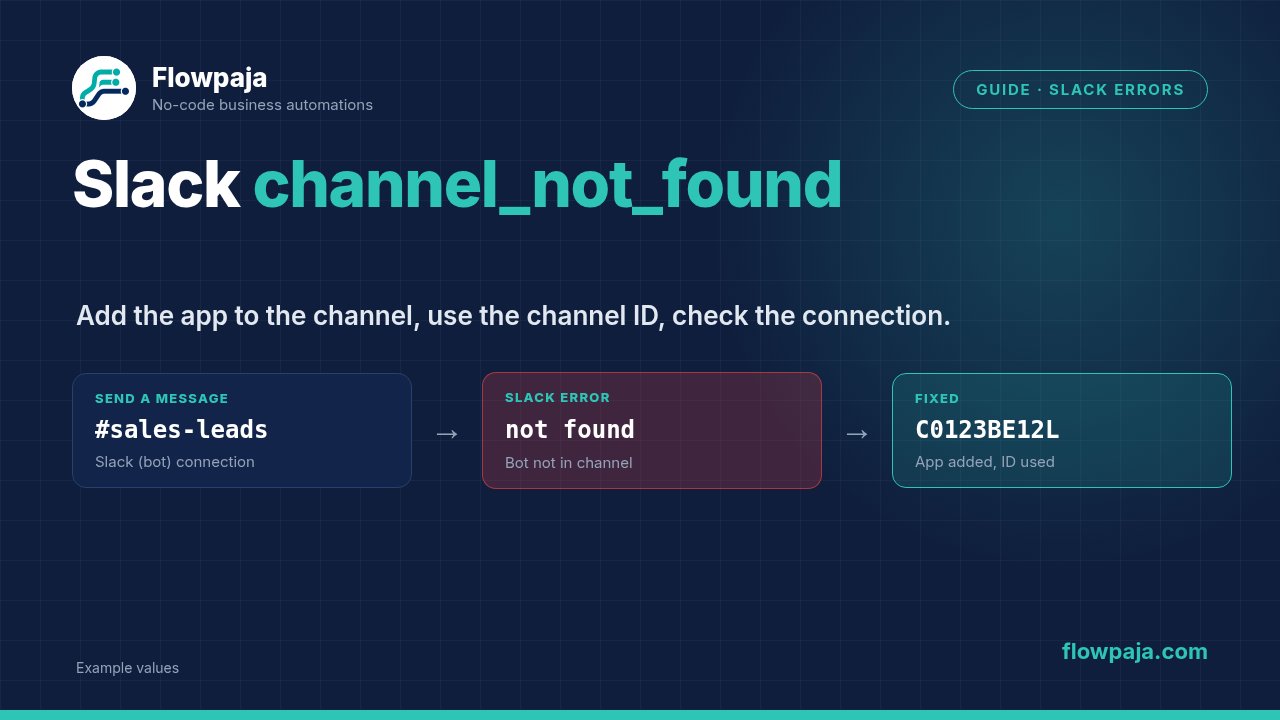
This is the most common cause. Make's documentation says that with a Slack (bot) connection, the bot must be a member of the selected channel. Otherwise the module fails with channel not found. That applies to public channels too, so don't count on posting to a public channel without adding the app.
In Slack:
- Open the channel.
- Click the channel name in the header and open the Agents & apps tab, then add the app.
- Or mention the app in a message in that channel, or type
/invite @followed by the app's name.
Not sure what the app is called in your workspace? In the sidebar, click Agents & tools and select Apps. If you created the Make connection with your own Slack app (client credentials under the connection's advanced settings), add that app instead.
Run the scenario once again. Setting up form → Slack from scratch? See how to send Google Form responses to Slack.
Step 2: Private channels need membership
Private channels are invisible to anyone who isn't a member, including apps.
- Slack (bot) connection: add the app to the private channel (step 1).
- Slack (user) connection: the Slack user who authorised the connection must be a member of the channel. On a public channel the user hasn't joined, Slack returns
not_in_channelinstead ("Cannot post user messages to a channel they are not in").
A private channel missing from the module's channel list is the same problem showing up early.
Step 3: Check the channel value: ID, name or mapping
The Enter a channel ID or name field lets you Select from the list or Enter manually. Make accepts a channel name (#general) or an ID (like C0123BE12L).
- Names break on rename. A typed name stops working once someone renames the channel. The ID stays the same.
- Mapped values. If you map the channel from another module (e.g. a sheet column), an empty value or a typo also produces
channel_not_found. Open the failed run in History and check the module's input.
Switch to Select from the list, or paste the channel ID.
How to find a channel ID
- Click the channel name in the header. The Channel ID is shown at the bottom of the About tab, with a copy button.
- Or open Slack in a web browser. The address looks like
https://app.slack.com/client/T…/C…. The part after the workspace ID (starting withT) is the channel ID.
Step 4: Check the workspace and the connection type
A Make Slack connection belongs to one workspace and one connection type:
- Different workspace. If you belong to several workspaces, the connection may have been authorised in another one. On Slack's authorisation screen, the workspace is picked in the top-right corner. A channel ID from workspace B is "not found" in workspace A. Create a new connection and pick the right workspace.
- User vs bot. Depending on the module, Make asks you to choose Slack (user) or Slack (bot) when you create the connection. A user connection sees that user's channels. A bot connection sees only channels the bot was added to. Switching connections changes which channels are "found".
- Shared channels. If the channel is a Slack Connect channel shared from another organisation, test with a channel inside your own workspace first. That tells you whether the shared setup is the cause.
Step 5: Archived, renamed or deleted channels
- Renamed: the ID stays the same, but anything that refers to the old name breaks. That's another reason to use IDs.
- Archived: posting to an archived channel returns a different error,
is_archived. Unarchive the channel, or pick another one. - Deleted: the ID is no longer valid, so you get
channel_not_found. Choose another channel.
Step 6: Decide what the scenario does next time
Retrying alone won't fix channel_not_found. Choose how failures are handled:
- No error handler, Store incomplete executions off: the run ends in an error. A webhook-triggered scenario set to run immediately is switched off at once. A scheduled one is switched off after the number of consecutive errors in Errors before deactivation (default 3). See why a Make scenario stopped running.
- Retry (formerly Break): the failed bundle is stored as an incomplete execution, and the scenario keeps running. Store incomplete executions must be on. Automatic retries keep failing until you fix the channel. Set automatic completion to No, fix the channel, then resolve the incomplete execution so the message still goes out.
- Skip (formerly Ignore): the message is dropped, and the scenario keeps running and shows the run as successful. Put an alert module (an email, or a channel you know works) on the error route before Skip, or you won't notice the loss.
More on the handlers: Make error handling explained.
Common errors and fixes
For other Make errors, see 10 common Make scenario errors.
| What you see | Likely cause | Fix |
|---|---|---|
channel_not_found with a bot connection | Bot isn't a member of the channel | Add the app to the channel (step 1) |
channel_not_found on a private channel | App or user isn't a member | Add the app, or use a connection whose user is a member |
not_in_channel | User connection; the user hasn't joined the channel | Join the channel, or use a bot connection with the app added |
| Works in one scenario, not another | Different connection (workspace or type) | Use the same connection, or reconnect to the right workspace |
| Fails after the channel was renamed | Channel entered by name | Use the channel ID |
| Fails with a mapped channel | Mapped value empty or wrong | Check the input in History; add an "Exists" filter |
is_archived | Channel archived | Unarchive, or choose another channel |
| Channel missing from the dropdown | Connection can't see it | Same fixes as above, before running |
Quick reference: Make error cheat sheet, every common error type, HTTP code and app error on one page, with a free printable PDF.
The free Form to Slack template includes the channel setup steps.