 Flowpaja
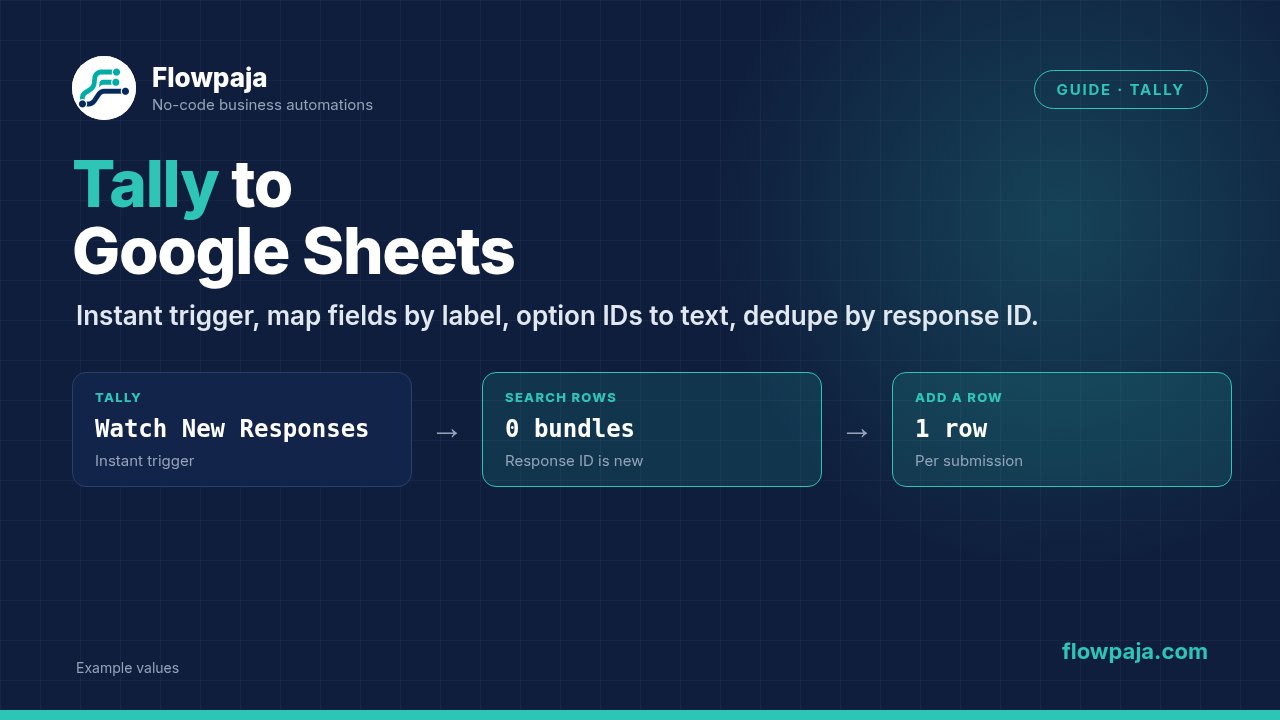
Some links on this page are affiliate links. If you sign up through them, Flowpaja may earn a commission at no extra cost to you.
What you need
- A Tally form. Tally's free plan includes unlimited forms and submissions (within Tally's fair-use rules), webhooks and the Make integration, so you can build and run this without paying. No account yet? Tally (affiliate link)
- A Make.com account. The Free plan includes 1,000 credits a month, 2 active scenarios and a 15-minute minimum interval for scheduled runs, according to Make's pricing page (checked 2 October 2026). The interval doesn't matter here, because this scenario uses an instant trigger. Sign up here if needed: Make (affiliate link)
- A Google account and a Google Sheet
Honest limits to know first:
- Tally sends the answers as a list of field objects, not as fixed named fields. Mapping by question label takes one small formula (step 4).
- Uploaded files arrive as links to Tally's storage, not as files in your sheet. On the free plan, each uploaded file can be up to 10 MB; Tally Pro removes that limit.
- Tally branding stays on free forms, and Tally's own email notifications are a Pro feature. Neither matters for this scenario, but it's worth knowing before you choose a form tool.
Step 1: Prepare the sheet
Create a tab called Responses with these headers in row 1:
Submitted at | Response ID | Name | Email | Services | Budget | Message | File linksKeep the column order fixed. Make writes Google Sheets values by column position, so inserting a column in the middle later shifts your data into the wrong columns.
Step 2: Choose the trigger
Option A: Tally app (simplest)
- In Make, create a scenario and add Tally → Watch New Responses. It's an instant trigger.
- Click Create a webhook, then Create a connection. Choose Tally OAuth (sign in to Tally) or Tally Personal API Key (create the key in Tally under Settings → API keys).
- Select your form and save. Make adds the webhook to the form for you, and it shows up under the form's Integrations tab in Tally.
Option B: Tally webhook to a Make Custom webhook
- In Make, add Webhooks → Custom webhook, click Add, name the webhook and save. Copy the URL.
- In Tally, publish the form, open the Integrations tab and click Connect next to Webhooks. Paste the URL.
- Optional, but a good idea: protect the webhook. In Make's webhook settings, add an API key. In Tally's webhook settings, click Add HTTP headers and send that key in a header named
x-make-apikey. Make then accepts only requests that carry the key.
Both options are instant: the scenario runs when a submission arrives. Nothing polls, so no credits go to empty checks. If the scenario never starts, see Make webhook not receiving data.
Step 3: Send one test submission
Click Run once in Make, then submit your Tally form once with fictional data, e.g. "Ana Example", [email protected]. Make shows the received data in the trigger's output bubble. With a Custom webhook, Make learns the data structure from this first request.
A Tally webhook payload looks like this (shortened from the example in Tally's webhook docs):
{
  "eventId": "…",
  "eventType": "FORM_RESPONSE",
  "createdAt": "2026-10-02T09:15:00.000Z",
  "data": {
    "responseId": "abc123",
    "formName": "Contact",
    "createdAt": "2026-10-02T09:15:00.000Z",
    "fields": [
      { "key": "question_1", "label": "Name", "type": "INPUT_TEXT", "value": "Ana Example" },
      { "key": "question_2", "label": "Email", "type": "INPUT_EMAIL", "value": "[email protected]" },
      { "key": "question_3", "label": "Services", "type": "CHECKBOXES",
        "value": ["opt1", "opt3"],
        "options": [ { "id": "opt1", "text": "Website" }, { "id": "opt2", "text": "SEO" }, { "id": "opt3", "text": "Automation" } ] },
      { "key": "question_3_opt1", "label": "Services (Website)", "type": "CHECKBOXES", "value": true }
    ]
  }
}
Real option IDs are long UUIDs. Checkbox questions also get one extra true/false entry per option, labelled like Services (Website).
Step 4: Map the fields
Add Google Sheets → Add a Row, choose your connection, spreadsheet and the Responses tab.
Because fields is a list, pick each answer by its label with map():
Name:   {{first(map(1.data.fields; "value"; "label"; "Name"))}}
Email:  {{lower(trim(first(map(1.data.fields; "value"; "label"; "Email"))))}}
map(array; key to return; key to filter by; values to match)returns the matching values, andfirst()takes the single answer.- The label must match exactly, so
Servicespicks the main checkbox entry and notServices (Website). - Change a question's label in Tally and the mapping returns empty. Keep labels stable, or filter by
keyinstead. - The paths above are for the Custom webhook (
1.data.fields). With the Tally app trigger, pick the fields list from the mapping panel instead of typing the path, because the structure can be shorter.
Other columns:
- Submitted at:
{{formatDate(1.data.createdAt; "YYYY-MM-DD HH:mm"; "Europe/London")}}. Use your own time zone. - Response ID:
{{1.data.responseId}}
Step 5: Multi-choice and file-upload fields
Multi-choice, checkboxes, dropdowns. The value is a list of option IDs, and the readable text sits in options.
To keep the formula readable, add Tools → Set multiple variables before Add a Row (1 credit):
services_ids:   {{first(map(1.data.fields; "value"; "label"; "Services"))}}
services_opts:  {{first(map(1.data.fields; "options"; "label"; "Services"))}}
Then map the Services column to the texts of the selected options:
{{join(map(2.services_opts; "text"; "id"; join(2.services_ids; ",")); ", ")}}The inner join() turns the selected IDs into a comma-separated list, which is what map() expects as its "values to match". The outer join() writes something like Website, Automation into one cell. Test with two options ticked before you go live.
File uploads. The value is a list of file objects, each with id, name, url, mimeType and size. To store the links in one cell:
{{join(map(first(map(1.data.fields; "value"; "label"; "Upload")); "url"); " ")}}Replace Upload with your question's label. If you want your own copy of each file instead of a link to Tally's storage, add HTTP → Get a file and Google Drive → Upload a file (2 more credits per file). Note that Make's Free plan handles files up to 5 MB.
Step 6: Prevent duplicate rows
Tally retries a webhook delivery if it doesn't get a success response within 10 seconds, so the same submission can occasionally arrive twice. Use the response ID as the unique key.
Option 1: Google Sheets → Search Rows (cheapest)
- Before Add a Row, add Google Sheets → Search Rows on the Responses tab. Filter: Response ID column equal to
{{1.data.responseId}}. Set Limit to 1. - Know how it behaves: when Search Rows finds nothing, it still outputs one empty bundle with Total number of bundles = 0, and the next module still runs. So "the module returned something" tells you nothing.
- Put a filter between Search Rows and Add a Row: Total number of bundles (from Search Rows) Equal to
0(numeric operator). Alternatively: Row number Does not exist. - A new submission passes the filter and gets a row. A duplicate finds its row (Total number of bundles = 1) and stops at the filter.
Want to see a working version? The free Webhook to Sheets with duplicate check template uses exactly this setup. More on how the empty bundle works: Search Rows returns nothing.
Option 2: a Make data store Add Data store → Check the existence of a record with the response ID as the key, a filter that continues only when the record does not exist, then Add a Row and Data store → Add/replace a record with the same key. It costs one credit more per new submission. The Free plan includes one small data store (1 MB), which is plenty for response IDs.
Step 7: Error handling and switching on
- In the scenario settings, enable Store incomplete executions. Make then retries temporary errors such as
ConnectionErrorandRateLimitErrorautomatically, and failed runs are saved instead of lost. - For other errors on Add a Row, you can attach a Retry error handler (called Break until Make renamed it in May 2026). Error handlers don't use credits.
- Know the default: the Errors before deactivation setting is ignored for scenarios that start with an instant trigger. Without stored incomplete executions, the first error deactivates the scenario. Check History after go-live either way.
- If the Google connection fails, see Make Google connection errors.
- Switch the scenario on.
Credits per run
Make counts one credit per module action; filters, routers and error handlers don't use credits (Make pricing page, checked 2 October 2026):
| Setup | Modules that run | Credits per submission |
|---|---|---|
| Basic | Trigger + Add a Row | 2 |
| With Set multiple variables for multi-choice | Trigger + Set multiple variables + Add a Row | 3 |
| With Search Rows dedupe, new submission | Trigger + Search Rows + Add a Row | 3 |
| With Search Rows dedupe, duplicate (stopped) | Trigger + Search Rows | 2 |
| With data store dedupe, new submission | Trigger + check record + Add a Row + add record | 4 |
At 3 credits per submission, the Free plan's 1,000 credits cover roughly 330 submissions a month, as long as nothing else uses them. More on estimating and saving credits: Make credits explained.
Common errors and fixes
| Problem | Likely cause | Fix |
|---|---|---|
| Scenario never runs | Webhook URL wrong, or scenario off | Re-copy the URL into Tally; switch the scenario on |
| Empty cells for some answers | Question label changed in Tally | Update the label in map(), or map by key |
| Multi-choice shows IDs | Values are option IDs | Map IDs to option texts with map() (step 5) |
| File cell empty | Wrong field label or structure | Check the field in the output bubble |
| Duplicate rows | Webhook delivered twice, or dedupe filter checks the wrong thing | Filter on Total number of bundles = 0 (step 6) |
| Data in the wrong columns | Columns inserted in the sheet | Keep the column order; remap |
| 403/404 from Google Sheets | Wrong account or file access | Check the connection and file sharing |
More error types: Make error cheat sheet.