 Flowpaja
What you need
- A Make.com account with a Google Sheets connection
- A Google Sheet with a header row, for example: Received at, Name, Email, Message
- The tool that will send the webhook, or a way to send a test request (curl, Postman or an HTTP client of your choice)
- A rough idea of the fields the sender will include
Step-by-step build
1. Create the webhook
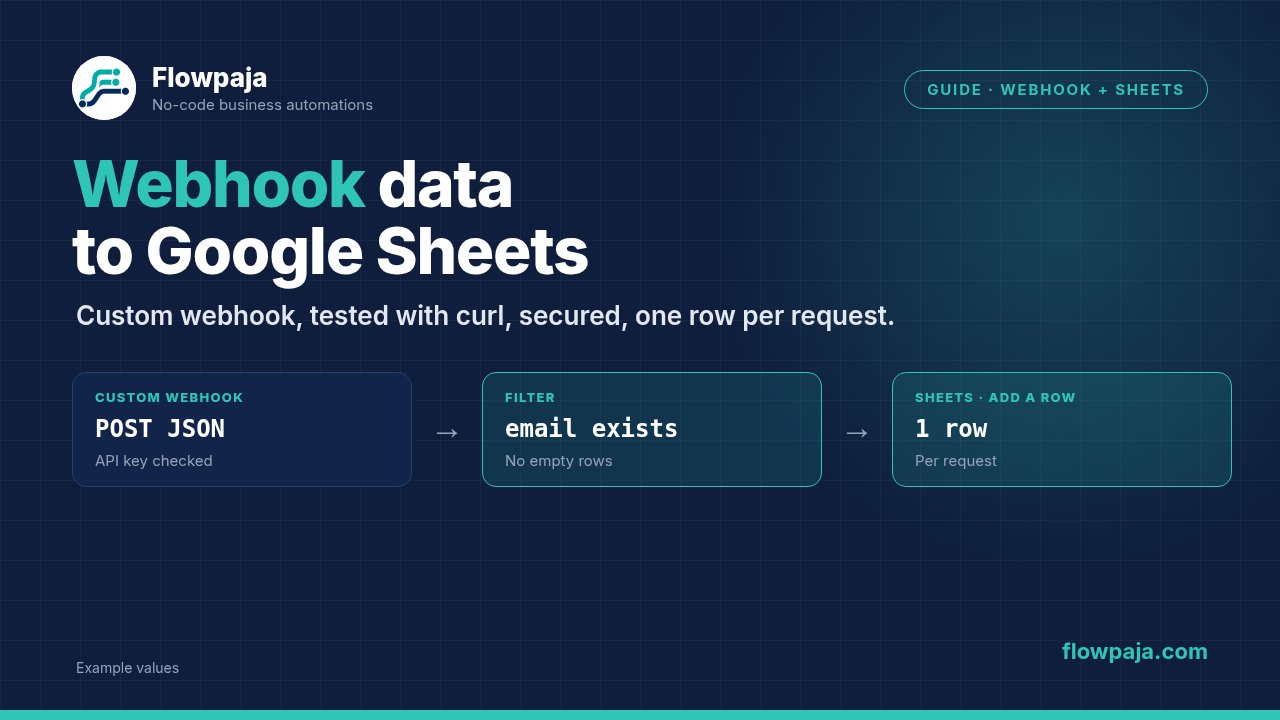
Create a new scenario and add Webhooks – Custom webhook as the trigger. Click Add, give it a name such as "Website contact form", and save. Make shows a URL, which looks something like https://hook.<region>.make.com/<long-random-string>. Copy it. Treat it like a password: anyone who has it can send data into your scenario.
2. Start listening
Click Run once. The module now waits for data and says so. It only learns the structure while it is listening, so do not skip this step.
3. Send a sample request
From a terminal, send a realistic example. With curl:
curl -X POST "https://hook.<region>.make.com/<your-id>" \
  -H "Content-Type: application/json" \
  -d '{"name": "Anna Berg", "email": "[email protected]", "message": "Hello"}'
On Windows, use curl.exe explicitly in PowerShell, because curl there is an alias for a different command. Postman works as well. Make replies with a short "Accepted" message and the module turns green.
4. Check that the data structure was determined
Open the output bubble. You should see name, email and message as fields. This is the structure Make will use in the mapping panel. If the sender can include more fields later, or if some are optional, send a second sample with all of them. To change the structure later, click Detect new values in the Custom webhook module and send a new request. If you know the fields in advance, you can instead pick a data structure in the webhook's advanced settings, and Make then rejects requests that don't match it with status 400.
5. Add a filter for required fields
Click the link after the webhook and add a filter: email, exists, and message, exists. Then incomplete or accidental requests stop here instead of creating empty rows.
6. Add Google Sheets – Add a Row
Select the spreadsheet and sheet. Map:
- Received at:
{{formatDate(now; "YYYY-MM-DD HH:mm")}} - Name:
{{1.name}} - Email:
{{trim(1.email)}} - Message:
{{1.message}}
The 1. is the webhook module's number in this example, so use the mapping panel for yours.
7. Handle nested data
Real payloads often contain nested objects or arrays, such as customer.address.city or a list of items. Nested objects can be mapped by clicking through the tree in the mapping panel. Arrays need an iterator if each item should become its own row. If you want a single row, use join(map(...)) to turn the array into text.
8. Return a response if the sender needs one
Some tools expect a specific reply, such as {"status": "ok"}. Add Webhooks – Webhook response, set the status to 200 and the body to what the sender expects. Without it, Make replies with a default "Accepted" message. Make waits up to 180 seconds for the response; after that it returns 200 Accepted anyway.
9. Secure the URL
Here are the practical options, from simplest up:
- Keep the URL secret. Do not paste it into public repositories, screenshots or client-side JavaScript that visitors can read.
- Use API Key authentication. When you create or edit the webhook, add one or more API keys. The sender then includes the key in an
x-make-apikeyheader, and Make rejects requests without a valid key at the webhook. - Restrict by IP. If the sender publishes fixed IP addresses, enter them in the webhook's IP restrictions setting, separated by commas (CIDR ranges work too). Requests from other addresses are not processed.
- If the sender can't send that header, check a shared secret instead. Ask it to add a header such as
x-webhook-secretwith a long random value. In the webhook's advanced settings, set Get request headers to Yes, then add a filter: the header equals your secret. Requests without it stop at the filter. - If the URL leaks, create a new webhook and update the sender. The old URL then no longer reaches your scenario.
A secret checked in a filter does not stop requests from reaching Make: each one still starts a run and the webhook trigger uses credits. It only stops them from reaching your sheet. API Key authentication and IP restrictions work at the webhook itself, but treat the URL as a secret either way.
10. Activate and test live
Turn the scenario on, trigger a real event in the sending tool, and check the History tab and the sheet. By default a webhook scenario runs immediately when data arrives; leave it that way unless you want to process the queue in batches on a schedule. Note that a scenario set to run immediately is switched off after its first error, so consider an error handler route, as in our Make error handler guide.
Common errors and fixes
The module just keeps waiting. The request went to the wrong URL or region, or the sender was blocked by a firewall or typo. Compare the URL character by character, and make sure Run once is active before sending.
The fields don't appear in the mapping panel. The structure was determined from an empty or different request. Redetermine the data structure, send a complete sample and check the bubble.
The body arrives as one text value instead of fields. The sender used the wrong content type. For JSON, the header should be Content-Type: application/json. Form-encoded data works as well, but the sender must say which it is.
Data arrives, but nothing reaches the sheet. The scenario is switched off, so requests wait in the webhook's queue, or the filter in step 5 blocked them. Open Webhooks in the left sidebar, select the webhook and check its Queue tab, then check the filter's condition. Once the scenario is on, queued items are processed.
Duplicate rows. Some senders retry if they don't get a fast success response, and others send the same event twice. Include an event ID in the payload where possible, and check it against the sheet before adding a row, as in our Typeform to Google Sheets guide.
A field that was there yesterday is now empty. The sender changed its payload. Check a fresh request in the bubble, redetermine the structure and update your mapping. Use ifempty() for fields that are sometimes missing.