 Flowpaja
What you need
- A Make.com account with Typeform and Google Sheets connections
- A Typeform form with at least one test response already submitted
- A Google Sheet with a header row, for example: Response ID, Submitted at, Name, Email, Service, Budget, Message
- Five minutes to submit one more test response with the optional questions left empty
Step-by-step build
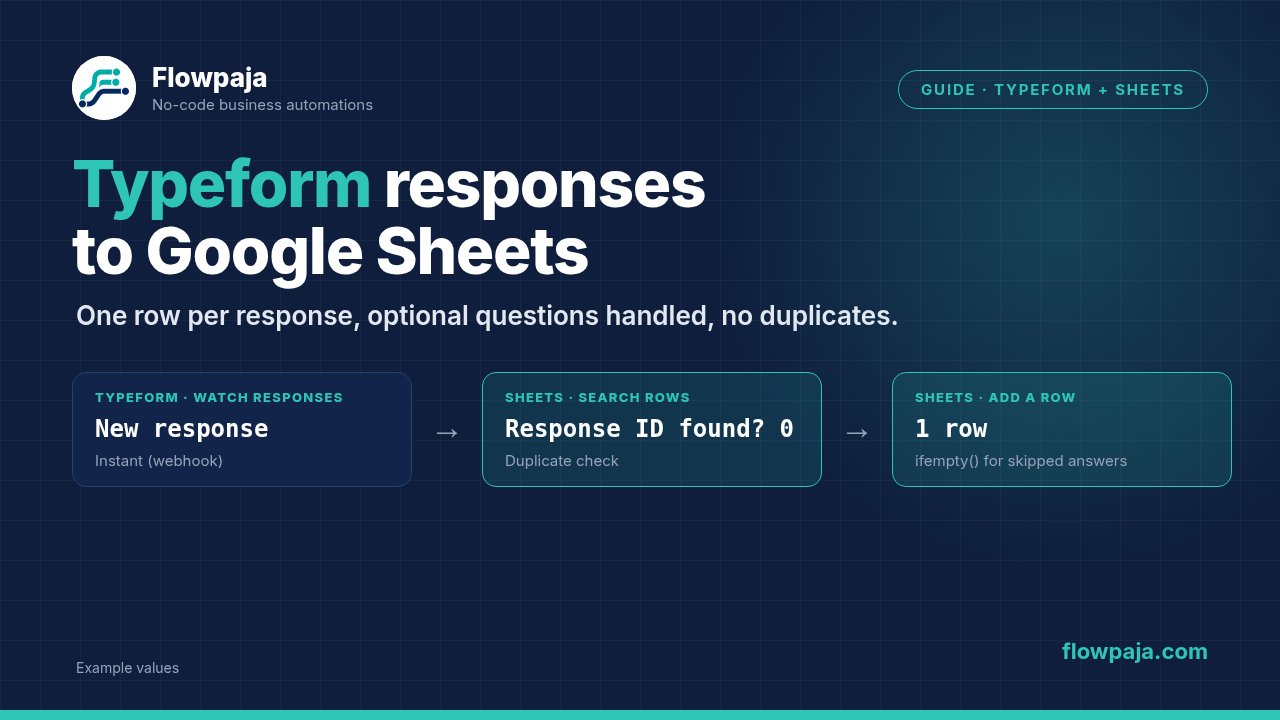
1. Add the trigger: Typeform – Watch Responses
Create a new scenario and add Typeform – Watch Responses. Make lists two versions: an instant one, marked with a lightning badge, where you click Create a webhook and Typeform notifies Make as soon as a response is submitted, and a scheduled one that checks Typeform on the scenario's schedule. The instant version suits this build. Connect your Typeform account and select the form. With the scheduled version, choose a specific existing response as the starting point for your first test; with the instant version, click Run once and then submit a fresh test response.
2. Run once and read the output
Click Run once and open the bubble. You should see the response ID, the submission time, and the answers. Depending on the version, Make shows either each question by its title as a separate field or one array of answers, each with a field reference and a typed value (text, email, choice, number, boolean). If the fields do not appear, submit a fresh test response first, because Make learns the form structure from real data.
3. Check for an existing row first
Add Google Sheets – Search Rows. Pick your spreadsheet and sheet, and filter on the Response ID column equal to the response ID from the trigger. Set the limit to 1.
4. Make the result usable: Tools – Numeric aggregator
A search with no results stops the scenario at that point, which would also stop it for every new response. A Numeric aggregator after the search still produces one bundle, so the scenario carries on. Set the source module to the search and use the function Count. By default an aggregator outputs a result even when no bundles reach it, so a new response gives a count of 0 and the run continues. Leave the advanced option Stop processing after an empty aggregation switched off.
5. Filter: only continue if the count is 0
Click the link after the aggregator and add a filter: the aggregator's result, equal to 0. If a row with this response ID already exists, the run ends quietly here.
6. Add the row: Google Sheets – Add a Row
Map each column:
- Response ID: the response ID from the trigger (the field may be called token)
- Submitted at:
{{formatDate(1.submitted_at; "YYYY-MM-DD HH:mm")}} - Name, Email, Service, Budget, Message: the matching answers
If your version of the module shows one field per question, drag them in directly. If it shows an answers array, pull each value with map() and get(), filtering the array by the question's field reference, for example:
{{get(map(1.answers; "text"; "field.ref"; "email_question"); 1)}}Test this exact formula with Run once before relying on it, since the property names can differ from version to version. Setting fixed references on your questions in Typeform makes this far less fragile than relying on titles.
7. Handle optional questions
A skipped optional question usually does not appear in the answers at all, so a mapped value comes back empty. That is fine for plain text. For anything with a function around it, guard it:
{{ifempty(1.budget; "not given")}}For dates, use if() so you never try to format an empty value:
{{if(1.preferred_date; formatDate(1.preferred_date; "YYYY-MM-DD"); "")}}For questions where several choices can be selected, the answer is an array, so turn it into text with join():
{{join(1.services; ", ")}}8. Test twice
Submit a test response with every question answered and check the row. Submit another with optional questions skipped. Then, in Make, re-run the same response and confirm no second row appears. That last test is what the check in steps 3 to 5 is for.
9. Switch it on
Activate the scenario. With the instant trigger it runs on every submission; for the scheduled trigger, set a schedule that matches how quickly you need rows to appear. Look at the History tab after the first real response arrives.
Common errors and fixes
The new question doesn't show up in the mapping panel. Make learned the form's structure from an earlier response. Submit a new response that includes the question, then run the scenario once again so the structure refreshes. In some cases you need to reopen the module or remap it.
Answers end up in the wrong columns after you edit the form. If you map by position or by an auto-generated reference, inserting a question can shift everything. Give each question a fixed reference in Typeform, map by reference, and keep the sheet's header names stable.
The cell shows something like [object Object] or a stray bracket. The answer is an array or a structured object, usually a multiple-choice question. Use join() for arrays, and pick the label property for choice answers.
Duplicate rows. Typeform can resend a notification if it does not get a quick success reply, and a Make scenario that is switched off and on again can pick up responses twice. Checking the response ID before adding the row, as in steps 3 to 5, removes the problem at the source. Typeform may also disable a webhook after repeated failures, so if responses stop arriving at all, check the current Typeform and Make UI for the webhook status.
A formula fails only on some responses. Almost always an optional question left blank. Wrap the value with ifempty() or if() as shown in step 7, then re-run with a response that skipped the question.