 Flowpaja
What you need
- A Make.com account with Google Forms (or Google Sheets) and Google Calendar connections
- A Google Form with a name, an email, a date question, a time question and, ideally, a duration question
- A Google Calendar that you can edit, ideally a separate one for bookings
- One test response already submitted
Step-by-step build
1. Add the trigger
Add Google Forms – Watch Responses and select your form. (The older Watch Responses in Google Sheets module is now listed as legacy.) If you prefer to work from the linked response sheet, use Google Sheets – Watch New Rows on that sheet instead. Choose your test response as the starting point and click Run once.
2. Read the date and time as they really arrive
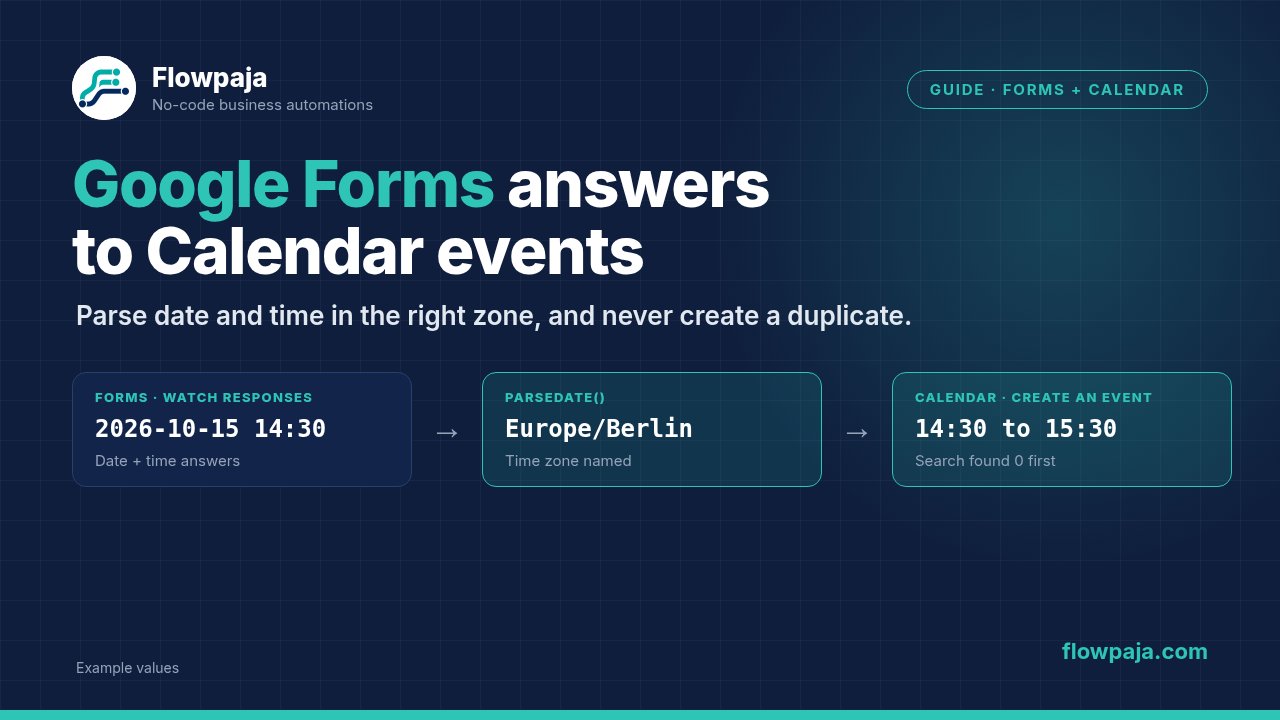
Open the output bubble. Google Forms date questions typically arrive as text like 2026-10-15 and time questions as 14:30, but the format can depend on the module and on your locale, particularly if you read from the linked sheet. Look at the real values before you write any formula. Most date errors come from guessing the format.
3. Combine date and time: Tools – Set variable
Add Tools – Set variable. Name it start_text and set the value to the date and the time with a space between:
{{1.Date}} {{1.Time}}Field names depend on your form's question titles, so use the mapping panel. Putting this in a variable keeps the later formulas short and lets you check the combined value on its own.
4. Parse it in the right time zone: Tools – Set variable
Add a second variable named start with this value:
{{parseDate(2.start_text; "YYYY-MM-DD HH:mm"; "Europe/Berlin")}}Replace the zone with the one your bookings are meant to be in. If you leave the zone out, Make uses the time zone from your Make profile settings, so naming it keeps the result the same whoever edits the scenario. If your sheet returns dates like 15/10/2026, change the format string to match, for example DD/MM/YYYY HH:mm.
5. Calculate the end time
Add a third variable named end:
{{addMinutes(3.start; ifempty(1.Duration; 60))}}The ifempty() falls back to 60 minutes when the duration question was skipped. If your duration question returns text like "30 minutes", add a lookup or a small switch first, because addMinutes needs a number.
6. Check for an existing event: Google Calendar – Search Events
Before creating anything, look for an event that already carries this response's ID. Select the calendar and put the response ID in the Query field, which searches the text of the events (the field may be called response ID or timestamp, depending on the trigger). The event will contain it in step 8. A timestamp plus the email address also works as a unique key if there is no ID.
7. Count and filter: Tools – Numeric aggregator
Set the source module to the search and use Count. Then add a filter on the next link: the result equals 0. An aggregator is needed because a search with no results would otherwise end the scenario for every new response. By default the aggregator still outputs a count of 0 when nothing is found; leave its advanced option Stop processing after an empty aggregation switched off.
8. Create the event: Google Calendar – Create an Event
Select the calendar and map:
- Event name:
Call with {{1.Name}} - Start date:
{{3.start}} - End date:
{{4.end}} - Description:
Form response ID: {{1.ResponseID}}plus the other answers, such as email and notes - Attendees: the email address from the form, only if you want the person on the event. Whether Google emails them an invitation depends on Send notifications about the event creation (all guests, external guests only, or none).
The variable module numbers in these examples are illustrative. Use the mapping panel for yours.
9. Optional: write the result back
If your trigger is a sheet, add Google Sheets – Update a Row and write the event link or ID into a "Calendar event" column. Then your sheet shows at a glance which bookings were created, and you can use that column, empty or not, as an alternative duplicate check.
10. Test
Submit a response for tomorrow at 14:30 in your own calendar. Check the event's time in the calendar view and on your phone, then re-run the same response and confirm no second event appears.
Common errors and fixes
The event is an hour or more off. The date was parsed without a time zone, so Make used the zone from your profile settings. Pass the zone in parseDate() as in step 4, and check the calendar's own time zone in Google Calendar settings. Check twice around daylight saving changes, since two zones may switch on different dates.
"Invalid date" or a missing start value. The format string does not match the text. 15/10/2026 and 2026-10-15 need different formats, and a month-first locale swaps day and month. Print the value from the Set variable module and compare it to your format character by character.
The end time equals the start time, or the module complains about the end. The duration was empty, text, or zero. Use ifempty() and make sure the value is a number. A form question with answers like "30 min" needs mapping to 30 first.
Two events for one response. The trigger fired twice, or you re-ran the scenario manually. The search and filter in steps 6 and 7 catch both. If you skip them, a re-run always creates a copy.
"Not found" or "insufficient permissions" on the calendar. The connected Google account cannot edit that calendar. Share the calendar with the account at the right permission level, or select the account's own calendar.
Attendees don't get invitations. Send notifications about the event creation is set to none, or the email has a typo or trailing space. Wrap the address in trim() and set notifications to all guests.