 Flowpaja
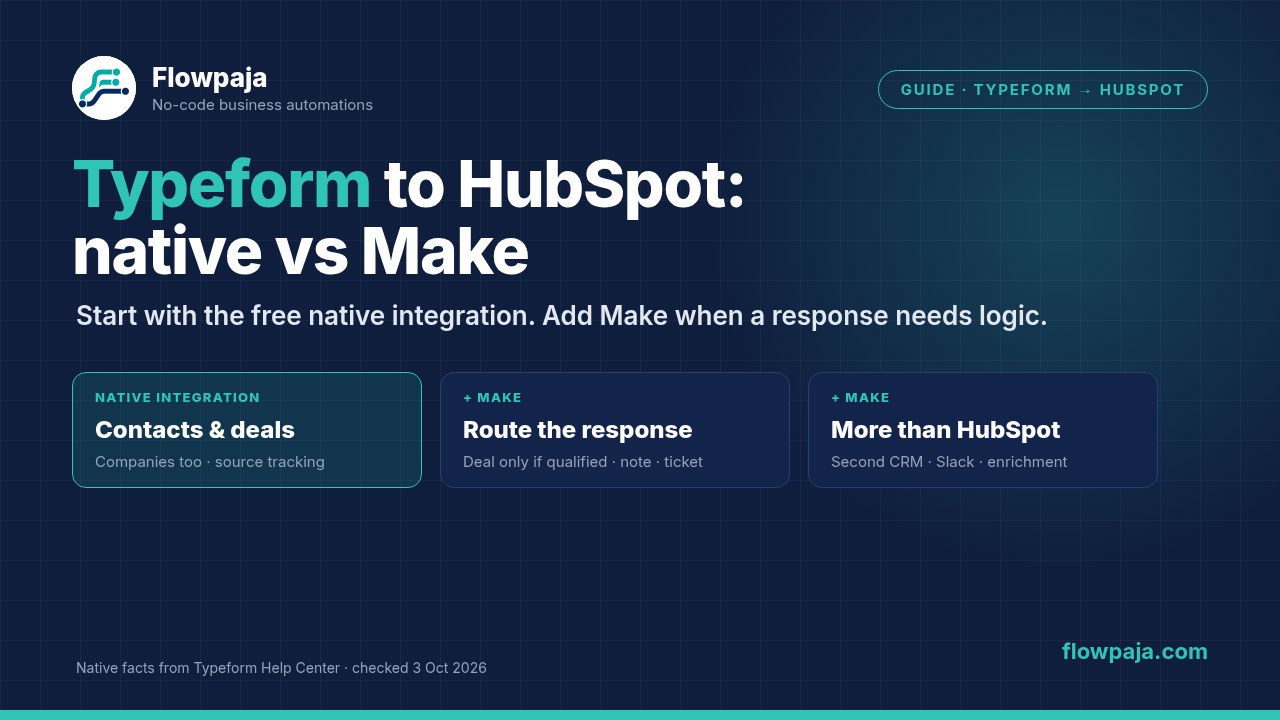
Does Typeform have a native HubSpot integration?
Yes. Typeform builds and maintains it, and it's listed as a HubSpot Certified App on the HubSpot App Marketplace. As of 3 October 2026, there are two native ways to send responses to HubSpot:
- The HubSpot integration (Typeform calls the builder part "Create with HubSpot"). You connect HubSpot from the form editor, map each question to a HubSpot property, and every completed response creates or updates a contact. You can also map questions to company and deal properties. Typeform's Help Center lists a Free Typeform account as enough, and the marketplace listing says it works on all Typeform plans, including Free. One caveat: Typeform's Free plan article also lists HubSpot among paid-only integrations, and Typeform says it's testing its plans, so check the Connect panel in your account. Typeform's Free plan has a limited number of responses per month, so check the pricing page for the current limit.
- Typeform Automations with a HubSpot action. Added in July 2026, according to Typeform's changelog. An automation starts on a form submission, a contact update or a schedule, sends the data to HubSpot contacts, companies and deals, and can add time delays and further actions such as an email or a Slack message. Contact-based triggers can be narrowed to a contact list or a property value. This needs the Plus, Business, Talent, Growth Flow, Growth Custom or Enterprise plan plus the Contacts & Automations add-on, which is included in Growth Flow.
Data goes one way, from Typeform to HubSpot. Behind the scenes Typeform creates a HubSpot form for the integration, so responses show up in HubSpot as form submissions. Typeform warns not to edit that HubSpot form's fields, because that can break the sync.
What the native integration does well
- No duplicates by email. If the form has an email question, existing contacts are updated when the email matches. Without one, you choose up to three properties to match on.
- Companies and deals. After you map at least one contact property and publish the form, Map Companies & Deals lets you write company and deal properties, and pick fields that identify existing records to update.
- Source tracking. Switch on Respondent source tracking and add Typeform's source tracking parameters to the form link, and HubSpot fills in properties such as Original source. Embedded forms also need HubSpot's tracking code on your site.
- Partial responses. Contacts can be created or updated at each Partial Submit Point, not just at the end of the form.
- Old responses. When you first publish the integration, you can send up to the 1,000 most recent existing responses to HubSpot.
- Enrichment and scores. Typeform's response enrichment variables, and Score, Segment and Winning outcome variables, can be mapped to HubSpot properties.
- Price. No extra tool and no per-response cost on top of your Typeform plan.
Where the native integration stops
These limits come straight from Typeform's own HubSpot help articles (checked 3 October 2026):
- Only contacts, companies and deals, and only existing properties. Mapping to tickets or custom objects isn't supported, and Typeform doesn't create new HubSpot properties. Notes, tasks and tickets aren't part of the integration.
- Some question types can't be mapped at all: Matrix, Ranking, Checkbox, Statements, Welcome Screens, Payment (Stripe or PayPal), Calendly, Question Group and Multi-Question Page headers, and the default Price variable.
- "Other" answers are lost for choice properties. A multiple choice question with the "Other" option switched on can't be mapped to a HubSpot dropdown, radio or multiple checkboxes property. It can still go to a single-line or multi-line text property.
- One HubSpot account per form, and a form connected to HubSpot natively can't also use Typeform's native Salesforce integration. Typeform's suggested workaround is Zapier for the second CRM.
- Partial responses reach contacts only, not companies or deals.
- No "only if" rule in the basic integration. The Create with HubSpot setup maps questions to deal properties, but its help article doesn't describe a condition such as "create a deal only when the budget is $5k+". Automations can filter on a contact list or property, on the paid plans listed above.
Native integration vs Make
| Need | Native integration | Make |
|---|---|---|
| Create or update a contact | Yes, matched by email | Yes: Create or Update a Contact |
| Companies and deals | Yes, mapped properties | Yes, plus Create an Association between records |
| Deal only for some answers | Not in the basic integration; Automations filter on contact data (paid add-on) | Yes, with a filter on any answer |
| Note with all answers, tasks, tickets | No | Yes: Create an Engagement, Create a Ticket |
| Matrix, ranking or payment answers | Can't be mapped | Can go into a note or text property |
| HubSpot and another CRM from one form | One HubSpot account per form; no native Salesforce on the same form | Yes, more modules in the same scenario |
| HubSpot source tracking | Yes, built in | No; store UTM values from URL parameters in your own properties |
| Cost | Included in all Typeform plans | Make credits per response (table below) |
| Upkeep | Low; managed by Typeform | You own the scenario, its errors and its mappings |
Comparing automation tools in general? See Make vs Zapier vs n8n.
When Make is worth it, and when it isn't
- Stay native if every response should become a contact with mapped properties, maybe with a company and a deal. That covers most contact, demo request and newsletter forms, and you keep source tracking for free.
- Add Make when one response should branch: a deal only for qualified leads, a different pipeline per product, a note with the full answers, a ticket for support requests, a Slack alert to the right person, or the same lead in a second CRM.
- Add Make when you need answers the native integration can't map, such as a matrix or a ranking question, or a choice question with "Other" switched on that has to fill a HubSpot dropdown or checkbox property.
- Add Make when you want to enrich or check a lead before it reaches HubSpot: look the company up in another system or a spreadsheet, or have an AI module summarise a long answer. Typeform's own response enrichment can already be mapped natively, so check that first.
- Best of both: keep the native integration for the contact and source tracking, and let Make do only the extras. That's the setup we build below.
What you need
- A published Typeform (affiliate link) form with an email question.
- A HubSpot account. For the Make part, Make's docs say a Super Admin must pre-approve the Make app before anyone can connect HubSpot, including after Make adds new scopes.
- For the Make part, a Make account. No account yet? Create a free Make account (affiliate link). The Free plan includes 1,000 credits a month and 2 active scenarios (Make pricing page, 3 October 2026).
Affiliate disclosure: links marked "affiliate link" include our partner code for Typeform or Make. If you sign up or later buy a paid plan through them, Flowpaja may earn a commission at no extra cost to you. More on the tools page.
Part 1: Set up the native integration
- In HubSpot, create any custom properties you need first. Typeform maps only to existing properties, and its field-mapping article says to tick Use in forms, and bots when you create one.
- In the Typeform editor, click + Add content, then HubSpot under Connect to apps, and sign in to HubSpot.
- Add questions straight from your HubSpot contact properties, or map existing questions with the Map to dropdown. A plug icon shows which questions are mapped.
- In the HubSpot settings (the HubSpot icon in the toolbar), switch on Require email address to create new records, and Respondent source tracking if you want it.
- Click Publish. Mapping changes only go live when you publish. Then use Map Companies & Deals if you want those records too.
- Test with a fictional email you've never used, from a private browser window. Typeform's troubleshooting article explains that a cookie on the same device updates the existing contact instead of creating a new one.
Part 2: Add Make for the extras
Typeform › Watch Responses (instant) → Tools › Sleep (optional) → HubSpot CRM › Create or Update a Contact → Router: note on every response · deal only for qualified answers · anything else you need.
Step 1: Add the instant Typeform trigger
- Create a scenario and add Typeform › Watch Responses. Make has two modules with that name: pick the one with the INSTANT tag, click Create a webhook, then Create a connection and choose your Typeform account's region.
- Select the form, click Run once and submit a test response with fictional data, such as "Ana Example" and ana@example.com.
- Map answers from the mapping panel. If you see an answers array instead of one field per question, pick values by the question's ref. Our Typeform to Make guide shows how, and how to read URL parameters such as
utm_source.
Make listens through its own Typeform webhook, which is separate from the native integration, so the two should run side by side. Send one test response and check that both the native sync and Make picked it up. Typeform marks a webhook delivery as failed if it gets no response within 30 seconds, and then retries.
Step 2 (if native runs too): give it a head start
Both tools now write to the same contact at almost the same moment. As a precaution, we put Tools › Sleep (for example, 10 seconds) first, so the native integration has usually created the contact before Make looks for it. This is our own practice, not something Make or Typeform require. Using Make on its own? Skip this step.
Step 3: Create or update the contact and get its ID
- Add HubSpot CRM › Create or Update a Contact. Make describes it as: "Creates a new contact if the specified email address in the properties does not exist; otherwise, updates the existing contact." The next steps need the contact ID from its output. Check in a test run that the output includes it; Make's docs only spell out the returned ID for its Create modules, so if it's missing, add HubSpot CRM › Search for Contacts by email and take the ID from there.
- Map the email to HubSpot's standard Email property, lower-cased and trimmed:
{{lower(trim(email answer))}}. If native is on, you only need the email here. Map other properties only if native doesn't already. - Dropdowns: Typeform sends the option label (for example "$5k+"), while HubSpot's API expects each option's internal value. Translate with
switch(), for example{{switch(budget answer; "Under $1k"; "under_1k"; "$1k–$5k"; "1k_5k"; "$5k+"; "5k_plus")}}, using your property's real internal values. - Multiple checkboxes: HubSpot's properties guide says to send the internal values separated by semicolons, with no spaces. A leading semicolon appends to existing values instead of replacing them.
- Add a filter before this module: email Exists.
Step 4: Route the response
Add a Router after the contact module. Routers and filters don't use credits. Typical routes:
- Note with all answers (every response): HubSpot CRM › Create an Engagement, type note, on the contact ID from step 3. Put everything in the body, including matrix, ranking and "Other" answers that native can't map.
- Deal for qualified leads only: a filter such as budget equal to "$5k+", then Create a Deal and Create an Association to link it to the contact. If you use this, don't also map deals in the native integration, or you'll get two deals.
- Support requests: a filter on the request type, then Create a Ticket.
- A second CRM or an alert: add that app's module, or Slack, on its own route.
Typeform retries failed deliveries, so a rare repeat delivery can happen. Updating a contact twice is harmless, but a second note or deal isn't. If repeats would hurt, keep a list of processed response tokens (Typeform's response ID), for example in a Make data store, and skip tokens you've already seen. That adds a couple of credits per response.
Step 5: Error handling and switch-on
- In the scenario settings, turn on Store incomplete executions. With an instant trigger, the "errors before deactivation" setting doesn't protect you: without stored incomplete executions, the first error can switch the scenario off.
- Optional: add an error route on the HubSpot modules that alerts you with the respondent's email. See Make error handlers.
- Test a new email, the same email again, each route's filter, and one response with optional questions left blank. Then switch the scenario on and check History after the first real responses.
Make credits per response
Make counts one credit per module action; routers, filters and error handlers don't use credits (Make pricing page, 3 October 2026).
| Setup | Modules that run | Credits per response |
|---|---|---|
| Contact only | Trigger + Create or Update a Contact | 2 |
| With a note | Contact only + Create an Engagement | 3 |
| Next to native | With a note + Sleep | 4 |
| Qualified lead | Next to native + Create a Deal + Create an Association | 6 |
If you need Search for Contacts to get the contact ID, add 1 credit to each row. At 4 credits per response, 1,000 Free credits cover about 250 responses a month, if nothing else uses them. More in Make credits explained.
Common problems and fixes
| Problem | Likely cause | Fix |
|---|---|---|
| Native: no new contact when testing | Same device cookie, or an email that's already a contact | Test in a private window with a new email |
| Native: mapped answers missing in HubSpot | Form not republished after editing the mapping | Click Publish |
| Native: Original source shows Direct traffic | Missing or wrong UTM parameters in the form link | Add the source tracking parameters to the link you share |
| Native: a question can't be mapped | Unsupported type, or "Other" switched on | Switch off "Other", map it to a text property, or send it with Make in a note |
| Make: can't connect HubSpot | The Make app isn't approved in your HubSpot account | Ask a HubSpot Super Admin to approve it, then reconnect |
| Make: "Property values were not valid" | A dropdown label sent instead of its internal value | Translate with switch() |
| Two deals per lead | Deals mapped in native and created in Make | Create deals in one place only |
| Make: scenario never runs | Scenario off, or the webhook was disabled | See webhook not receiving data |
Other error messages: Make error cheat sheet. Using Tally instead of Typeform? Tally has no native HubSpot integration, so the Make route matters more: see Tally to HubSpot with Make.
Sources checked (3 October 2026)
- Typeform Help Center: Connect Typeform with HubSpot, field mappings, troubleshooting and FAQ, source tracking for HubSpot, automations with HubSpot, changelog, pricing, webhooks (timeout and retries)
- HubSpot: Typeform on the App Marketplace, properties guide (internal values, multiple checkboxes)
- Make: Typeform app, HubSpot CRM app, Typeform + HubSpot CRM modules, pricing