 Flowpaja
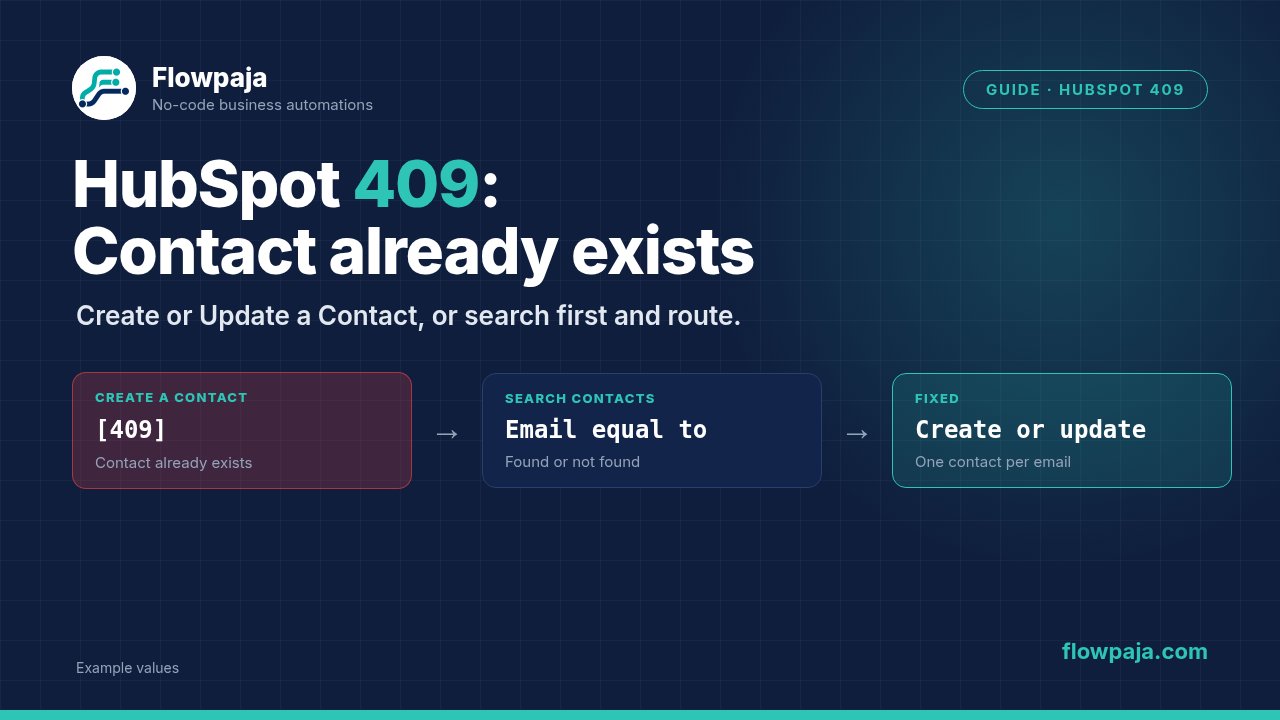
- Replace Create a Contact with HubSpot CRM › Create or Update a Contact. It matches on email and updates the existing contact instead of failing.
- Or search first: Search for Contacts with the filter Email equal to the form email, then a router: no contact found → create, contact found → Update a Contact with the found ID.
If you already search first and still get 409s, the email is probably stored as an additional email on another contact, or two submissions arrived within seconds. Both cases are covered below.
The error texts you'll see
In the Make execution log, the HubSpot module turns red with one of these:
[409] Contact already exists. Error Messages: [A contact with email jamie@example.com already exists.]Contact already exists. Existing ID: 2926551The wording depends on which HubSpot API version the module calls. Newer HubSpot responses also carry the code CONTACT_EXISTS (category OBJECT_ALREADY_EXISTS; older responses said CONFLICT). All of them mean the same thing: the email in your create request already belongs to a contact. The Existing ID is that contact's record ID, so you can open it in HubSpot and see who it is.
A different red error, [400] Property values were not valid, is not a duplicate problem. It means a value (usually a dropdown answer) doesn't match the property's internal value. See Google Forms to HubSpot and Slack, Step 2.
Which fix fits your scenario
| Your scenario does | Use | HubSpot credits per lead |
|---|---|---|
| Save every lead as a contact, same steps for new and returning people | Create or Update a Contact | 1 |
| Something different for new vs returning people (a "new lead" Slack alert, a deal only for new contacts) | Search for Contacts → router → Create a Contact / Update a Contact | 2 |
Make's HubSpot CRM app has both options: Create or Update a Contact, Create a Contact, Update a Contact, Get a Contact, Search for Contacts and Merge Contacts.
Fix 1: Create or Update a Contact
- Open the red Create a Contact module, note its mappings, and replace it with HubSpot CRM › Create or Update a Contact.
- Map the email to HubSpot's standard Email property, cleaned first:
{{lower(trim(1.email))}}(replace1.emailwith your form's email field; in the editor you click the field rather than type it). - Map the other properties as before. Leave a field empty if you don't want the form to overwrite it. Don't map the contact owner or lifecycle stage unless the form should really change them on every resubmission.
- Run once with an email that already exists in HubSpot. The run should go green, and the existing contact should show the new values.
Any module after it that needs the contact ID (a note, a deal association) can map the ID from this module's output.
Fix 2: Search first, then create or update
Use this when new and returning leads should be treated differently. It's the pattern Lead Router uses.
- Add HubSpot CRM › Search for Contacts before the create step. Filter: Email equal to
{{lower(trim(1.email))}}, limit 1. Leave any free-text query empty: a free-text search can return a contact that only partly matches, and you'd update the wrong person. - Check what the module does when nothing is found. If the route stops there, new leads never reach the next step. If the module offers an option to continue the route even when there are no results, turn it on.
- Add a Router with two routes:
- New: filter contact ID from the search does not exist → Create a Contact.
- Existing: filter contact ID exists → Update a Contact with that ID.
- Test three cases with fictional data: a brand-new email, an existing email, and the existing email in capitals with a trailing space. You should get one create, then two updates of the same contact.
Routers and filters don't use credits, so this costs one credit for the search plus one for the create or update.
Still getting 409 after a search?
| Cause | How to spot it | Fix |
|---|---|---|
| The email is an additional email on another contact. Merged contacts keep the secondary contact's email as an additional email. A filter on Email checks the primary email only, so the search finds nothing and the create fails. | The Existing ID in the error belongs to a contact with a different primary email. | Open that contact and decide by hand. To make it automatic, use Create or Update a Contact on the New route too (Fix 1). |
| Two submissions with the same email within seconds. HubSpot's search may not have indexed the first contact yet, so the second run's search finds nothing. | Two runs a few seconds apart, the second one red. | For webhook triggers, turn on Process data in order in the scenario settings so runs don't overlap. Use Create or Update a Contact on the New route so a late duplicate updates instead of failing. |
| The search compared a different value. Spaces, capitals, or the email mapped to a custom "work email" property instead of the standard Email. | The search input in the execution log shows spaces, capitals or an empty value. | Search and write the same cleaned value: lower(trim(...)), always into the standard Email property. |
| The search used a free-text query. | The search module has text in its query field. | Clear it and use the Email equal to filter. |
Duplicates without any error
HubSpot only blocks duplicates by email. Contacts created without an email, or with the email in a custom property, are never matched, so they pile up silently. Put a filter right after the trigger: email exists and contains @. Send everything else to a Slack alert instead of HubSpot.
If you clean up existing duplicates with Merge Contacts (in Make or in HubSpot), know that HubSpot merges can't be undone. The merged record keeps the secondary contact's email as an additional email, which is exactly the first cause in the table above.
Don't let the 409 stop the scenario
An unhandled error stops the run. A scenario with an instant trigger (a webhook, Typeform, Tally) is switched off after its first unhandled error. Right-click the HubSpot module → Add error handler, add Slack › Send a Message to an alerts channel with the error and the lead's email, then a Skip handler (Make's newer name for Ignore). The failed lead is skipped, not lost: the alert tells you which email to check. More in Make error handling: Resume, Ignore, Break, Rollback, Commit.
Skip the build
Lead Router ($19): Google Form → exact-email search in HubSpot → create or update → $10k+ budgets to #sales-hot, the rest to #leads, and failures alerted in #automation-alerts. One-time purchase, 30-day money-back guarantee.
No Make account yet? Create a free Make account (affiliate link). Flowpaja may earn a commission if you sign up through it, at no extra cost to you.