 Flowpaja
Some links on this page are affiliate links. If you sign up through them, Flowpaja may earn a commission at no extra cost to you.
Make used to be called Integromat. If you find an old Integromat tutorial, most of the ideas still apply. Some names have changed, and billing is now in credits.
The basic ideas
Scenario
A scenario is one automation. For example: "when a form is submitted, add a row to my sheet and tell me in Slack". You build it on a visual canvas, and it runs on a schedule or when something happens.
Module
A module is one step in a scenario: "Watch new rows", "Add a Row", "Send a Message". Each module belongs to an app (Google Sheets, Gmail, Slack, …) and does one thing.
Bundle
A bundle is one package of data moving through the scenario, such as one form response, one row or one email. If a trigger finds 5 new rows, it produces 5 bundles. The modules after it then run 5 times, once per bundle.
Trigger: instant vs polling
The first module is the trigger. It decides when the scenario runs.
- Instant triggers run the moment something happens. They're webhooks, marked INSTANT in Make's module list, like a form tool sending a submission. See the Make webhook tutorial.
- Polling triggers check on a schedule ("every 15 minutes, are there new rows?"). Each check uses a credit, even when nothing is new.
Mapping
Mapping means telling a module which data to use. Click into a field, and Make shows the data from earlier modules. Pick "Email" from the trigger, and it appears as a coloured pill. You can also use functions inside fields, e.g. {{formatDate(now; "YYYY-MM-DD")}} or {{trim(1.email)}}.
Filters
A filter sits between two modules and only lets bundles through that match your conditions, e.g. "Status equals Unpaid" or "Email exists". Filters don't use credits. Put them early, so bundles you don't need stop before they use credits.
One detail that trips people up: text conditions can't do "less than" or "greater than". To compare amounts or dates, use the number or date operators. You may need parseNumber() or parseDate() first.
Routers
A router splits the scenario into several paths. Each path has its own filter, e.g. "big orders → #sales channel" and "all orders → sheet". A bundle runs every path whose filter it passes, so make the conditions exclusive if only one path should run. Like filters, routers don't use credits.
Iterators and aggregators
An iterator splits a list (e.g. the products in one order) into separate bundles. An aggregator does the opposite: it collects many bundles into one, e.g. ten overdue invoices into one email. See iterator vs aggregator.
Credits: what running a scenario costs
Make bills in credits. Most module actions count as one credit, e.g. adding a row or sending a message; some AI features use more. Older guides call these "operations".
The free plan includes:
- 1,000 credits a month
- 2 active scenarios
- a 15-minute minimum interval between scheduled runs
Credits don't carry over to the next month. Make's pricing page lists the current paid plans (all checked 2 October 2026).
A quick sense of scale:
- A form → Sheets → Slack scenario with an instant trigger uses 3 credits per submission: trigger, row and message. 100 submissions a month ≈ 300 credits.
- The same scenario polling every 15 minutes adds roughly 2,880 checks a month, which is more than the free plan's 1,000.
More on estimating and saving: Make credits explained.
Scheduling
Open the scenario's Schedule settings to set when it runs. In the scenario toolbar the button shows the current schedule, e.g. Every 15 minutes (new scenarios start there) or Immediately as data arrives:
- Immediately, only for instant triggers such as webhooks
- At regular intervals, e.g. every 15 minutes or every hour (15 minutes is the Free plan's minimum)
- Daily, Weekdays (Mon-Fri), Weekly, Monthly, Once or Specified dates, at set times
- On demand: it only runs when you click Run once or call it through the API
Then switch the scenario on with the toggle. A scenario that's off doesn't run, however good it looks.
History: your best debugging tool
Every run is recorded under the scenario's History tab. Click a run to see each module's input and output. Green means it worked. Red shows the module that failed and the exact error.
When something goes wrong, look at the first failed run, not the latest. That's where the cause is.
Error handlers
When a module fails, an error handler decides what happens next. Right-click a module → Add error handler. Make renamed two of them in May 2026, and older tutorials still use the old names shown in the table. Error handlers don't use credits.
| Handler | What it does | Use it for |
|---|---|---|
| Retry (formerly Break) | Saves the failed run as an incomplete execution, to retry automatically or by hand | Temporary problems: timeouts, outages. Needs Store incomplete executions turned on |
| Skip (formerly Ignore) | Drops the failed bundle, carries on with the next one and marks the run as successful | Items you can do without. Log them first so you know |
| Resume | Continues with replacement values you define | Optional data with a safe default |
| Commit | Stops the run and keeps changes made so far; the run ends with a warning | Transactional apps such as data stores |
| Rollback | Stops the run and undoes changes in modules that support transactions; the run ends with an error | What happens by default when there's no handler and incomplete executions are off. It can't undo a sent email or a written Sheets row |
What switches a scenario off:
- Scheduled scenarios switch off after a number of failed runs in a row. That's the Errors before deactivation setting in the scenario settings; 3 by default.
- Scenarios with an instant trigger ignore that setting and switch off after the first error.
- With Store incomplete executions turned on, a failed run is saved instead, and the scenario usually keeps running. If a scenario did stop, see Make scenario stopped or disabled.
All error types on one page: Make error cheat sheet.
8 small-business use cases
- Lead capture: web form → Google Sheets row → Slack "Send a Message" to
#leads. - Invoice reminders: a daily check of an invoice sheet → a polite Gmail reminder for overdue, unpaid invoices.
- Overdue digest: a daily check of the same sheet → one email to yourself listing all overdue invoices, built with an aggregator.
- Quote follow-up: sent quotes in a sheet → a Gmail draft follow-up after 3, 7 and 14 days, which you send yourself.
- Order alerts: new Shopify order → Slack message with the order number and total (no customer contact data).
- Order log: new Shopify order → one Google Sheets row per order, or per product with an iterator.
- Email attachments to Drive: new Gmail email with an invoice PDF → save the attachment into a Google Drive folder.
- Form to CRM: form submission → search the CRM by email → update or create the contact → notify the team.
Which apps to pair with Make for these, and their free-plan limits: Tools I use with Make.com.
Your first scenario in 15 minutes
Goal: when a new row is added to a Google Sheet, post it to Slack.
- Prepare a sheet (2 min). Create a sheet with the headers
Name,Email,Messagein row 1, and add one fictional row: "Ana Example",[email protected], "Hello". - Create an account (2 min), if you don't have one: Make (affiliate link). The free plan is enough.
- Add the trigger (3 min).
- Create a new scenario → + → Google Sheets → Watch New Rows. It's a polling trigger: it checks for new rows each time the scenario runs.
- Connect your Google account, pick the spreadsheet and the sheet, set Table contains headers to Yes and keep Row with headers at
A1:Z1. - In the Choose where to start window, select All, so the existing row is included and you have something to test with. (Closed it by accident? Right-click the module → Choose where to start.)
- Add Slack (3 min).
- Click + after the trigger → Slack → Send a Message.
- Connect Slack and choose a test channel.
- In the text field, map:
New row: {{Name}} ({{Email}}): {{Message}}
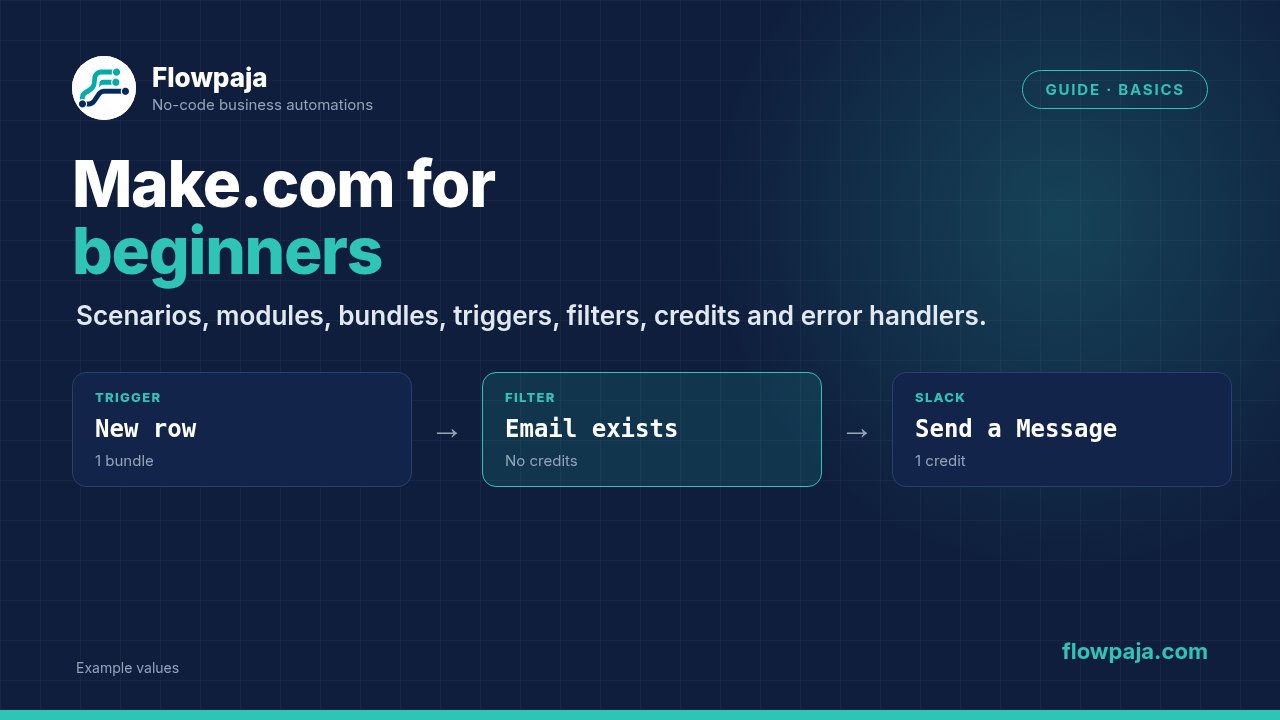
- Add a filter (1 min). Click the line between the modules → Set up a filter →
EmailExists. - Test (2 min).
- Click Run once.
- Check Slack for the message, and the module bubbles for the data.
- If Slack says
channel_not_foundornot_in_channel, invite the Make bot to the channel. More fixes: Slack channel not found in Make.
- Schedule and switch on (2 min).
- Set the trigger to every 15 minutes, or longer to save credits, and switch the scenario on.
- Add a new row and wait for the next run. Keep the sheet free of blank rows: Watch New Rows stops at a blank row and skips everything below it.
What it costs: each check is 1 credit, even when there's no new row. Each new row adds 1 more credit for the Slack message. At every 15 minutes that's about 2,880 checks in a 30-day month, more than the Free plan's 1,000 credits, so for a test scenario choose every hour or longer, or switch it off when you're done.
Next steps:
- Swap the trigger for an instant webhook: Make webhook tutorial.
- If a search step finds nothing: Search Rows returns nothing.
- Or start from a ready-made scenario: Webhook to Sheets with dedupe (free template).