 Flowpaja
Some links on this page are affiliate links. If you sign up through them, Flowpaja may earn a commission at no extra cost to you.
This guide describes the current Make AI Agent (New) app, released in February 2026. It's in open beta, so Make says features and pricing may still change. Older tutorials show the previous version (the "Make AI Agents" app with a separate AI Agents configuration tab). The ideas are the same, but the screens differ.
What you need
- A Make account. Agents are available on all plans, including Free, using Make's AI Provider. Your own OpenAI or Anthropic Claude connection is only available on paid plans. Sign up here if needed: Make (affiliate link)
- A model connection: Make's AI Provider (no separate AI account, billed in Make credits) or, on a paid plan, your own provider key.
- A clear, narrow job for the agent: "triage support emails", not "run customer service".
- Optionally, working scenarios that the agent can call as tools.
New to Make? Read Make.com for beginners first. Agents live inside scenarios, so you'll use triggers, modules and mapping anyway.
What a Make AI agent is
An agent lives in the Make AI Agent (New) → Run an agent module inside a scenario. It has:
- A model. You pick the connection and the model. The model reads the input and decides what to do.
- Instructions: its role, rules, tone, and what it must never do.
- Input: the data for this run, mapped from earlier modules (an email, a form answer, a chat message).
- Tools: actions it can take. In the current app, a tool can be a module (for example, Slack → Send a Message), a scenario (called through Scenarios → Call a scenario), an MCP server tool, or another agent.
- Knowledge (optional): reference files like an FAQ or a style guide, which the agent searches when it needs them.
You give the agent a task ("Here's a new support email, triage it"), and it:
- reads the input,
- decides which tool to call, with which values,
- reads the tool's result,
- repeats until it has finished, or decides it can't,
- returns a final Response.
Agent vs a scenario with an OpenAI module
| Scenario + OpenAI module | Make AI agent | |
|---|---|---|
| Who decides the steps | You, when you build it | The model, at run time |
| Predictability | High. Same input, same path | Lower. The path can vary |
| Debugging | History shows each fixed step | History plus the agent's Reasoning tab and Execution steps (which tools it called and the tokens used) |
| Cost per run | Easy to estimate (module count) | Varies with how many tool calls and tokens the agent uses |
| Good for | Classify, summarise, extract, draft | Tasks where the next step depends on what an earlier step found |
Make's own guidance is similar: use an agent for tasks that need judgement and variable inputs and outputs, an AI module for predefined logic with AI-generated content, and a standard scenario for fixed logic.
Example of the difference:
- Scenario: "Classify the email. If it's
invoice, add a label." The steps are always the same, so use a scenario. See Make + ChatGPT. - Agent: "Read the email. If it mentions an order, look it up. If the order is late, flag it. If you still can't answer, create a ticket with what you found." The path depends on what each step finds. An agent can help here.
When NOT to use an agent
Be honest with yourself here. It saves money and trouble.
- The steps are always the same. A fixed scenario is cheaper, faster and easier to debug.
- Mistakes are expensive or irreversible: refunds, payments, deleting data, emailing customers directly. Keep a person in the loop, or keep the agent's tools read-only.
- You need exact, auditable rules (accounting, legal, compliance). Rules belong in filters and routers, not in a prompt. Make itself recommends avoiding sensitive data and high-stakes decisions.
- High volume with tight budgets. Agents can make several model calls and tool runs per task, so costs are harder to predict.
- You haven't built the scenario version yet. Build the fixed version first. Often it's enough.
How to build an agent (overview)
Step 1: Add the agent to a scenario
Create a scenario with a trigger (for example, Gmail → Watch emails), then add Make AI Agent (New) → Run an agent. In the module, choose the Connection (Make's AI Provider or your own) and a Model.
Step 2: Write the instructions
Include:
- The role: "You triage support emails for a small online shop."
- The allowed actions, and the forbidden ones: "Never promise refunds. Never email the customer."
- When to stop and hand over: "If you're not sure, create a ticket with a summary and stop."
- The output you want. For fields that later modules need, set Response format to Data structure and define them (e.g.
category,ticket_created). Otherwise leave it on Text.
Step 3: Add tools
Hover over the agent module's + and click Add tool.
- Module tools are best for one-step actions (post to Slack, add a row). Fix the fields the agent shouldn't touch (spreadsheet, channel), and let the agent fill only what it needs to decide.
- Scenario tools suit multi-step jobs. Use Scenarios → Call a scenario, write a Description, and define inputs and outputs. The tool scenario must end with a Return output module if it should send data back, and it must be active and set to On demand.
- On the route between the agent and a tool, Tool settings → Tool outputs lets you choose which fields go back to the agent. Fewer fields means fewer tokens.
The agent chooses tools by their name and description. Write them like instructions to a new colleague:
Find order by email. Use when the customer mentions an order, delivery or tracking. Input: customer email. Returns: order number, status and order date, or "not found".
Vague descriptions ("Order tool") lead to wrong or missing tool calls.
Step 4: Limit it
In the agent's settings, Steps per agent call caps how many times the agent calls the model per request, so a confused agent can't loop forever. Step timeout defaults to 300 seconds (maximum 600). If you map a Conversation ID, set Maximum conversation history too. Leave Conversation ID empty for triage, so each email starts fresh.
Step 5: Test with fictional cases
Use the module's Chat (hover over the agent's +, or right-click → Chat with Agent) to send test requests. Write 5–10 test emails that cover each path: an order question, a late order, an invoice question, spam, and something unclear. Check which tools the agent called, and whether the final answer follows your rules. You can also disable a single tool (right-click its route → Disable tool) to see how the agent behaves without it. Chat tests use credits too.
Worked example: a support-triage agent
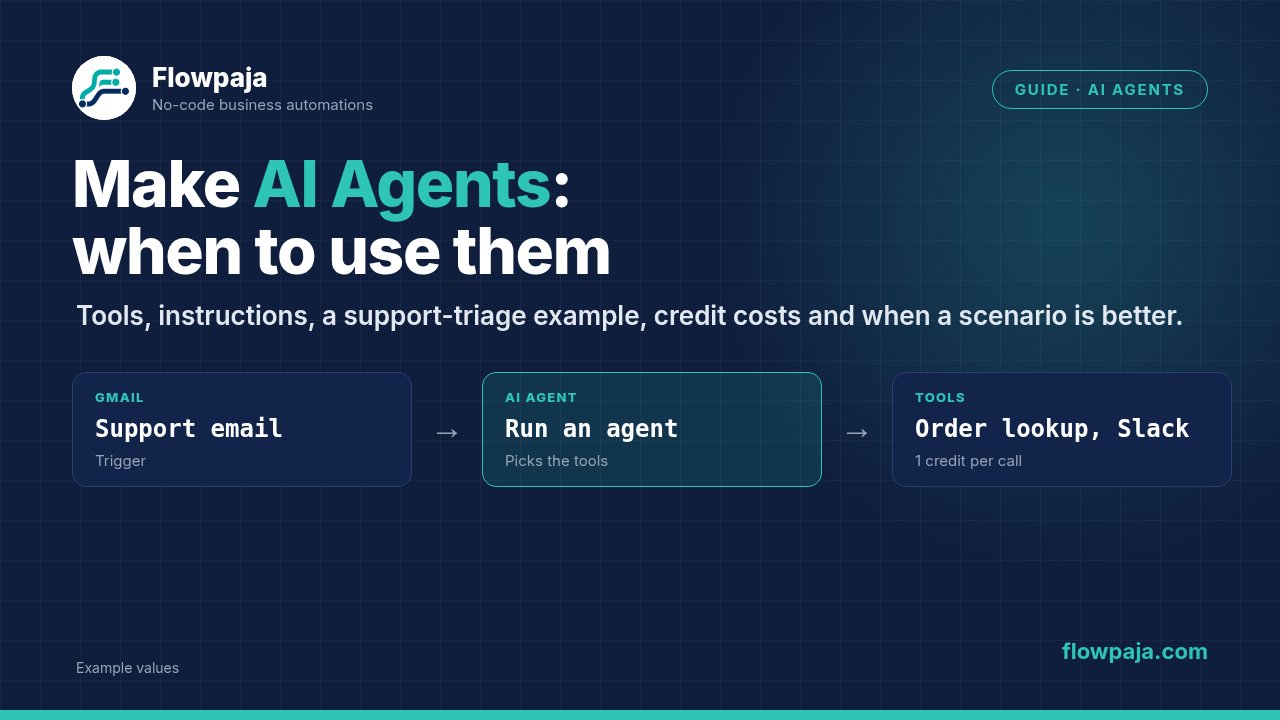
Goal: new support emails are triaged. The agent looks up the order if one is mentioned, posts a short summary to Slack, and creates a ticket row only when a person needs to act. It never replies to the customer.
The tools
Tool A: Find order by email (scenario tool, read-only)
- Scenario input:
email. - Google Sheets → Search Rows in the "Orders" tab:
Emailequals the input, limit 1. - Router with two filtered routes:
- Not found: Total number of bundles = 0 → Return output with
status= "not found". Search Rows outputs one empty bundle when nothing matches, so the scenario keeps running and you need this check. See Search Rows returns nothing. - Found: Total number of bundles > 0 (or Row number exists) → Return output with the order number, status and date.
- Not found: Total number of bundles = 0 → Return output with
- Save, set the schedule to On demand and switch the scenario on.
Tool B: Create ticket row (module tool)
- Google Sheets → Add a Row in the "Tickets" tab. Fix the spreadsheet and the status column ("Open"). Let the agent fill
email,summaryandcategory.
Tool C: Post triage note (module tool)
- Slack → Send a Message, channel fixed to
#support(invite the Make bot there first). Let the agent write the text.
The agent instructions (shortened)
You triage support emails for a small online shop. For each email:
1. Decide the category: order, invoice, product question, spam, other.
2. If the email mentions an order or delivery, call "Find order by email".
3. Post a 2–3 line summary with "Post triage note", including the order status if you found one.
4. Call "Create ticket row" only if a person must act (late order, complaint, unclear request).
Never reply to the customer. Never promise refunds or dates. If unsure, create a ticket.
Response format: Data structure with category (text) and ticket_created (yes/no).
The trigger scenario
- Gmail → Watch emails on the support inbox (polling), or an instant trigger if your helpdesk sends webhooks.
- Filter: skip newsletters and your own replies.
- Make AI Agent (New) → Run an agent, with the input: sender email, subject, and the body shortened with
substring(). - Optional: Google Sheets → Add a Row to log the date, sender and
categoryfrom the agent's response.
Credit cost per email
Make's documentation gives these rules for the agent app:
| Part | Make's AI Provider | Your own provider key (paid plans) |
|---|---|---|
| Run an agent | 1 credit per operation + credits based on tokens | 1 credit per operation (the provider bills the tokens) |
| Each tool call | 1 credit per operation + token-based credits | 1 credit per operation |
| Chat tests | 1 credit per message + called tools + tokens | 1 credit per message + called tools |
On top of that: the trigger uses 1 credit per check (also when nothing is new), and each module inside a tool scenario uses credits as normal.
A typical order question (tools A and C) lands at a handful of credits plus tokens, compared with a fixed classify → search → Slack scenario of about 3 credits plus one model call. Exact numbers depend on how many steps the agent takes. Run 10–20 realistic test emails and check the credits and Token usage summary in History before you switch it on for real. More on estimating: Make credits explained.
Keeping agents safe and affordable
- Read-only tools first. Add tools that change data only once the read-only version behaves.
- Small inputs. Shorten emails before passing them in, and pass only the fields the agent needs. Trim tool outputs in Tool settings.
- Fewer tools. Every tool (and every MCP tool) adds tokens to each request. Give the agent only what this job needs.
- Cap the steps with Steps per agent call.
- Log every run: input, category, whether a ticket was created. History also keeps the Reasoning tab for each run.
- Review weekly at first. Read a sample of triaged emails and adjust the instructions.
- Error handling: add Retry (formerly Break) for temporary errors on modules like Search Rows or Slack in your tool scenarios. Scenarios with an instant trigger switch off after the first error (unless Store incomplete executions is on). Scheduled ones switch off after the Errors before deactivation limit. A fallback connection in the agent settings can take over if your main AI provider fails.
Common errors
| Error | Cause | Fix |
|---|---|---|
| Agent never calls a tool | Tool descriptions too vague, or instructions don't mention the tool | Rewrite descriptions with "use when…"; name the tool in the instructions |
| Agent calls the wrong tool | Overlapping tool descriptions | Make each tool's purpose distinct; say in the instructions when not to use a tool |
| Scenario tool can't be selected or never runs | Tool scenario isn't active or isn't set to On demand | Switch it on with the On demand schedule |
| Tool returns nothing to the agent | No Return output module at the end | Add Return output and map the outputs |
| "Not found" for existing orders | Search doesn't match (spaces, case) | Trim and lower-case emails; test the tool scenario alone with Run once |
| Context window exceeded | Long inputs, big files, many tools | Shorten inputs, move files to knowledge, remove tools, lower Maximum conversation history |
| Reasoning model won't run with your OpenAI key | OpenAI organization not verified | Verify the organization in OpenAI, or pick a non-reasoning model |
| Costs higher than expected | Many tool calls per task, long inputs | Shorten inputs, reduce tools, cap steps, or use a fixed scenario |
| 401/429 from the model | Invalid key, quota or rate limit | Update the connection, check billing, slow down |
| Answers break the rules | Rules buried in long instructions | Put hard rules first and keep them short; remove risky tools |
For error types in the tool scenarios: Make error cheat sheet.
Related guides: Make + ChatGPT (OpenAI) · All Make integration guides