 Flowpaja
Some links on this page are affiliate links. If you sign up through them, Flowpaja may earn a commission at no extra cost to you.
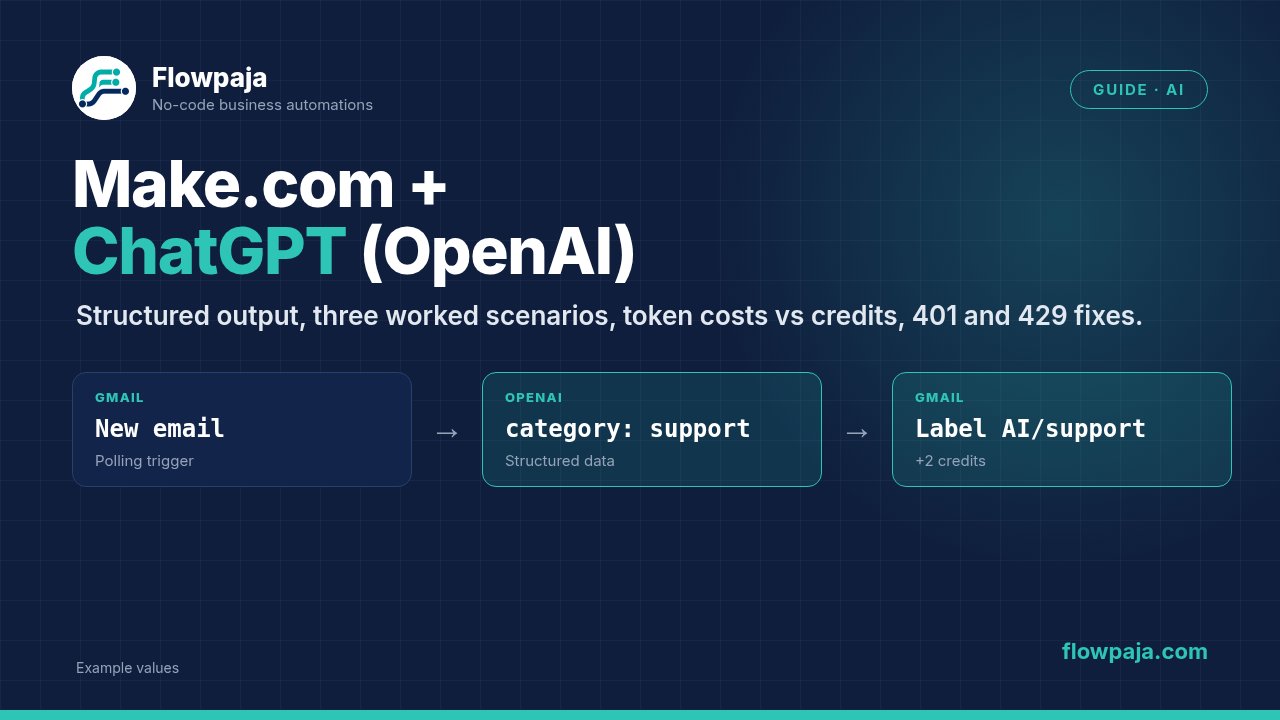
This guide covers the setup, three worked scenarios (classify emails, summarise form submissions, draft replies), what it costs, and the errors you're most likely to see.
What you need
- A Make account. The free plan (1,000 credits a month, 2 active scenarios, 15-minute minimum interval) is enough to build and test these examples. Sign up here if needed: Make (affiliate link)
- An OpenAI API account at platform.openai.com with billing set up. This is separate from a ChatGPT subscription: OpenAI bills API usage on its own, and ChatGPT Plus doesn't include it.
- Depending on the example: Gmail, a form tool (or a webhook), Slack, and Google Docs.
Honest limits before you start:
- AI output is probabilistic. The same email can be classified differently on different days. Design scenarios so a wrong answer is cheap to fix: drafts, labels and summaries, not irreversible actions.
- Whatever you put in a prompt goes to OpenAI. Check your privacy obligations before you send customer emails or personal data, and mention it in your privacy notice where required.
No API key yet? The OpenAI app also has a Simple text prompt module that runs on Make's own AI provider, with no OpenAI account needed. It's billed in Make credits based on tokens, and on Free plans it only offers one small model (GPT-5 nano at the time of writing). It's fine for a quick test. For the examples below, use your own key.
Step 1: Create an OpenAI API key
- Sign in at platform.openai.com.
- Click the Settings (gear) icon, open API keys, and click Create new secret key. Keys belong to a project, so create it in the project you want to bill.
- Copy it right away. OpenAI shows the full key only once.
- In the same Settings area, copy your Organization ID. Make's connection asks for it.
- Make sure the account has billing or prepaid credits. Without them, the first request fails with a quota error.
Give the key a clear name, such as "Make – Flowpaja scenarios". Then you can revoke just that key later without breaking anything else.
Step 2: Connect OpenAI in Make
- In a scenario, click + and search for OpenAI. The app is listed as OpenAI (ChatGPT, Whisper).
- Pick a module (see the table below).
- Click Create a connection and paste the API Key and Organization ID. Leave the region on Global unless you've set up EU or US data residency in OpenAI.
The key lives in the Make connection, not inside a module, so it stays out of scenario blueprints you might share.
Which text module?
| Module | Use it when |
|---|---|
| Transform text to structured data | You want fields out of text (category, name, budget). You define the fields and get them back as separate items. No JSON parsing needed. |
| Generate a completion | Classic chat format: you add messages with roles (system, user) and can set Response Format to JSON Object. |
| Generate a response | OpenAI's newer Responses API: one prompt plus Instructions, with output format Text, JSON schema or JSON object, plus tools like web search. |
For the examples below, either of the first two works. Transform text to structured data is the least fiddly for classification.
Step 3: Choose a model
The Model dropdown lists the OpenAI models your account can access.
- Classification, extraction, short summaries: a smaller, cheaper model is usually enough.
- Longer writing (reply drafts): a larger model gives better wording, at a higher token cost.
Model names change every few months, so this guide doesn't name a "best" one. Start small and only move up if the output isn't good enough for the task. Some newer reasoning models need a verified organization in OpenAI for certain features (for example, reasoning summaries). If a model refuses to run, check that first or pick a non-reasoning model.
Step 4: Write the prompt
In Generate a completion you add messages:
- System message: the fixed instructions. "You classify customer emails for a small web agency…"
- User message: the data for this run, mapped from earlier modules (email subject and body, form answers).
(In Generate a response, the fixed part goes in Instructions and the data in the prompt.)
Prompt tips that hold up in automations:
- Give a closed list of answers. "Return exactly one of:
sales,support,invoice,spam,other." Free-form categories drift over time. - Say what to do when unsure. "If none fits, return
other." Otherwise the model guesses. - Keep the system message stable and only map changing data into the user message. That makes results easier to compare.
- Limit length. Ask for "max 3 bullet points" or "under 80 words", and set Max Output Tokens (Generate a completion defaults to 2048). Reasoning models spend part of that budget on thinking, so don't set it too low.
- Set Temperature low (e.g. 0–0.3) for classification and extraction, so answers vary less. Some reasoning models ignore or reject temperature. If you get an "unsupported parameter" error, leave the field empty.
Step 5: Get structured output
When another module needs the answer, don't parse free text. Two options:
Option A: Transform text to structured data (simplest)
- Text to Parse: map the email or form text.
- Prompt: "Classify this customer email."
- Structured Data Definition: add a parameter
category(Text, with a description listing the allowed values) andconfidence(Number). Markcategoryas required. - The module outputs
categoryandconfidenceas normal fields you can filter and map.
Option B: JSON from Generate a completion
- Set Response Format to JSON Object.
- Ask for JSON in the message itself. OpenAI requires this. Without it, the request can hang until it hits the token limit:
Return only JSON in this shape:
{"category": "sales|support|invoice|spam|other", "confidence": 0-1, "reason": "max 15 words"}- Add JSON → Parse JSON after it, map the module's Result field, and create the data structure from a sample answer.
Either way, add a filter after it, e.g. category exists, so a malformed answer doesn't reach later modules.
Worked example 1: classify incoming emails and label them in Gmail
Goal: every new email to hello@ gets a Gmail label: AI/sales, AI/support, AI/invoice or AI/other.
Before you start: create the four labels in Gmail.
Scenario:
- Gmail → Watch emails: folder Inbox, unread emails only, max 10 results per run. This is a polling trigger. Set the schedule to balance speed against credits (see below).
- Filter: skip your own replies and newsletters, e.g. sender doesn't contain your domain.
- OpenAI → Transform text to structured data:
- Text to Parse:
Subject: {{1.subject}}plus the start of the body, e.g.{{substring(1.text; 0; 3000)}}. That keeps token costs predictable. - Prompt: "Classify this email for a small business. Use other if unsure."
- Parameter:
category, Text, required, description "one of: sales, support, invoice, spam, other".
- Text to Parse:
- Filter:
categoryexists. - Gmail → Update email labels: add the label
AI/{{3.category}}.
Safety rule: labels only. Don't auto-delete or auto-reply based on a classification.
Credits: the trigger uses 1 credit per check, whether or not new mail arrived. Each email then adds OpenAI 1 + label 1 = 2 credits (filters are free). Checking every 15 minutes is about 2,880 checks a month, more than the free plan's 1,000. Hourly is about 720. See Make credits explained.
OpenAI cost: the tokens in (subject + up to 3,000 characters) and out (a short answer). Check current prices on OpenAI's pricing page.
Worked example 2: summarise form submissions and post to Slack
Goal: long form submissions (project requests) arrive in Slack as a three-line summary.
Scenario:
- Webhooks → Custom webhook, or your form tool's instant trigger. See the Make webhook tutorial.
- Filter:
emailexists. - OpenAI → Generate a completion:
- System: "Summarise this project request in max 3 bullet points: what they need, budget, deadline. If something is missing, write 'not stated'. Don't invent details."
- User: the mapped answers (name, company, budget, message).
- Slack → Send a Message to
#leads(invite the Make bot to the channel first):
New request from {{1.name}} ({{1.company}})
{{3.result}}
Credits per submission: webhook 1 + OpenAI 1 + Slack 1 = 3 credits. An instant trigger costs nothing while no forms arrive.
Why "don't invent details" matters: a summary that adds a budget the client never mentioned is worse than no summary. Keep the original answers in a sheet or in the form tool as the source of truth.
Worked example 3: draft email replies into Google Docs
Goal: for every support email, a reply draft goes into a Google Doc, so someone can review it, edit it and send it.
Scenario:
- Gmail → Watch emails, filtered to the label
AI/support(from example 1) or a dedicated inbox. - OpenAI → Generate a completion:
- System: "Draft a friendly, short reply (max 150 words) to this customer email. Use only facts from the email and from this FAQ: [paste your short FAQ]. If you can't answer, write a reply asking one clarifying question. Never promise refunds, dates or prices."
- User: subject and body.
- Google Docs → Create a Document:
- Name:
Reply draft – {{1.subject}} - Content: the original email (quoted), then the draft
- Folder: "Reply drafts"
- Name:
- Optional: Slack → Send a Message with the document link to whoever handles support.
Credits: 1 per trigger check, then OpenAI 1 + Docs 1 (+ Slack 1) = 2–3 credits per email.
Gmail → Create a draft email is another option. A Doc is easier to share and comment on before anyone sends anything.
Token costs vs Make credits
You pay two separate bills:
| Make | OpenAI | |
|---|---|---|
| Unit | Credits (1 per module action with your own key) | Tokens (input + output), priced per model |
| What drives it | Number of module runs and trigger checks | Prompt length, answer length, model |
| How to lower it | Instant triggers, early filters, fewer modules | Shorter inputs (substring()), shorter outputs, smaller model |
Modules that run on Make's AI provider (like Simple text prompt) work differently: there's no OpenAI bill, but they use more than 1 credit, based on the tokens. Make lists the conversion rates per model in the module documentation. With your own OpenAI key, each module run costs 1 credit and OpenAI bills the tokens.
Rate limits
- OpenAI limits requests and tokens per minute based on your account's usage tier. You can see your limits under Limits in the OpenAI dashboard. A burst of many bundles at once, like 50 emails in one run, can hit them.
- Make side: lower the trigger's maximum results per run, or add Tools → Sleep between items for big batches. Sleep is a module run too, so it uses credits.
- Add a Retry error handler (formerly Break) on the OpenAI module, so a temporary 429 is retried later instead of failing the run. Retry needs Store incomplete executions turned on in the scenario settings. Error handlers don't use credits.
Common errors
| Error | Cause | Fix |
|---|---|---|
| 401 invalid API key | Key wrong, revoked, or from a different organization | Create a new key and update the Make connection |
| 429 rate limit reached | Too many requests or tokens per minute | Lower the batch size, add Retry, spread runs out |
| 429 "You exceeded your current quota…" | No API credit left, billing not set up, or monthly budget reached | Add credits or raise the budget in OpenAI's billing settings |
| 400 / 404 model not found | Model retired, or your account has no access | Pick a current model from the module's list |
| 400 context length exceeded | Prompt plus answer too long | Shorten inputs with substring(), ask for shorter output |
| 400 unsupported parameter (temperature) | Some reasoning models don't accept it | Clear the Temperature field or switch model |
| Request runs until it times out | Response Format is JSON Object but the prompt never asks for JSON | Say "return only JSON" in the message |
| Parse JSON fails | The model wrapped the JSON in extra text | Use JSON Object format, say "return only JSON", or switch to Transform text to structured data |
| Categories drift ("Sales", "sale") | Open-ended instructions | Give a closed list; compare in lower case with lower() |
| Scenario switched off | Instant trigger hit an error, or the Errors before deactivation limit was reached | Fix the cause in History; add Retry for temporary errors |
More error types and which handler fits: Make error cheat sheet. If the Gmail or Docs connection fails: Make Google connection errors.
Related guides: Make AI Agents: when to use them · All Make integration guides