 Flowpaja
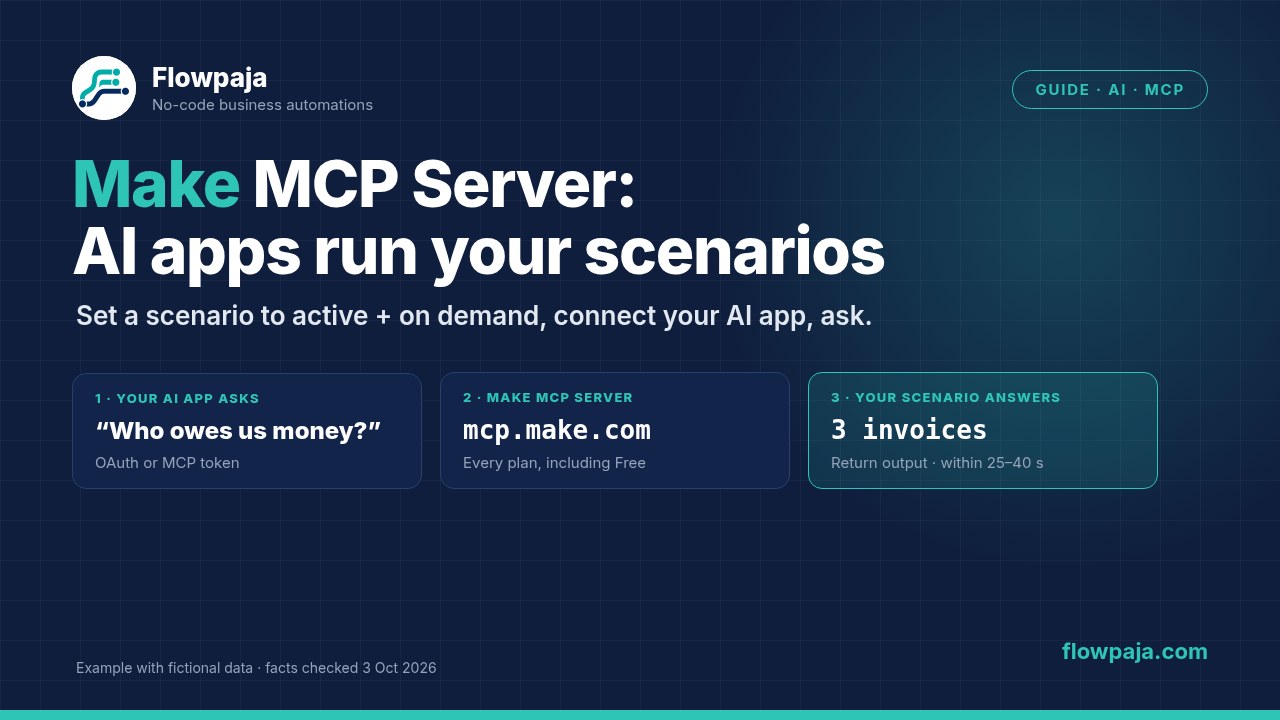
What the Make MCP server does, in one minute
MCP (Model Context Protocol) is a standard way for AI apps to use outside tools. The Make MCP server is Make acting as the tool provider, hosted by Make over stateless Streamable HTTP, so there's nothing to install. A connected AI app (an "MCP client") can:
- Run your scenarios that are active and scheduled On demand, sending the inputs you defined and getting back the outputs.
- Manage your Make account, if you grant management scopes on a paid plan: view and change scenarios, connections, webhooks, data stores, teams and organizations.
The AI picks a tool by its name and description, runs it and reads the result. Every tool run is visible in Make. Two small-business examples (ours):
- "Who owes us money?" runs a scenario that searches your invoice sheet (worked example below).
- "Add Maria from Acme to the CRM as a lead" runs a scenario with name, company and email as inputs.
MCP server vs MCP toolbox vs MCP Client: which one you need
The first two let AI apps call Make. The third lets Make call other MCP servers.
As of 3 October 2026, per the Make docs linked in the last row.
| Make MCP server | MCP toolbox | MCP Client app | |
|---|---|---|---|
| Direction | AI app → your Make account | AI app → a chosen set of scenarios | Your scenario or AI agent → an external MCP server |
| Plans | All plans. Run scope on every plan, management scopes on paid plans | No plan requirement stated in Make's toolbox docs | "Included in all Make plans at no extra cost" per Make's MCP page |
| What's exposed | All active, on-demand scenarios, plus management tools if granted | Only the scenarios you add, with optional custom names and Read only labels | The remote server's tools (verified ones include Asana, PayPal and Webflow) |
| Sign-in | OAuth (https://mcp.make.com) or an MCP token | Toolbox key in the URL or an Authorization header; several keys per toolbox | What the remote server uses (OAuth or token) |
| Time limit | Scenario runs: 25 s (OAuth) or 40 s (token) to answer | 40 s, or no output is returned | Normal scenario limits |
| Typical small-business use | You, running your own scenarios from your AI assistant | Giving a teammate, client or one AI app only the tools it needs | An app's MCP tools inside a scenario or AI agent |
| Make docs | Help Center, Developer Hub | MCP toolboxes | MCP Client app |
Our rule of thumb: use the MCP server for yourself, and a toolbox for anyone or anything else. For how this compares with Zapier MCP and n8n's MCP nodes, see Make vs Zapier vs n8n.
What you can do on the Free plan vs paid plans
- Free: the scenario run scope only ("Run your scenarios" with OAuth,
mcp:useon a token). Your AI app can list and run your active, on-demand scenarios. - Paid plans: management scopes too, such as "View and modify your scenarios", which let an AI app build or edit scenarios for you.
- Normal Free limits still apply: 1,000 credits a month, 2 active scenarios and a 5-minute maximum run time (Make pricing page, 3 October 2026). A tool has to be an active scenario, so on Free each tool counts toward that limit of 2 (our reading of the two rules; Make's MCP docs don't say it in one sentence).
- Cost: Make's MCP page says the MCP Server and MCP Client have no extra fee. You pay the credits your scenarios use when they run.
No Make account yet? Create a free Make account (affiliate link). Everything in the worked example below runs on the Free plan.
Affiliate disclosure: the link marked "affiliate link" includes our partner code. If you sign up or later buy a paid plan through it, Flowpaja may earn a commission at no extra cost to you. More on the tools page.
Step by step: make a scenario available as a tool
We'll build the worked example's tool: a lookup that finds overdue invoices in the sheet from our free Overdue Invoice Digest template (columns: Invoice number, Client name, Client email, Amount, Currency, Due date, Payment link, Status).
1. Build a short lookup scenario with an input
- Create a scenario with a clear name, such as "Find overdue invoices". The AI sees this name.
- Open Scenario inputs and outputs on the scenario toolbar. Add an input
min_days_overdue(Number, required) with the description "Only return invoices at least this many days past the due date. Use 0 for all overdue invoices." - Add Google Sheets › Search Rows on your Invoices tab, filtered to Status equal to Unpaid.
- After it, add a filter: Due date is earlier than
{{addDays(now; -min_days_overdue)}}, mapping the input from the scenario inputs. If your due dates arrive as text, wrap them inparseDate(), as in our daily overdue invoice guide.
2. Return the output (aggregate the rows first)
- Search Rows outputs one bundle per row, so add an Array aggregator (Invoice number, Client name, Amount, Currency, Due date). Without it, the AI only gets the first row. See iterator vs aggregator.
- In Scenario inputs and outputs, add an output
overdue_invoiceswith a description. Make's example uses the type Dynamic collection. - End the scenario with Scenarios › Return output and map the aggregator's array into
overdue_invoices. - Under Options › Edit description, write what the tool does, for example "Lists unpaid invoices past their due date. Read-only." The AI uses this to decide when to call it.
3. Set it to active and On demand
- Click the clock icon on the first module and set Run scenario to On demand. Save.
- Activate the scenario. Inactive scenarios and scheduled scenarios don't appear as tools.
- Test it in Make with
min_days_overdue= 0 first, and once with no overdue rows, so you know what the tool returns then.
Connect Claude
Make is a built-in connector in Claude, connected with OAuth:
- Open Customize › Connectors and click + next to Connectors to browse the directory (Make's Developer Hub calls this Discover; Make's Help Center walkthrough says Settings › Connectors › Browse connectors).
- Search for Make and click +.
- On Make's consent screen, pick the organization that holds your tool and the scopes (on Free, "Run your scenarios" only), then Allow.
- Optional: Configure sets per-tool permissions. On first use, Claude asks you to Allow once or Always allow.
On Claude Team and Enterprise plans, an Owner or Primary Owner has to add a connector for the organization first; then each person connects their own Make account (Anthropic's connector help, 3 October 2026).
Claude Code: run claude mcp add --transport http make https://mcp.make.com, start claude, run /mcp and finish the consent screen in your browser. Make's community guide (23 September 2026) says one connection then works across Claude web, Desktop, Cowork and Claude Code.
Make Skills (open beta) are optional instruction files that help Claude build scenarios; upload them under Customize › Skills, or in Claude Code run /plugin marketplace add integromat/make-skills then /plugin install make-skills@make-marketplace. You don't need them to run your own tools.
Connect ChatGPT
- In ChatGPT on the web, open Settings › Security and login and turn on Developer mode (that's where OpenAI's developer docs put it; Make's Developer Hub shows it under Plugins).
- Go to Plugins › Browse plugins and click the add (+) icon.
- Name it "Make". For OAuth, enter
https://mcp.make.com, choose OAuth, create it, sign in to Make, then pick the organization and scopes. - For a token, enter
https://<MAKE_ZONE>/mcp/u/<MCP_TOKEN>(zone such aseu2.make.com) and choose No Auth.
Make's community guide (22 September 2026) uses https://mcp.make.com/v2 for ChatGPT and Codex, while the Developer Hub uses https://mcp.make.com; if one fails, try the other or a token URL. If ChatGPT says a chat doesn't support developer connections, Make staff suggest starting a completely new chat (one user found it had to be outside a project).
Which ChatGPT plans? OpenAI says developer mode availability can depend on your account and workspace policy. Its help center lists full MCP support, including write actions, for Business, Enterprise and Edu, says Pro users can connect MCP servers with read/fetch permissions, and says only admins can use developer mode in Business workspaces. Make staff report the connection working on Free and Plus personal accounts. OpenAI also says MCP apps are web only, not mobile. If your plan doesn't offer it, use Claude or another MCP client.
Codex in a terminal: codex mcp add make --url https://mcp.make.com/v2, then codex mcp login make (from Make's community guide).
Other AI apps
Any client that supports remote MCP servers can connect. The Developer Hub has OAuth pages for Cursor, Windsurf, Gemini CLI, Kiro, Warp and Mistral AI, and token pages for Claude Desktop, the OpenAI API and Vapi. Otherwise, follow your client's docs for adding a remote MCP server. Our guide to Claude and Gemini with Make is coming soon.
Worked example: "Ask Claude who owes us money"
Illustration, not a screenshot. The data is the fictional sample from our free template's example sheet, and Claude's wording will differ.
You ask: "Which invoices are more than 7 days overdue, and how much is that in total?"
Claude calls "Find overdue invoices" with min_days_overdue = 7 after you click Allow. The scenario runs once and returns one array.
Claude works out the days overdue from the returned due dates and shows something like:
| Invoice number | Client name | Amount | Days overdue |
|---|---|---|---|
| INV-1008 | Xavi Moss | EUR 300 | 30 |
| INV-1003 | Rita Stone | EUR 2,200 | 16 |
| INV-1002 | Oscar Vale | EUR 480 | 10 |
Claude answers along these lines: "Three invoices are more than 7 days overdue, EUR 2,980 in total. The oldest is INV-1008 (Xavi Moss, 30 days). Rita Stone's EUR 2,200 is the biggest." Ask again with 0 and you get all four Unpaid overdue invoices, EUR 4,230.
The scenario only reads, so Always allow is reasonable. Sending reminders belongs in a scheduled scenario, not a chat: our Polite Invoice Reminder ($19) uses the same sheet columns.
Timeouts and long-running scenarios
- Scenario run tools must answer within 25 seconds over OAuth or 40 seconds with an MCP token. Management tools get 30 and 60 seconds.
- After a timeout the scenario keeps running for up to 40 minutes, according to Make's Developer Hub (the Free plan's maximum run time is 5 minutes). The response includes an
executionIdthe AI can use to fetch the result later, if you granted thescenarios:readscope. - Toolboxes have a hard 40-second limit; longer runs return no output.
Keep tool scenarios to short lookups or single actions. For slow jobs, let the tool hand the work to a second scenario through a webhook and return "Started" straight away; see our Make webhook tutorial.
Security: scopes, tokens and toolboxes
- Grant the fewest scopes. Running tools needs only the run scope.
- OAuth covers one organization, picked on the consent screen, and "Run your scenarios" reaches every active, on-demand scenario in it. For tighter limits, Make suggests a Teams plan or higher with users assigned to specific teams.
- An MCP token is a secret key. By default,
mcp:usereaches active, on-demand scenarios across all your organizations. Never paste a token URL into a shared doc or chat. - Make's two docs sites disagree on limiting a token. The Developer Hub documents
?organizationId=,?teamId=or?scenarioId=on the token URL to restrict scenario tools (not management tools). The Help Center says only OAuth can limit access to one organization, and its MCP intro says the server can't be limited to a set of scenarios. Until Make aligns them, we don't treat URL parameters as a security boundary. - Use a toolbox for anyone else. It exposes only the scenarios you add. Create one key per person or app, so you can delete one without breaking the rest, and mark lookups Read only.
Troubleshooting: why doesn't my scenario show up, or why does it fail?
- Active? The scenario must be switched on.
- On demand? A scenario on a 15-minute schedule isn't a tool.
- Run scope granted? "Run your scenarios" with OAuth, or
mcp:useon the token. - Right organization? With OAuth, reconnect and pick the one that holds the scenario.
- Outputs defined? End with Scenarios › Return output, aggregating first if a search returns several rows.
- Clear name and description? Vague names make the AI skip or misuse a tool.
- Tool name cut off? Generated tool names are capped at 56 characters by default. On a token URL, add
?maxToolNameLength=with a value from 32 to 160. - Can't connect? Make suggests a token URL if OAuth fails. Check the zone matches your account.
- HTTP 403 when a toolbox initializes? Check the URL pattern (
<toolbox URL>/t/<key>/stateless, or the key in an Authorization header) and the zone, and don't mix toolbox keys with MCP tokens. If it still fails, create a new key and test again. - Timeouts? Shorten the scenario or hand off to a webhook, as above.
- See what the AI sees: ask it "What tools do you have from Make MCP server?", or run
/mcpin Claude Code.
If the scenario itself errors, our Make error cheat sheet covers the common messages.
Going the other way: the MCP Client app and MCP tools in AI agents
The MCP Client app works in the opposite direction: your scenario connects to someone else's MCP server and uses its tools. It has two modules:
- Call a tool runs one specific tool. Make recommends it for testing a server.
- Execute an action with AI lets an AI model choose the right tool. It uses Make's AI provider, billed in Make credits, or your own OpenAI account.
Make AI agents can also use MCP server tools alongside modules, scenarios and other agents; see our Make AI Agents guide. If you only want an OpenAI model inside a scenario, you don't need MCP: see Make + ChatGPT automation.
Sources checked (3 October 2026)
- Make Help Center: Introduction to MCP, Make MCP server (updated 23 Sep 2026), Get started with Make MCP server (updated 2 Oct 2026), MCP toolboxes, Make Skills, Make AI Agent (New)
- Make Developer Hub: Make MCP server, Connect using OAuth, Claude, Claude Code, ChatGPT (OAuth), Connect using MCP token, Scenarios as tools access control
- Make: MCP page, pricing, MCP Client app
- Client docs: Anthropic: Use connectors, Claude Code MCP, OpenAI: Connect an MCP server in developer mode, OpenAI Help Center: Developer mode and MCP apps
- Make Community (Make staff posts): Make plugin for ChatGPT, connect ChatGPT and Codex, connect Claude and Claude Code, toolbox HTTP 403 (Make Partner answer)