 Flowpaja
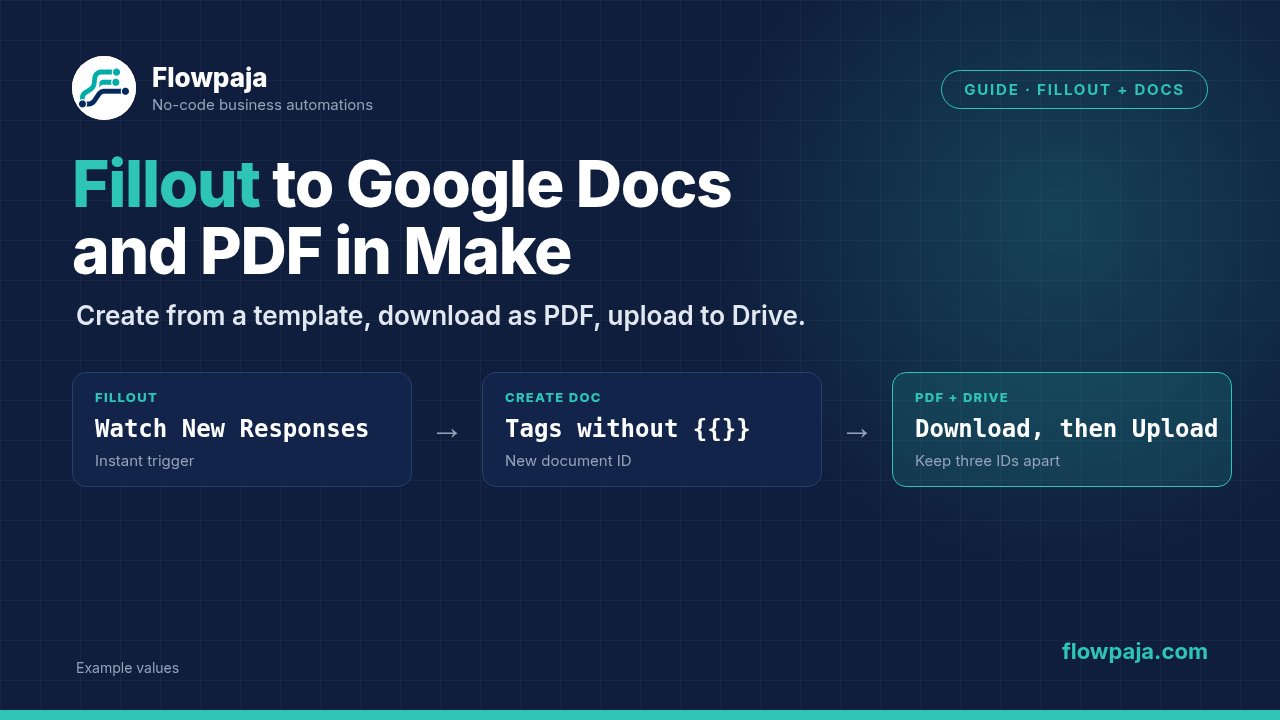
Fillout Forms › Watch New Responses → Google Docs › Create a Document from a Template → Google Docs › Download a Document → Google Drive › Upload a File.
Keep three IDs separate: the source template ID, the new document ID, and the PDF file ID. Mixing those is the first thing to check when a run succeeds but produces the wrong file. For the wider PDF landscape (Content Extractor, PDF apps), see PDF automation in Make.
What you need
- A disposable Google Doc template with three text tags
- A Fillout test form (name, email, request)
- Make Free plan is enough for testing (1,000 credits/month, 2 active scenarios)
- Two Drive folders: one for generated Docs, one for PDFs
What this guide covers (and what it does not)
This page is the Fillout → filled Doc → PDF in Drive route: trigger mapping, template tags without braces, and the three-ID trap (source template vs new document vs PDF file).
It does not cover:
- Reading or extracting text from an existing PDF (use Make AI Content Extractor. See PDF automation in Make)
- Merging, splitting, HTML-to-PDF or form-fill PDFs (those need a PDF app)
- Comparing Fillout, Tally and Typeform as form tools (see Fillout vs Tally vs Typeform)
- Lead intake into Sheets/Slack with dedupe (use the free template in the CTA below)
If your scenario already creates the Doc correctly and only export fails, jump to steps 3-4 and the “Every PDF contains the same template text” error.
Prepare a small template and one fictional response
Use a disposable Google Doc. Add these three lines as ordinary document text:
Name: {{full_name}}
Email: {{email}}
Request: {{request}}
Use the same spelling and letter case in the document and in the module mapping. Skip tables, images and conditional sections until one response replaces three simple tags.
Prepare a fictional Fillout response: Morgan Example, morgan@example.com, and “Send a proposal for the demo project.” Make email and request required on the test form. Keep production responses out of the first run.
Record the source template's ID from its Google Docs URL. Do not use a folder ID in its place.
1. Capture the submission in Fillout Forms
Add Fillout Forms › Watch New Responses. Create the connection and webhook through the module setup. See Make's Fillout Forms connection instructions.
Submit the fictional response while the scenario is listening. Open the trigger's output bundle. Locate the scalar answers for name, email and request. Map the answer, not the whole question object. If the output wraps a label and an answer in a collection, select the answer inside that collection.
Check the captured values before adding document modules. A blank email in the trigger cannot become a correct email later just because the Google connection works.
2. Create a new Google Doc and replace the tags
Add Google Docs › Create a Document from a Template. Configure:
- Document ID: the source template's ID.
- Title: a distinctive test title such as
Proposal-Morgan-TEST-01. - New Drive Location / New Document's Location: the folder for generated documents.
- Values: one entry for each template tag.
In Tags, enter full_name, email and request without the double braces. In Replaced Value, map each captured form answer. Make documents this in the Google Docs module reference.
Run one test response through this module. Open the newly created document from the module output. Confirm that all three tags became the submitted text. Also open the source template and confirm it still contains the tags.
Do this inspection before exporting. If the new document is wrong, a PDF only preserves that wrong content. For an optional answer, decide deliberately what the document should show (empty space, “Not provided”, or a blocked run). Do not invent customer text.
3. Export the new document as PDF
Add Google Docs › Download a Document. Map Document ID from the creation module's output, not from your original template configuration. Set Type to PDF.
Inspect the download output. You need the downloaded file content for the next step. A link that opens a Google Doc in a browser is not the PDF's binary content.
Google Workspace documents use an export operation for PDF. Google's download and export documentation documents a files.export limit of 10 MB of exported content. That is an API limit, not a Make upload limit.
If export fails, keep the newly created document. Record its ID and the full module error. Avoid generating replacement documents while you investigate export.
4. Save the PDF in Google Drive
Add Google Drive › Upload a File. Select the PDF folder. Map the downloaded Data into the file input and use a name ending in .pdf, such as Proposal-Morgan-TEST-01.pdf.
The upload module expects a file name and binary data (Google Drive module reference). Do not map a document ID or a download URL into Data. Leave conversion off when the input is already a PDF.
Open the saved PDF in Drive. Compare it with the generated Google Doc from the same run. Use a unique test suffix per run so outputs from several attempts stay distinguishable.
Common errors: fix the earliest wrong value
The document still shows {{email}}
Compare the tag spelling and case with the Values entry. Confirm Tags has no braces. Inspect the email answer in the trigger bundle. Test with the three-line template before debugging a complex layout.
Every PDF contains the same template text
Compare the Document ID entering Download a Document with the ID returned by Create a Document from a Template. A hard-coded source ID exports the source. Fix that mapping, then inspect the new Doc before another PDF attempt.
Upload a File reports missing or unsuitable data
Inspect download output and upload input together. The file input needs binary data. A document ID, filename or browser URL is a different value.
An optional answer is blank
Check whether it was blank in the submission. If the answer is mandatory for the document, stop before creation. Do not silently create an incomplete document.
A retry leaves several documents in the folder
Check run history for the last completed module. If creation succeeded and export failed, rerunning the whole route can create another copy. Recover from the failing boundary where practical. This four-module route has no dedupe or idempotency check as written.
Credits per run
At Make's standard rate of one credit per non-AI operation, the four executed modules give a four-credit planning estimate per successful single-response run. Retries, lookups and notifications add more. Check the actual run's credit usage. Make credits.
Do not add AI generation to replace three known answers. Keep answer mapping deterministic.
Test the route before using real submissions
Run these cases individually and keep document and PDF IDs together:
- Normal response: all three fields populated → new Doc and PDF with the same answers.
- Different response: another fictional name → different content; source template unchanged.
- Optional blank: leave request empty → your configured blank handling, not invented text.
- Punctuation: apostrophe, quotes and ampersand in the request → read Doc and PDF for completeness.
- Long request: several paragraphs → check wrapping and page breaks.
- Repeat response: same fictional content again → observe whether another copy is created (repeat protection is untested unless you added it).
Mark a case failed if the wrong document was exported, even when every module shows success. Enable production only after the output itself passes.
Start with the intake layer
For a separate form-intake workflow (Sheets + Slack, with email dedupe), use Flowpaja's free Lead Capture → Sheets + Slack template. It is an intake starting point; the document and PDF steps above are a separate build.
No Make account yet? Create a free Make account (affiliate link). Flowpaja may earn a commission if you sign up through it, at no extra cost to you.