 Flowpaja
What you need
- A Make.com account (the free plan is enough to build and test this)
- A Gmail account and a Google Drive account, both connected to Make
- A parent folder in Drive, for example "Supplier invoices"
- One real email with an attachment in your inbox, to test with
Step-by-step build
1. Add the trigger: Gmail – Watch emails
Create a new scenario and add Gmail – Watch emails. Pick your Gmail connection, set Filter type to Gmail filter, choose the Inbox folder and enter a query such as:
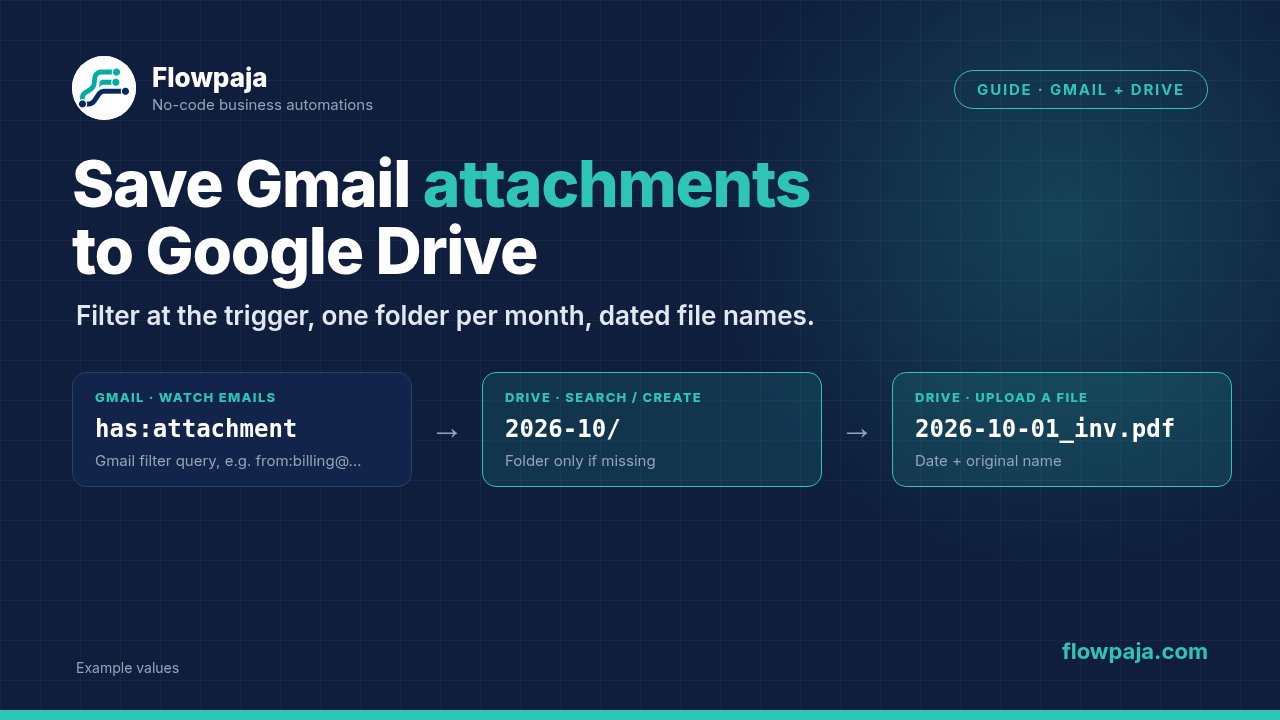
from:[email protected] subject:invoice has:attachmentThis is the same syntax as the Gmail search box. If you pick Simple filter instead, you get separate fields, including Only emails with attachments/media. Filtering in the trigger is better than filtering later: emails that don't match never become bundles, so they use no credits in the modules after the trigger. The trigger check itself still uses a credit on every scheduled run. For the first test, set the starting point to a specific email rather than "from now on", so you have data to map. Set Limit to something small, like 10 (Make allows up to 500), and click Run once.
2. Look at the output
Open the bubble on the module. The email's sender, subject, date and an attachments array should be there. Each item in the array has a file name and the file data itself. Field names can differ slightly, so use what you see in the bubble.
3. Check whether this month's folder exists: Google Drive – Search for Files/Folders
Add the search module, set Retrieve to folders and Search to Enter custom search query, then search for a folder named after the email's month, inside your parent folder:
name = '{{formatDate(1.date; "YYYY-MM")}}' and mimeType = 'application/vnd.google-apps.folder' and '<parent folder ID>' in parents and trashed = falseReplace 1.date with the date field from your trigger module and paste the real ID of your parent folder. Set the limit to 1.
4. Count the results: Flow Control – Array aggregator
When a search finds nothing, the scenario normally stops right there. An aggregator placed after the search still produces one bundle with an empty array, which lets you act on "not found". Set the source module to the search from step 3 and aggregate the folder id.
5. Add a Router with two routes
Route 1 creates the folder when it is missing. Put a filter on it: the length of the aggregated array, equal to 0. Then add Google Drive – Create a Folder, with the name {{formatDate(1.date; "YYYY-MM")}} and your parent folder as the location.
Route 2 has no filter and runs after route 1, because a Router goes through its routes in order. This is the main path. Whether the folder existed or was just created, it now exists.
6. On route 2, search for the folder again
Add a second Google Drive – Search for Files/Folders with the same query as step 3. This returns the folder ID you need, whether it was found the first time or just created.
7. Loop over the attachments: Flow Control – Iterator
Set the array to the attachments array from the trigger. Each attachment now becomes its own bundle.
8. Filter out signature junk
Click the link between the iterator and the next module and add a filter. Logos and tracking pixels arrive as attachments too. A simple rule is: file name, matches pattern (case insensitive):
\.(pdf|xlsx|docx|csv)$Adjust the list to the file types you actually want.
9. Upload: Google Drive – Upload a File
Choose the folder by mapping the ID from the second search. For the file name, use the date plus the original name:
{{formatDate(1.date; "YYYY-MM-DD")}}_{{7.fileName}}Map the Data field to the iterator's file data. The module numbers in your scenario will differ from the ones here, so pick the fields from the mapping panel.
10. Test, then switch it on
Run once with your test email and check Drive: the folder, the file name, and that the file opens. Then set the trigger to "from now on" and schedule the scenario, for example every 15 minutes. Check your plan's minimum interval in the current Make UI.
Common errors and fixes
Files upload but won't open, or are 0 bytes. The Data field was mapped to the whole attachments array or to a text field instead of the file data of the current iterator item. Remap it from the iterator, not the trigger.
Dozens of PNG files named image001.png. Email signatures. Add the file-type filter from step 8, or filter on file size if your suppliers send odd formats.
Two folders called 2026-10. Within one run Make handles the emails one after another, so the cause is usually elsewhere: two runs overlapping (for example a Run once while the scheduled run is still going), the searches using slightly different name formats, or Google Drive not yet returning a folder that was created a moment earlier. Avoid manual runs while the schedule is on, use exactly the same name format in every search, and if it still happens, add Tools – Sleep for a few seconds after Create a Folder.
"File not found" or a permissions error on upload. The Google connection belongs to a different account than the one that owns the folder, or the folder lives in a shared drive. Reconnect with the right account. For a shared drive, choose Google Shared Drive as the drive in the module; Make's documentation says that option only works with Google Workspace accounts.
The scenario ran but nothing was saved. Either the filter in step 8 blocked everything, or the email had no real attachment. Open the execution history and see how many bundles left the iterator.
Large files fail. Make limits file size per plan, and Google has its own limits. Check the current limits for your plan before building a scenario around big files.