 Flowpaja
What you need
- A Make.com account with Google Sheets and Gmail connections
- A Google Sheet with a header row, for example: Client, Item, Amount, Due date, Status
- A helper column in the sheet, explained in step 1
- The email address that should receive the summary
Step-by-step build
1. Add a helper column in the sheet
Comparing dates inside Make is possible but fiddly, because dates from Sheets can arrive as text in your locale's format. It is easier to let the sheet decide. Add a column named "Due today" with a formula like:
=IF(AND(D2<=TODAY(), E2<>"Paid"), "yes", "")Copy it down the column, or use an array formula so new rows get it automatically. Adjust the column letters to your layout.
2. Create the scenario and add Google Sheets – Search Rows
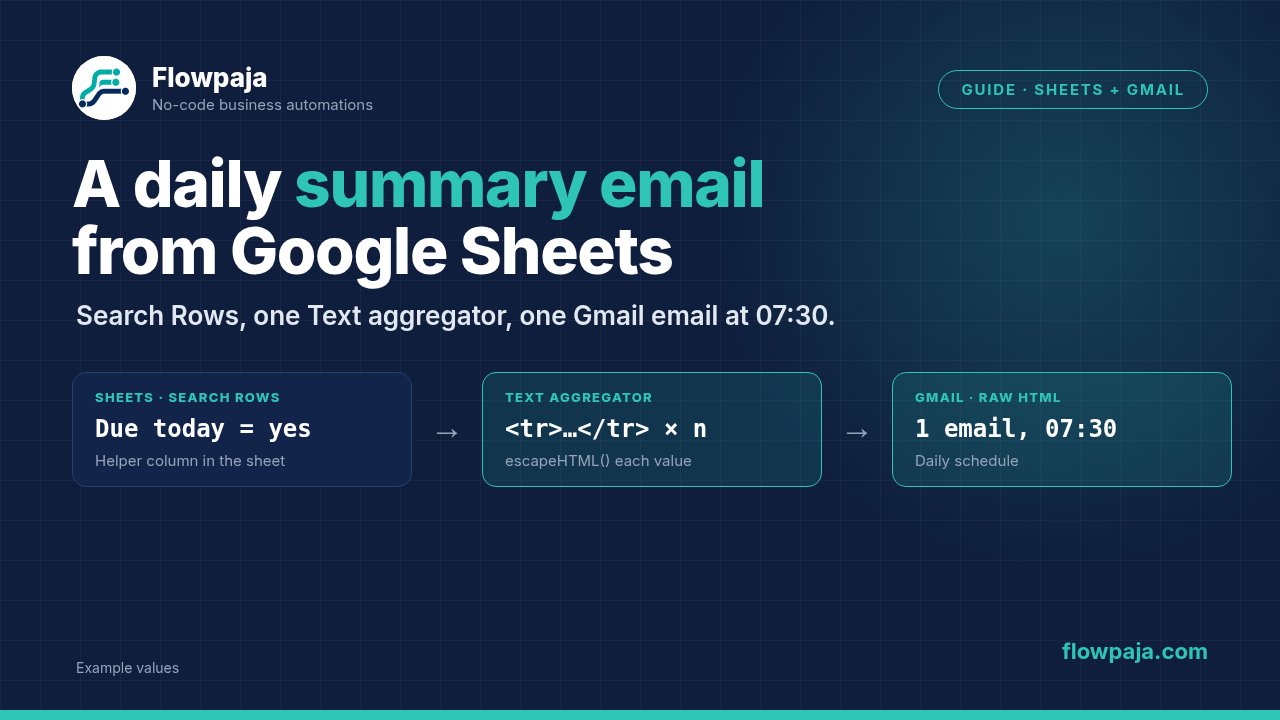
Select the spreadsheet and sheet, with "Table contains headers" set to yes. Add a filter in the module where available, or on the link after it: Due today, equal to yes. Sort by Due date ascending if the module offers a sort. Check the Limit field, because it may default to a low number and quietly cut your summary short. Set it above the rows you expect.
3. Add Tools – Text aggregator
Where the aggregators are listed can vary between interface versions, so check the current Make UI. Set the source module to Search Rows. In the Text field, write one table row, mapping fields from the search:
<tr><td>{{escapeHTML(2.Client)}}</td><td>{{escapeHTML(2.Item)}}</td><td>{{formatNumber(2.Amount; 2; "."; ",")}}</td><td>{{2.`Due date`}}</td></tr>Field names with a space go in backticks, as in the last cell. Leave the row separator empty or set it to a new line. The output of the aggregator is a single text field with all the rows joined. The escapeHTML function stops characters like & or < in your data from breaking the table. Use whatever number and date format your sheet has, since formatNumber arguments depend on your locale.
4. Add Gmail – Send an email
Set To to your address. For Subject, use something with a date, such as Daily summary {{formatDate(now; "YYYY-MM-DD")}}. Set Body type to Raw HTML and write the table around the aggregated text in Body contents:
<p>Items due today or overdue:</p>
<table border="1" cellpadding="6" cellspacing="0">
<tr><th>Client</th><th>Item</th><th>Amount</th><th>Due date</th></tr>
{{3.text}}
</table>
The number in 3.text is the aggregator's module number in your scenario, so pick it from the mapping panel. Inline attributes like border and cellpadding are used on purpose: email clients ignore most external styling.
5. Decide what happens on empty days
When the search finds nothing, the aggregator still produces a bundle, but the text is empty. You have two choices. To skip empty days, add a filter between the aggregator and Gmail: the aggregated text, exists (or does not equal empty, whichever the filter offers). To send an "all clear" message instead, wrap the table in ifempty():
{{ifempty(3.text; "<tr><td colspan=4>Nothing due today.</td></tr>")}}6. Set a fixed time
Click the clock icon on the first module. Set the scenario to run every day at a set time, for example 07:30, rather than at intervals. The time follows the time zone setting on your Make account or organization, so check the current Make UI and confirm the zone, especially if your team is spread across regions. A summary that arrives at 06:30 instead of 07:30 usually means a time zone or daylight saving mismatch.
7. Test and activate
Click Run once, check the email in your inbox on a desktop client and on your phone, and compare the rows with the sheet. Then activate the scenario. Check the History tab the next morning for the first real run.
8. Optional: add a total
Put a SUM formula in a cell on a separate "Summary" tab, filtered on Due today, and read it with Google Sheets – Get a Cell before the Gmail module. It is simpler than a second aggregator and the number is visible in the sheet too.
Common errors and fixes
The email shows raw HTML tags. Check the Body type of the Gmail module. This build needs Raw HTML.
Only some of the rows are in the email. The Limit in Search Rows is too low, or the filter is too strict. Raise the limit, then compare the number of bundles in Run once with the rows in the sheet. A "Due today" formula that only covers part of the column causes the same symptom.
The table breaks, shifts or loses a row. A value contains an ampersand, a less-than sign or a line break. Wrapping text fields in escapeHTML() fixes most of this. For line breaks inside cells, replace them with a space before putting them in the table.
The email arrives at the wrong hour. The scenario's schedule runs in the time zone set in your Make settings, not necessarily the one on your computer. Check the zone, and recheck after clocks change. Gmail itself does not delay messages, so the schedule is the place to look.
Very large summaries get cut off. Gmail clips long messages, so a table with hundreds of rows is hard to use in an email anyway. Limit the summary to the most urgent rows, or send a link to the sheet and the top ten rows only.
The scenario sends nothing on days with no rows. That is how it was built if you added the filter in step 5. If you expected an "all clear" email, use the ifempty() option instead.