 Flowpaja
What you need
- A Make.com account with Google Sheets and Gmail connections
- A Google Sheet with a header row in row 1
- These columns: Name, Email, Topic, Status, Sent at
- An email text you are happy to send automatically
Watch New Rows or Search Rows?
Make gives you two ways to pick up new rows, and the choice matters more than any other setting in this scenario.
Google Sheets – Watch New Rows remembers where it stopped, by row position, and returns whatever is below that point. It is simple and it keeps credit use low. It also trusts the position blindly: sort the sheet, delete a row above the marker, or insert a row in the middle, and it can skip rows or pick up old ones again. It also ignores edits to rows it has already seen, and Make's documentation notes that a blank row stops it from processing the rows below it. Older tutorials sometimes call it Watch Rows.
Google Sheets – Search Rows on a schedule looks at the sheet each time and asks a plain question: which rows have no status yet? It does not remember anything, so there is nothing to get out of sync. It uses a few more credits on quiet days, but it recovers by itself after a failed run.
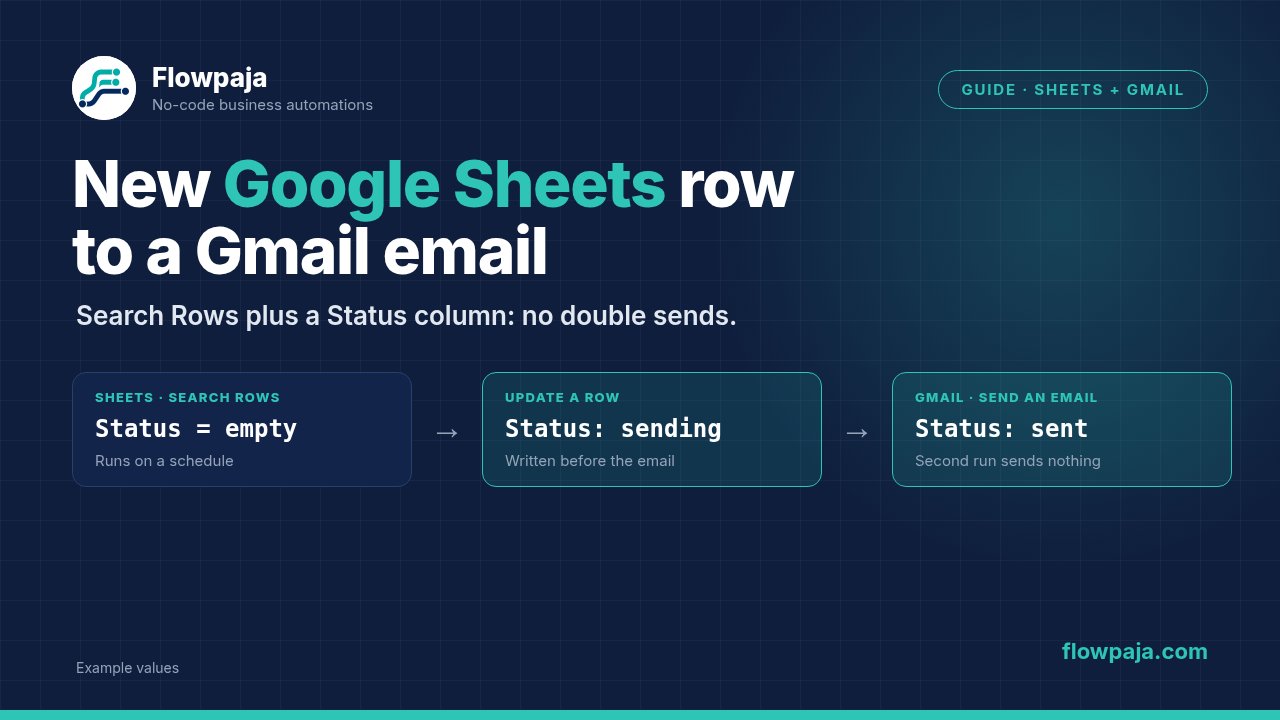
For anything where a duplicate email would be embarrassing, use Search Rows with a Status column. The build below does that.
Step-by-step build
1. Prepare the sheet
Leave the Status column empty for new rows. Make sure the header names have no trailing spaces, because Make shows them as field names and a stray space is annoying to debug later.
2. Add Google Sheets – Search Rows as the first module
Select the spreadsheet and the sheet tab. Set "Table contains headers" to yes. Set a limit, for example 20, so a big backlog does not send hundreds of emails in one run. Put the scenario on a schedule, for example every 15 minutes, using the clock icon on the module.
3. Filter for rows that still need an email
Click the link after the module and add a filter with two conditions, combined with AND:
- Status, equal to nothing (an empty value). Depending on how your sheet returns empty cells, "Does not exist" may work better than "Equal to". Test both on a real empty row.
- Email, matches pattern:
^[^@\s]+@[^@\s]+\.[^@\s]+$
The second condition keeps half-typed rows from reaching Gmail.
4. Mark the row as "sending"
Add Google Sheets – Update a Row. Set Row number to the row number from the Search Rows output, and write sending into the Status column. This step comes before the email, on purpose: if the scenario crashes during sending, the row is no longer empty and will not be picked up again.
5. Send the email with Gmail – Send an email
To: {{trim(2.Email)}}. Fill in Subject and Body contents, and map fields into the text, for example "Hi {{2.Name}}, thanks for your message about {{2.Topic}}." Body contents accepts HTML tags if you want links or formatting. The 2. prefix is the module number from this example, so use the mapping panel for yours.
6. Update the row again
Add a second Google Sheets – Update a Row. Same row number, Status set to sent, and Sent at set to {{formatDate(now; "YYYY-MM-DD HH:mm")}}.
7. Handle failures
Right-click the Gmail module and add an error handler. Route it to Google Sheets – Update a Row, with the row number from step 2 and Status set to failed, then end the route with the Skip error handler (called Ignore in older versions) so the run continues with the next row. A failed row is now visible in the sheet and does not block the others.
8. Test
Add a row with your own email address, click Run once, and confirm that the Status moves to sent. Run it a second time right away: nothing should happen. That second run is the real test.
Common errors and fixes
The same person gets the email twice. Usually the status update failed after the email went out, or two copies of the scenario run on the same sheet. Update the status before sending, as in step 4, and check that you have not cloned the scenario and left both active.
Search Rows returns nothing, but the sheet has new rows. The filter on Status does not match how Make reads empty cells, or the module points at the wrong sheet tab. Open the output of a Run once and look at what the Status field actually contains. A single space counts as content.
The wrong row gets updated. The row number was taken from a different module than the one that found the row, or someone sorted the sheet while the scenario ran. Always use the row number from the Search Rows bundle in the same run, and avoid sorting the live sheet. A separate view or tab for sorting keeps the working sheet stable.
"Invalid to header" from Gmail. The Email cell contains a trailing space, a line break or two addresses. Wrapping the field in trim() fixes most cases, and the pattern filter in step 3 catches the rest.
429 or quota errors from Google Sheets. Too many reads and writes in a short time. Lower the limit in Search Rows, and consider adding Tools – Sleep for a second or two between rows. Make usually treats a 429 as a rate-limit error and retries later, so it does not count like an ordinary error.
"You have reached a limit for sending mail" from Gmail. Google caps how much one account can send. Google's help pages give roughly 500 emails or recipients per day for a personal Gmail account and up to 2,000 messages per day per user on Google Workspace, with lower limits for trial accounts. Treat these as approximate, check Google's current documentation, and keep the Search Rows limit well below your daily cap.