 Flowpaja
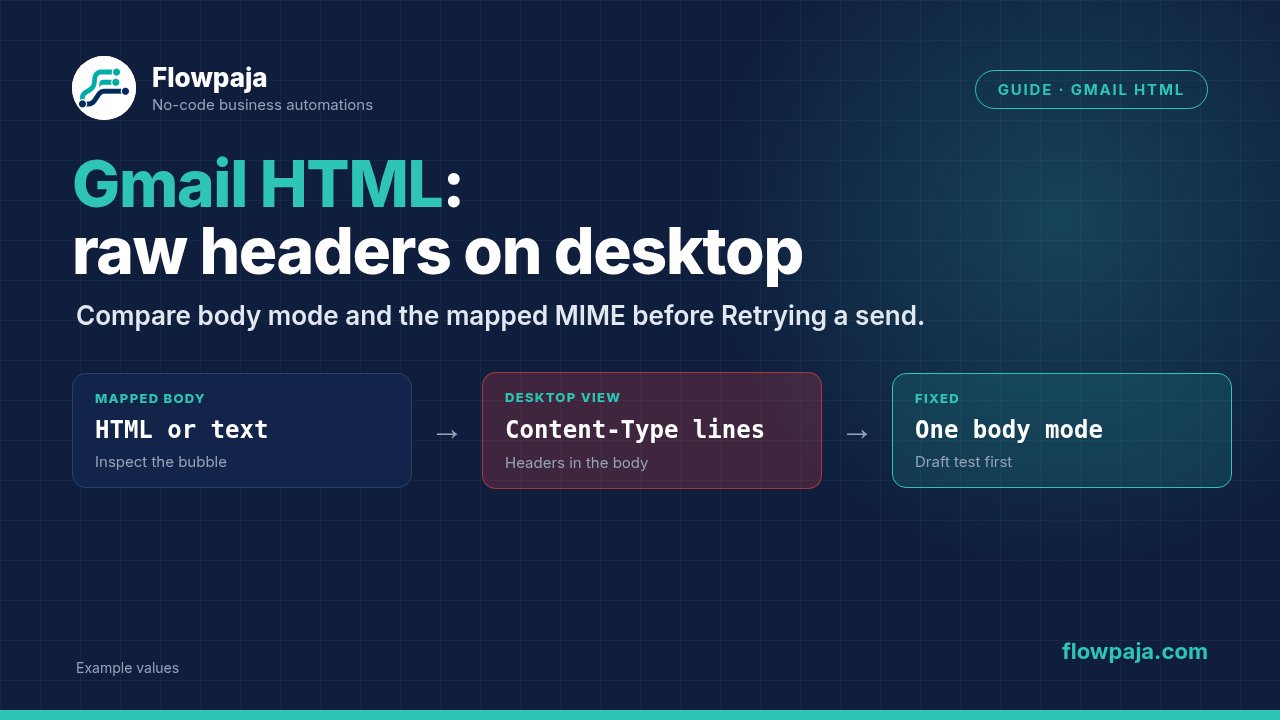
Find out whether headers are in the body or in the viewer
If your Make-generated email looks readable on a phone but displays Content-Type, boundary markers or HTML on desktop, do not immediately rewrite its layout. First establish where that text appears and whether both clients are showing the same message.
A September 2026 Make Community report describes mobile-versus-desktop differences without a module error. The discussion considers body configuration and MIME structure, but it does not establish a universal connector fix. An AI-generated diagnosis included in that thread is not independent proof of a Gmail regression.
Use the procedure below to separate four cases: you are viewing the message source intentionally, the source body already contains headers, the module has received the wrong body shape, or the resulting message's MIME declaration does not match its contents. Those cases require different repairs.
1. Compare the exact message, not its subject
Record the Gmail message ID and a unique test subject. A subject such as TEST-HTML-BOUNDARY-01 helps distinguish several drafts or received messages in the same thread. Threading can otherwise make you compare a new mobile message with an older desktop one.
Confirm whether the desktop view is the normal conversation, a downloaded source file, or Show original. Gmail's full-header instructions explain how to open the original source. Headers in that source view are expected; headers visibly embedded in the normal body need investigation.
For a received message, obtain the original from the owner-controlled mailbox. Remove recipient addresses and customer content before using it in a support report. Retain the content-type declarations, boundary relationships and the fictional test marker because those are the useful diagnostic evidence.
Avoid treating a screenshot of the phone as the source of truth. It establishes one rendering result, not the structure of the message. Likewise, a successful Make module bubble proves that a request completed; it does not certify the resulting desktop rendering.
2. Inspect the mapped body before changing Gmail
Open the input bundle for Gmail > Send an email in the failed or problematic execution. Check the actual body value and the selected Body type. Do not inspect only the source spreadsheet cell or the expression visible on the canvas.
Search the mapped value for MIME-Version, Content-Type, Content-Transfer-Encoding, --boundary, and a complete set of email headers. Those strings can be appropriate in a complete MIME message, but they normally do not belong inside a native HTML body.
Check whether an upstream module supplied the entire raw email instead of one HTML part. Also check whether the body is JSON containing an html property, a serialized contents array, or an escaped string such as <p>. Each is a different input from <p>Test</p>.
If the source is Sheets, inspect the exact cell content and the mapped row. A correct-looking preview is insufficient if the Gmail field maps a different column or the entire search collection. Keep the value literal for the first diagnostic test so the source lookup cannot hide the cause.
3. Choose one native body mode
Make's current Gmail module reference lists Raw HTML and Collection of contents (text, images, etc.) as body options. Use the option appropriate to the shape you provide. Do not map a collection into Raw HTML or a full MIME document into either mode.
For a body consisting solely of your own HTML, begin with Raw HTML and this minimal original fixture:
<html>
  <body>
    <p>TEST-HTML-BOUNDARY-01</p>
    <p><strong>Amount:</strong> 25 fictional units</p>
  </body>
</html>
There are no external images, tracking pixels, templates or customer fields in this fixture. Leave signature content, attachments and custom headers empty for the first comparison. Add each feature back individually after the base case behaves correctly.
If you choose the collection mode, create the intended content item using the current UI's item controls. Inspect the resolved collection in the input bundle. Do not paste a JSON representation of that collection as if it were a rendered email body.
Selecting Raw HTML is a useful controlled test, not a promise that it fixes every reported MIME issue. If the minimal fixture still creates malformed output, retain the evidence and investigate the connector output rather than repeatedly deleting and rebuilding the same module.
4. Use a draft for the first controlled run
Build the isolated test with Gmail > Create a draft email. Map a fictional subject and the minimal fixture. Use the owner's own intended test address, selected by the owner during setup; do not copy a customer address from a failed execution.
Inspect the draft in the desktop interface. Record its draft ID and, where available, the underlying message ID. Draft and message identifiers are not interchangeable. Keep the test draft separate from a production follow-up queue so it cannot be sent by another scenario.
If further diagnosis requires the Gmail API representation, Gmail > Get an email exposes content formats documented by Make. Match the retrieved message ID with your fixture. A draft API retrieval may be needed for a draft-specific investigation; do not substitute a received-message ID and claim it represents the draft.
Received-message behavior can differ from draft preview. After the draft test passes, the owner can deliberately send one controlled fixture to an owner-controlled test mailbox and compare the received original. This package performs no sending and claims no delivered test message.
5. Read the MIME declaration at the right level
The Gmail API message reference distinguishes the parsed payload from raw. Its raw value is a whole RFC-formatted message encoded with base64url. That is different from Make's native Raw HTML body setting.
A message containing alternative text and HTML parts needs a compatible multipart structure. Its outer content type declares the multipart container and boundary; each inner part has its own type. RFC 2046 defines those relationships.
Inspect the outer type and the parts together. If a literal multipart document sits inside a part declared text/plain, the visible boundary text may be part of that plain-text body. If the container and its boundary are declared correctly, investigate which part the desktop client chose and whether a content item was inserted twice.
Do not infer a malformed declaration merely because you see a text/plain part. A valid multipart alternative often includes one. The question is whether the container, nested parts and delimiters agree, not whether those two words occur somewhere in the source.
Do not hand-edit an arbitrary header to force a result. A header that claims multipart while the body lacks the matching structure is still wrong. Repair the input boundary or the actual message construction, then repeat the controlled comparison.
Common errors and symptoms
Boundary lines appear in the normal message body
Inspect whether those lines already exist in the mapped source. If they do, select the intended HTML part rather than the entire source email. If they do not, capture the resulting original and compare its container declaration with its actual parts.
HTML tags appear literally
Check the selected body mode and whether the mapped string was escaped upstream. Do not globally remove escaping from customer-supplied text. Escape untrusted text before inserting it into your trusted HTML structure; the complete HTML wrapper itself must remain HTML.
Content is duplicated
Remove optional signature content and extra collection items for the minimal test. Confirm the input does not include both a complete body and a second representation of the same body. Also distinguish two messages in a conversation from repeated content inside one message.
Mobile looks right but desktop does not
Compare the exact message ID, client view and original source. Do not call the desktop client broken based only on the phone rendering. If a connector-generated structure is malformed despite a correct minimal input, provide that narrow evidence to Make support.
Raw content looks like unreadable encoded text
Check the retrieval format. An API raw value is encoded message data, not directly displayable HTML. Do not map it unchanged into another native Gmail body field. Decode and parse using an appropriate email/MIME path if your workflow genuinely needs to forward or inspect the original structure.
Test matrix before restoring the production body
- Create one draft with the minimal literal HTML and a unique subject. Confirm the visible text and formatting on desktop. Record identifiers and the resolved body input.
- Test the same literal content through the alternative native body mode, using its correct input shape. Compare results without adding attachments or signatures.
- Replace one literal text value with a fictional Sheets value. Confirm the mapped input is still the intended HTML, not the complete row collection.
- Test special characters such as
&,<and quotes inside customer-like text. Confirm they remain text and do not break the trusted HTML structure. - Add one signature or attachment at a time. Preserve the first configuration that fails so you can identify the changed boundary.
- If the owner authorizes a controlled received-message test, compare the same resulting message on desktop and mobile and retain its original source. Do not count a draft preview as delivery verification.
Keep production sending disabled until the relevant received-message check passes. The test record should distinguish a created draft, a manually sent fixture and an observed received message.
Credits and safe rollout
A one-module draft fixture involves one ordinary Gmail action. If you retrieve the underlying email in a second module, that is another ordinary module execution. Source searches, body-building modules and repeat attempts add their own cost. Inspect the actual execution for the configured connector's credit use.
Polling for source data can cost more than composing a small fixture. A one-credit poll every 15 minutes for 30 days totals 2,880 credits before downstream work. That conditional estimate exceeds Free's 1,000 monthly credits. The current Free limits also include two active scenarios, a 15-minute minimum scheduled interval and a five-minute maximum execution time.
A rendering defect is not a reason to attach Retry to the entire send path. A successfully sent malformed message may already exist in the recipient's inbox. Hold the affected record and correct the construction; do not turn a cosmetic repair into duplicate delivery.
For an existing draft-first workflow, use Quote Follow-Up. Review its generated draft before deciding to send. It is not a promise to fix every desktop email client's rendering.
No Make account yet? Create a free Make account: affiliate link. Flowpaja may earn a commission at no extra cost to you.