 Flowpaja
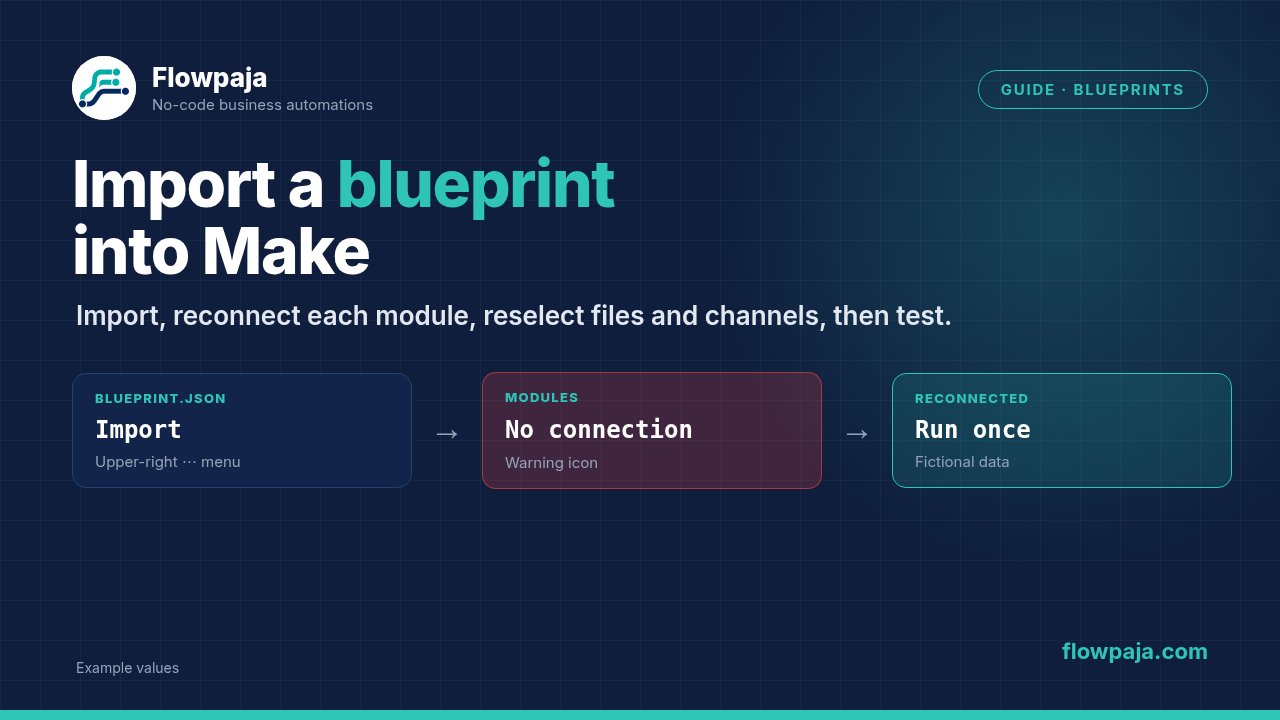
What you need
- A Make account. No account yet? Sign up at Make (affiliate link). Flowpaja's free templates run on the Free plan.
- The blueprint as a .json file, or as JSON text
- Accounts for every app the scenario uses (e.g. Google, Slack)
- Fictional test data: a copy of the sheet, a test Slack channel
Ad disclosure: links marked "affiliate link" are ads. If you sign up or buy through them, Flowpaja may earn a commission at no extra cost to you.
Practice files: Flowpaja's free templates are small and documented, which makes them good for a first import: Form to Slack (free) and Quote follow-up (free). The Form to Slack guide explains what that scenario does, step by step.
Step 1: Import into a new scenario
- In Make, click Scenarios in the left sidebar, then + Create a new scenario.
- In the upper-right corner of the Scenario Builder, click the three dots (⋯).
- Choose Import blueprint.
- Click Choose File, select the
.jsonfile and click Save.
Make recommends a new scenario: importing while editing an unsaved scenario loses those changes. Then save it with a clear name. The file must be under 2 MB.
Older tutorials show the ⋯ menu in the bottom toolbar. Make has since moved Import and Export blueprint to the upper-right corner.
Step 2: If you have JSON text instead of a file
Copy the whole JSON, open a new scenario, right-click the empty canvas and click Paste. Make's help documents this; the modules appear as after an import.
Or save the text as a file and import it:
- Open Notepad (Windows), or TextEdit in plain-text mode (Mac).
- Paste the text.
- Save it as
blueprint.jsonwith the encoding UTF-8 (in Notepad, set "Save as type" to All files).
Typical causes of an invalid blueprint:
- Not JSON at all. You saved the download page (HTML) instead of the file. Open the file: it must start with
{. - Cut off. The text was truncated when copying. It must end with
}. - Curly quotes. Word processors replace straight quotes (
") with curly ones (“ ”). Use a plain-text editor. - Extra text before or after the JSON, such as an email signature.
- Too big. The blueprint must be under 2 MB. A bigger one can't be saved.
Step 3: Connect each module
Blueprints never include connections. After the import, modules that need one show a warning.
- Click each module with a warning.
- Under Connection, choose an existing connection, or click Add to create one.
- Repeat for every module. Modules of the same app can share one connection.
If a Google connection fails here, Make.com Google connection errors covers the usual causes.
Step 4: Reselect files, channels and lists
Values picked from a list, such as a spreadsheet, a sheet tab, a Slack channel or a CRM pipeline, are IDs from the author's account. They don't exist in yours.
- Google Sheets: choose your spreadsheet and tab in every Sheets module.
- Slack: choose your channel. An unknown channel ID makes Slack return
channel_not_found. With a bot connection, the bot must also be a member of the channel. See Slack channel_not_found in Make.com. - Webhooks: a custom webhook trigger needs a new webhook in your account. Click Add, then give the new URL to the app that sends the data. Still silent? See Make webhook not receiving data.
- Data stores and data structures: create them in your account with the same fields, then select them in the modules.
Step 5: Fix mappings that broke
After you select your own resources, check:
- Sheet columns. In Google Sheets modules, the Use column headers as IDs of the columns setting decides how columns are matched. With Yes, your headers must have exactly the same names as the author's. With No, columns are matched by position, so a different column order puts values in the wrong columns. Match the template's sheet, or remap.
- Custom fields (CRM properties, form questions) missing in your account. Create them, or remove the mapping.
- Empty mapping items show that a source field no longer exists. Open the module and remap from the panel.
- Filters may compare against the author's values, such as a status text. Change them to your values. Use the operator type that matches the data: Make's text operators have no "less than", so numbers and dates need the numeric or date operators.
Step 6: Missing apps, old versions and settings
- A module can't load. The blueprint uses an app your organization can't use, such as a custom app from another organization, or an app your plan doesn't include. Replace those modules with an equivalent, or ask the author.
- Older module versions. A blueprint keeps the app version the author used, for example the older Gmail (Legacy) modules instead of the current Gmail app. They may still work. If you switch to the newer version, check every mapping again afterwards.
- No schedule. Make's help tells you to set the schedule after importing. Until you do, and switch the scenario on, it never runs by itself.
- Scenario settings. The exported file also carries the author's scenario settings, such as Store incomplete executions and Errors before deactivation. Check that they suit you.
Step 7: Test with fictional data
- Use a copy of the sheet with fictional rows, and a test channel or your own email.
- Click Run once, then the bubble above each module to check input and output.
- Check the results: the row, the message, the draft.
- Only then point it at real data, set the schedule and switch it on.
If something fails during testing, the common Make scenario errors guide covers the usual messages. If the scenario switches itself off after going live, see why a Make scenario stopped running.
Common errors and fixes
| Problem | Likely cause | Fix |
|---|---|---|
| Invalid blueprint on import | File isn't valid JSON (HTML page, truncated, curly quotes) | Re-download; check it starts with { and ends with } |
| Warning icon on modules | No connection selected | Choose or add a connection in each module |
channel_not_found, 404 on a sheet | IDs from the author's account | Reselect your own channel, spreadsheet and tab |
| Webhook never fires | Author's webhook, not yours | Add a new webhook; update the sender |
| Values in the wrong columns | Different column order or header names | Match the sheet, or remap |
| Module can't load | Custom or unavailable app | Replace the module, or ask the author |
| Scenario never runs | No schedule, scenario off | Set the schedule; switch the scenario on |