 Flowpaja
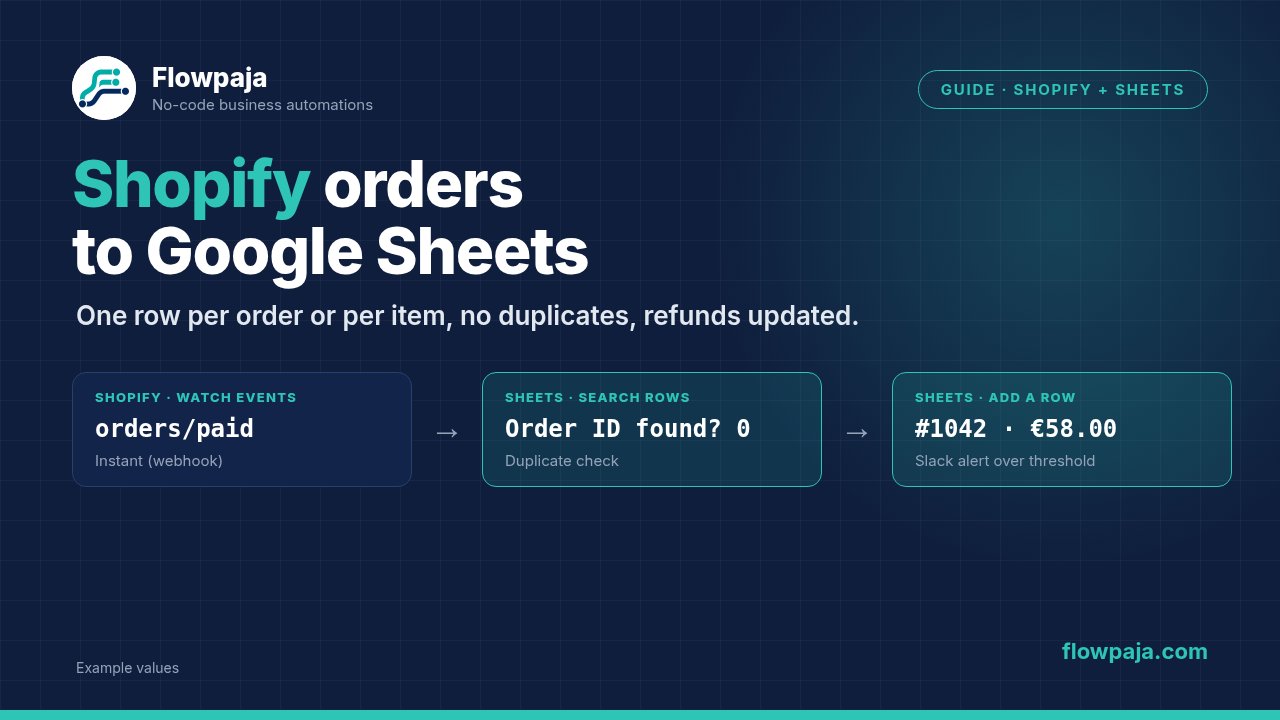
Below is the Make scenario we build for that job, step by step. It works even if this is your first real scenario.
Decide first: one row per order, or one row per line item?
Answer this before you touch Make, because it changes the whole sheet.
- One row per order is right when you care about revenue, customers and order status. Order #1042 is one row, with the products squeezed into a single "Items" cell.
- One row per line item is right when you care about products: stock planning, supplier reorders, which SKU sells with which. Order #1042 with three products becomes three rows that share the same order number.
Need both? Use two tabs fed by the same scenario.
Step 1: Choose the trigger: Watch orders or Watch events
The Shopify app in Make gives you two realistic ways to start.
Shopify > Watch orders is a polling trigger. Make checks your store on the scenario's schedule (every 15 minutes, every hour, whatever you set) and pulls in orders it hasn't seen yet. Easiest to set up. Two things to know:
- It is not instant. An order placed at 10:01 might land in the sheet at 10:15.
- Every scheduled check uses credits, even when there are no new orders. A 5-minute schedule on a quiet store burns credits on empty runs.
Shopify > Watch events is the instant, webhook-based trigger. Shopify pushes the order to Make the moment the event happens. You pick a Shopify webhook topic such as orders/create, orders/paid, orders/cancelled or refunds/create (Make may list them in Shopify's enum style, for example ORDERS_CREATE). The trade-off: each trigger listens to one topic, and if Shopify sends the same event twice (it retries when a delivery isn't acknowledged), you need your own duplicate check. More on that in Step 5.
Our default: Watch events on orders/paid if the sheet is used for accounting, orders/create if it's used for fulfilment. Watch orders only when the client wants the simplest possible setup and doesn't mind the delay.
One gotcha with Watch orders: it remembers where it stopped. If you click "Run once" twice while testing, the second run often returns nothing. Right-click the module and choose where to start from, or place a fresh test order.
Step 2: Prepare the sheet
Create the header row before you build the Google Sheets module, so Make can read the columns. A setup that holds up for order-level logging:
| Column | Source field |
|---|---|
| Order ID | id |
| Order number | name (e.g. #1042) |
| Created | created_at |
| Customer email | email |
| Total | total_price |
| Currency | currency |
| Payment status | financial_status |
| Fulfilment status | fulfillment_status |
| Items | built with a formula (below) |
| Status | written by the refund/cancel scenario |
Keep Order ID in column A. It's the key everything else depends on. The order number (#1042) looks nicer, but the numeric ID is what Shopify uses in refund and cancellation payloads. The source fields are the names in Shopify's order webhook payload, which is what Watch events delivers. Watch orders can label some of them differently, so pick them in the mapping panel.
Step 3: Map the fields (one row per order)
Add Google Sheets > Add a Row, pick the spreadsheet and the tab, set "Table contains headers" to Yes, and the columns appear as fields.
Map most of them directly. A few need a function:
- Created:
formatDate(1.created_at; "YYYY-MM-DD HH:mm"; "Europe/London"). Replace the time zone with your store's. Raw ISO dates sort fine but are hard to read. - Total: Shopify sends prices as text. If you want the sheet to sum them, use
parseNumber(1.total_price; ".")or set the column format to number in Sheets. - Items:
join(map(1.line_items; "title"); ", ")gives you "Linen shirt, Canvas tote" in one cell. Want quantities? Use an Iterator plus Tools > Text aggregator with{{quantity}} × {{title}}and map the aggregated text. - Fulfilment status is empty on unfulfilled orders. Wrap it:
ifempty(1.fulfillment_status; "unfulfilled").
Run it once with a real test order and check every column.
Step 4: One row per line item with Iterator
For product-level logging, add Flow Control > Iterator between the trigger and the Sheets module, and map line_items[] into its Array field. Each product in the order now becomes its own bundle.
In the Add a Row module, map order fields from the trigger (order number, date, email) and product fields from the Iterator (title, variant_title, sku, quantity, price). Add a Line item ID column and map the Iterator's id. Order ID plus line item ID is your unique key here.
A note on credits: every bundle that passes through Add a Row costs credits, so a 10-item order means 10 runs of that module. If your orders are large, replace Add a Row with an Array aggregator (source module: the Iterator) followed by Google Sheets > Bulk Add Rows (advanced). One write per order instead of one per item, and you're far less likely to hit Google's rate limits during a sale.
Step 5: Stop duplicate rows (search before you add)
Duplicates come from three places: webhook retries, someone re-running the scenario, and a Watch orders trigger reset to an earlier point. The fix is the same: check before you write.
The obvious approach is Google Sheets > Search Rows filtered on Order ID, then add a row only if nothing was found. The catch: when Search Rows finds nothing, it outputs nothing, and the modules after it simply don't run. Your "add if missing" branch never fires.
Two ways around it:
- Aggregator trick. Put an Array aggregator right after Search Rows (source module: Search Rows). The aggregator still outputs one bundle when the search is empty. Add a Router: route 1 has the filter
length(Array) = 0→ Add a Row; route 2 haslength(Array) > 0→ Update a Row (using the row number from the array) or just stop. - Data store. Create a Make data store keyed by Order ID. Use Data store > Check the existence of a record before writing; it returns a yes/no you can filter on. After writing the row, Add/replace a record. It's faster than searching a large sheet.
For line-item mode, search on Order ID + Line item ID, or check the order once before the Iterator so you skip the whole order if it's already there.
Step 6: Handle refunds and cancellations
Don't delete rows when an order is refunded. Deleted rows break totals people already reported. Update the row instead.
Build a second, small scenario:
- Shopify > Watch events with topic
refunds/create(and a copy withorders/cancelled). - Google Sheets > Search Rows on Order ID. For refunds, the ID is in the payload's
order_id; for cancellations, it's the order's ownid. - Google Sheets > Update a Row using the found row number: set Status to "Refunded", "Partially refunded" or "Cancelled", and write the refund amount into its own column. Partial refunds are common, so don't overwrite the original total.
If a cancelled order was never logged, the search finds nothing and the scenario ends quietly.
Step 7: Add a Slack alert
Add Slack > Create a Message at the end of the main scenario. Don't alert on every order; people mute that channel within a week. Put a filter on the route instead:
- order total above a threshold you choose,
- orders with a customer note (
noteis not empty), - or a specific product or shipping method.
A useful message: New order {{1.name}}, {{1.total_price}} {{1.currency}}, {{1.email}} plus a link to the order in your Shopify admin.
Error handling that actually helps
Right-click a module and choose Add error handler:
- On the Google Sheets module, use Retry (formerly Break) with automatic retries. Google returns rate-limit errors during busy hours, and a retry a few minutes later almost always succeeds.
- On the Slack module, use Skip (formerly Ignore). A failed alert shouldn't mark the run as an error when the row was written.
- Resume is handy when a lookup fails and you'd rather write a fallback value ("unknown") than stop.
- Commit and Rollback only matter for modules that support transactions, such as data stores. Google Sheets writes can't be rolled back, which is one more reason to check for duplicates first.
Also turn on Store incomplete executions in the scenario settings, so a failed order waits for you instead of vanishing; Retry needs it. One more reason to handle errors: by default Make switches a scenario off after 3 errors in a row, and a scenario that starts with an instant trigger such as Watch events is switched off after the first one.
Quick test checklist
- Place a test order with two different products and check both tabs.
- Re-run the same bundle and confirm no second row appears.
- Refund one item and check that the Status and refund columns update.
- Cancel an unpaid order and confirm nothing breaks.
- Check the scenario history after a day to see what you're spending in credits.