 Flowpaja
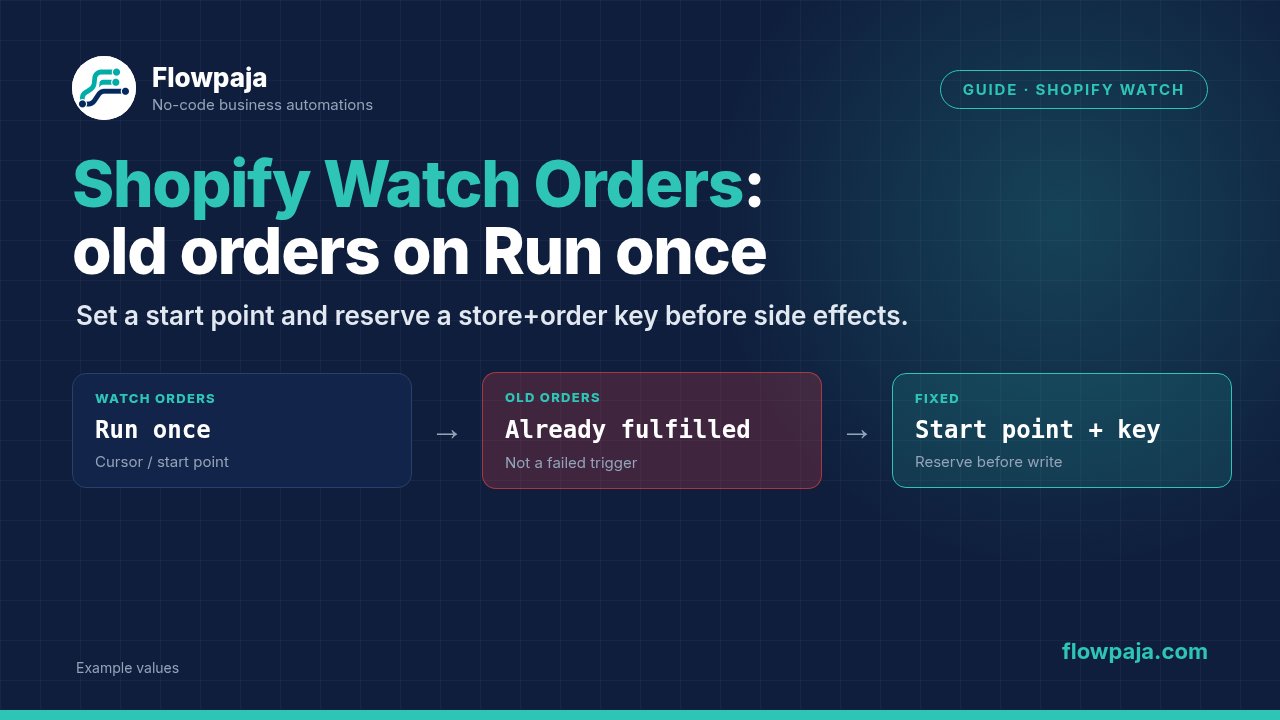
An old order is not necessarily a failed trigger
Shopify > Watch orders can return an order that existed before you clicked Run once. Check the trigger's starting position before troubleshooting the modules that receive the order. A downstream error about a delivery slot cannot explain why that particular order was selected upstream.
A May 2026 Make Community thread describes this exact mismatch: the owner expected a newly created test order, but a historical order reached the scenario first. The report did not contain a Shopify technical error. Its slot_problem label came from the owner's own error-log workflow.
The practical fix has two parts. Establish a deliberate starting point for the trigger, then keep a store-and-order-ID ledger so a reset or replay cannot produce the same downstream effect again. The checkpoint selects candidates; the ledger decides whether your business action has already happened.
1. Inspect what the trigger actually returned
Open the execution bubble on Watch orders. Record the returned order ID, creation time, update time if present, and store. Compare those values with the new test order's identity in Shopify. Do not compare only the customer's name or email.
Next, record the trigger's watch criterion and limit. A limit of one means a single eligible item can occupy the whole test run. It does not guarantee that the returned item is the order you created most recently. If a backlog exists, your new order may be behind other candidates.
Keep the order's line items separate from order-level behavior. If you enable line-item output, examine whether your configured trigger emits extra bundles or nested line-item data. Do not assume every downstream bundle represents a different order. The dedupe key must still identify the order-level action you intend to perform.
Use a read-only test branch while establishing the checkpoint. Temporarily detach writes, fulfillment changes and customer messages from that branch. The aim is to observe selection, not to discover the checkpoint by repeatedly changing historical orders.
2. Distinguish polling from instant events
Watch orders is the polling trigger discussed in the community report. Make also lists Watch events and Watch events (advanced) in its Shopify application documentation. They are different entry points, not alternative names for the same configuration.
For a polling trigger, Run once runs a check against the current selection state. It is not a promise to wait indefinitely for the next live purchase. An instant webhook-style trigger has different registration and queue behavior. Confirm the tag and current connector version before using instructions written for another trigger.
Do not switch to an instant trigger merely to hide a backlog. Choose the event semantics your workflow needs, then decide how missed events, duplicate delivery and historical recovery should work. An instant event can also be delivered again; it does not remove the need for idempotency.
Likewise, a creation-date watcher and an update-oriented workflow serve different requirements. A new-order log should not accidentally become an order-update processor. If updates matter, give them their own deliberate key or update policy rather than suppressing every later event under a “seen order” flag.
3. Set a deliberate start point
Save the trigger configuration, then inspect the trigger icon's context menu on the canvas. For supported polling triggers, Choose where to start is outside the normal mapping dialog. Select From now on when the business requirement is to start with future orders only and that option is available in your version.
Make's trigger development documentation describes the starting-point concept for polling triggers. The community thread gives the Shopify-specific canvas-menu context. Treat the exact controls in your current account as the final check, especially if your app or trigger differs from the reported one.
Write down the time at which you set the starting point. Then create one identifiable test order after that time and run the read-only branch. If you created the order before selecting the starting point, the test does not establish whether future selection works.
If you need a backfill, choose a historical start intentionally and keep it separate from the future-only rollout. Preview a small batch first. Do not silently select all historical orders in a workflow that sends customer notifications or reserves stock.
Changing the trigger checkpoint does not erase completed business actions. Keep the ledger. Similarly, cloning a scenario may not preserve every trigger state exactly as you expect; verify the clone's starting point before enabling it.
4. Create a store-and-order key
Use a key with two parts: stable store identity and stable order ID. For example, fictional input might become test-store:TEST-ORDER-101. Keep the source's order ID as text if its format requires that; do not strip a global-ID prefix merely to make the sheet look tidier.
An email is unsuitable because one customer can place several orders. A line-item ID is unsuitable for an order-level log because one order can contain several items. A displayed order name is useful for humans but should not replace the stable identifier used by the source.
Use Google Sheets > Search Rows to search the key column exactly, with enough results to detect an accidental duplicate ledger entry. Route on Total number of bundles: zero permits the new-order branch; greater than zero goes to the existing-order policy.
A no-match search emits one empty bundle with total zero. Do not count the surrounding bundle or aggregate it into an array and then infer that a row exists. The search's total is the relevant result.
Store the key, source order ID, store, processing state and any downstream reference you need to reconcile a failure. Preserve source creation time separately from your processing time so an imported historical order does not look like a newly placed order.
5. Reserve before side effects
For an append-only log, create the ledger row before doing any additional effect. For a workflow that creates a document or changes another system, reserve the key with a state such as PROCESSING, then run the effect and update the state with its reference.
If an execution stops after the effect but before the final status update, hold that key. Inspect the destination using the stored business reference before repeating the effect. A ledger row stuck in PROCESSING is uncertain work, not permission to create another copy.
Keep one writer for an order key. Sequential processing can reduce races inside one scenario, but it does not serialize another scenario or a manual script writing the same sheet. Sheets search plus append is not an atomic uniqueness constraint.
For an existing row, decide explicitly whether to skip or update. Updating the source's email, total or fulfillment state is a different job from recording an order once. If you update, preserve fields unrelated to that event. Empty mapped values generally do not clear a field in supported update modules; use erase only for an intentional clear and verify the module's behavior first.
Common errors and misleading symptoms
An old order arrives first with limit one
Inspect the checkpoint and returned creation time. Increase the read-only preview limit only when you need to inspect several candidates. Raising the limit does not make downstream writes safe and does not replace a deliberate starting point.
The module settings have no From now on field
Inspect the canvas context menu. If the control is absent there too, confirm that you selected the expected polling trigger and current application. Do not use instructions for Watch events to reset Watch orders or invent a cursor field in the mapping dialog.
The same order creates several rows
Compare the order keys and line-item outputs. If the key uses a line-item value, several rows may be expected under the current mapping even though your business requirement is one row per order. Move order-level logging ahead of any item-level expansion.
A replay sends another notification
Check whether the duplicate filter sits before the notification. A successful append followed by a duplicate check is too late. Use the reserved key and destination reference to hold an uncertain replay.
No orders appear after a reset
Confirm the test order was created after the selected starting point and meets the trigger's configured criteria. Inspect its actual state in Shopify. Also confirm the scenario schedule is enabled if you expect automatic polling; an isolated manual test does not establish a running schedule.
Acceptance test with a small fictional batch
- Record the trigger version, watch criterion, limit and chosen starting point. Keep the business write branch disabled for the first observation.
- Identify one old test order and create one new test order after the starting point. Compare returned IDs, not names. Document which one appears.
- Enable a dedicated test ledger. Process the new order and confirm one row with the intended store-and-order key.
- Replay the same business order through your controlled test path. Keep the key unchanged. Confirm the existing-key branch runs and no second effect occurs.
- Process another order from the same fictional customer. Confirm it creates a different key and is not blocked by the repeated email.
- Test an order with several line items. Confirm the order-level policy still behaves as specified.
- Interrupt after a reserved key but before final completion. Confirm the next attempt is held for review, rather than treated as unseen.
These are tests to perform in the owner's Make and Shopify accounts. This guide does not claim a live store execution or a confirmed import of a new Shopify blueprint.
Credits and schedule sizing
A basic order log executes the trigger, one Sheets search per returned order, and one append for each unseen order. For a batch of n unseen orders in one trigger cycle, the ordinary-module estimate is 1 + 2n, provided the trigger check costs one credit and there are no extra modules or separate line-item branches.
Seen orders stop before append, so their downstream cost differs. Reserving and later updating a row adds work. Read the completed execution to measure the selected connector's actual charging; the formula is a planning estimate, not a usage claim.
A one-credit poll every 15 minutes for a 30-day month is 2,880 credits before order processing. The current Free plan allows 1,000 credits per month, two active scenarios, a 15-minute minimum scheduled interval and a five-minute maximum execution time. Use the current plan table and actual expected order frequency when selecting a schedule.
For the stable-key pattern, start with the existing free webhook-to-Sheets duplicate-check template. Adapt its input key to store plus order ID; its trigger is a webhook, not Shopify Watch orders.
No Make account yet? Create a free Make account: affiliate link. Flowpaja may earn a commission at no extra cost to you.