 Flowpaja
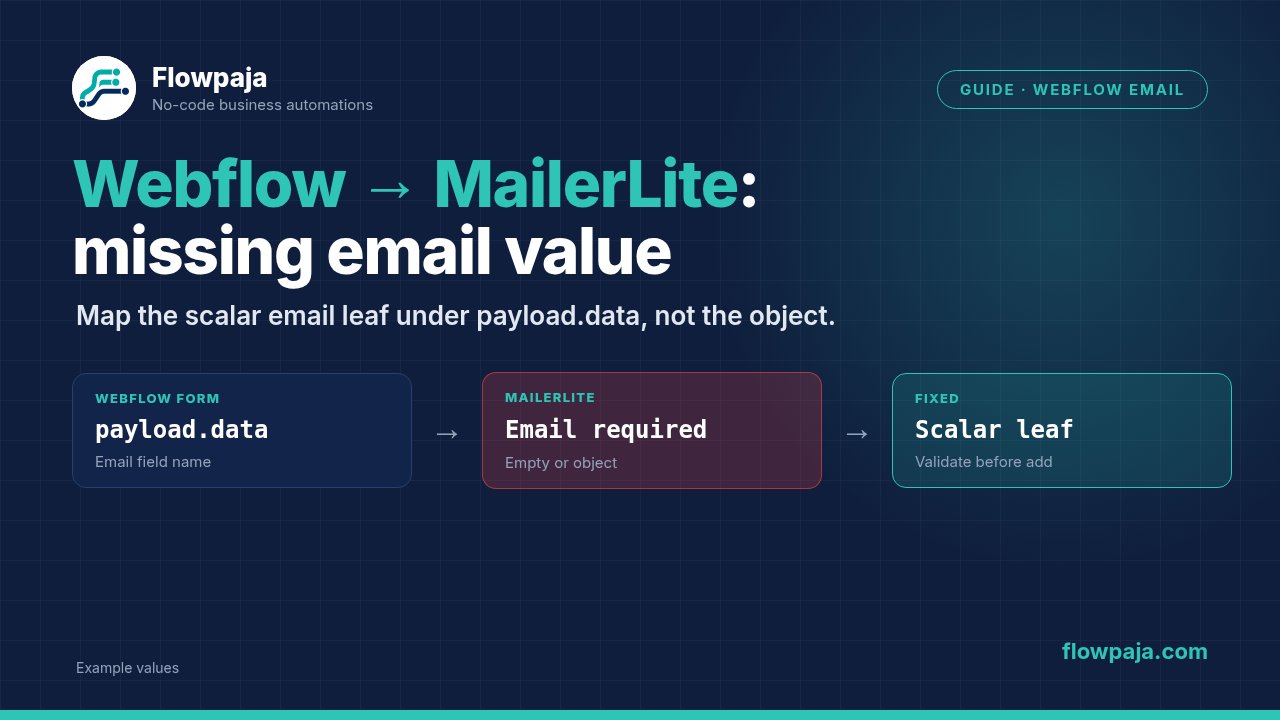
Your Webflow form submits successfully, but Make stops at MailerLite with Missing value of required parameter 'email'. The surrounding message may include BundleValidationError. Start by opening the MailerLite input bundle: the decisive question is whether its Email field actually contains a string.
A real Webflow/MailerLite community report describes this symptom. Treat it as evidence of a mapping problem someone encountered, not proof that every Webflow form uses the same data path. This guide fixes nested email mapping and validates form-specific routes before subscriber creation.
When this happens
The usual stack is Webflow → Make → MailerLite, optionally followed by group assignment. An old mapping can survive a renamed field, a replacement form or a trigger change. The mapping pill still appears in the editor even though the current bundle has no value at that path.
Another common mistake is choosing a field labelled Email under site settings, account details or another form. A plausible label does not establish provenance. You need the value submitted by the visitor in this particular execution. Arrays, collections and strings also look similar when the mapping panel is collapsed.
Use the current Webflow module inventory to choose Watch Events for form events, or Get a Form Submission when you already have a submission identifier. The current MailerLite app offers Create/Update a Subscriber and Add Subscriber to a Group. MailerLite Classic is a separate connector; do not combine screenshots or credentials from the two apps.
Step 1: capture one useful submission
Open the existing Webflow trigger and run the scenario once with downstream writes temporarily disconnected or filtered. Submit a new test through the same published form that fails in production. Use an address you control, a distinctive name and an optional field value that lets you identify the execution.
Inspect the trigger output rather than only the scenario diagram. Record the form identifier, submission identifier and the complete parent path containing the address. Expand every collection until you reach the string value. Save a redacted sample for future comparisons; remove the visitor's actual address before sharing it.
If you receive a submission identifier but no submitted fields, configure Webflow > Get a Form Submission using that identifier. Inspect its output separately. Mapping a trigger identifier into MailerLite Email cannot work: identifiers are references, not subscriber addresses.
For a Webhooks > Custom webhook intake, use Detect new values with a representative submission after changing the payload. This refreshes discovered fields; it does not repair the upstream form or fill missing values.
Step 2: distinguish collection fields from answer arrays
Consider this deliberately invented teaching fixture:
{
  "submission_id": "submission_demo_001",
  "form_id": "newsletter_demo",
  "data": {
    "Email": "reader@example.com",
    "First Name": "Morgan"
  }
}
Here the useful leaf is data.Email. It is not the data collection and not a literal text string saying data.Email. In Make's mapping panel, expand Data and select the Email value. Open the next input bundle to confirm the resulting address, not just the appearance of the pill.
Some integrations instead return an array of field objects, such as one object with a field key and another property containing its value. Select by a stable field key, then extract that object's value. Do not select array item two simply because Email was the second question in one test. A skipped optional question or a reordered form can change positions.
The fixture is not a claimed Webflow schema. Its purpose is to show the difference between a parent object and a scalar leaf. Use the structure in your own recorded bundle for the actual mapping. If it differs, update the mapping rather than forcing your submission into this example.
Step 3: normalize one approved candidate
Add Tools > Set variable and name it candidate_email. Map the verified primary leaf. Trim surrounding whitespace before validating it. Preserve the original value in your troubleshooting sample so you can distinguish a missing field from a field containing only spaces.
For two approved paths, Make's general functions include ifempty. Conceptually, select the primary submitted address unless it is empty, then use the alternate submitted address. You can insert the real mapping pills into this pattern:
trim(ifempty(PRIMARY_EMAIL_TOKEN; ALTERNATE_EMAIL_TOKEN))The uppercase labels are placeholders, not executable module references. Replace them with tokens from the same submission. Use a fallback only when both fields are documented as the respondent's email. An account owner's address, notification destination or hard-coded example address is never an acceptable substitute.
Normalize each candidate before fallback selection if a whitespace-only primary field is possible. Otherwise a nonempty string of spaces can prevent the alternate path being selected. If both fields contain different addresses, route the submission to review rather than silently choosing one according to whichever happens to come first.
Step 4: validate before the subscriber module
Add a Router after normalization. Give the valid route explicit filters: the candidate exists, remains nonempty after trimming and passes your chosen basic email-format check. Add any required subscription eligibility condition independently. This guide leaves legal implementation to your own counsel and the provider's terms.
A basic check for one @, nonempty local and domain portions, and no whitespace catches obvious input mistakes. It does not prove that a mailbox exists or that MailerLite accepts the address. Avoid presenting a simplistic regular expression as complete email validation. Keep the check understandable enough that you can explain why a particular test was blocked.
Give the rejected route a small review record containing submission ID, form ID and a reason such as missing_email or conflicting_email_fields. Do not run MailerLite on that route. If you alert an owner through Slack, use Slack > Send a Message with a link or identifier, rather than copying every submitted field into the alert.
An explicit rejected route is easier to inspect than a filter that silently drops the bundle. It also prevents repeated debugging of a form that never collected the information the destination requires. Review records should have their own submission key so replaying the invalid submission does not create endless copies.
Step 5: map Create/Update a Subscriber
On the valid route, configure MailerLite > Create/Update a Subscriber. Map Email from candidate_email, not from the original unvalidated token. Map optional name fields only when they came from the same respondent. Check which optional fields your selected connector actually exposes.
Run one test with group assignment disabled. Inspect the MailerLite input, returned subscriber identifier and the resulting subscriber record. A successful module alone does not establish that you updated the intended person. Compare the displayed address with the controlled address in your test submission.
Then configure the intended group. If using Add Subscriber to a Group, map the returned subscriber identifier into its subscriber field and select the intended group identifier.
Use Create/Update a Subscriber for repeatable subscriber writes, but do not assume that downstream campaigns, notifications or custom actions are idempotent too. A replay can legitimately update the same subscriber while accidentally repeating a separate side effect. Add a submission ledger before any action that must happen once.
Step 6: handle multiple Webflow forms deliberately
When three forms feed different MailerLite groups, route by stable form ID before choosing group IDs. Keep each form's approved email paths documented beside its route. A homepage signup and a contact request can have similarly named fields while serving different purposes.
Use one normalized variable per route or ensure the shared normalization covers only verified compatible schemas. Do not add every conceivable path to one fallback chain. That hides form drift: the scenario may start reading a secondary address without anyone noticing that the expected primary field disappeared.
For related lead capture, Flowpaja's existing Webflow to HubSpot guide covers the broader workflow. Keep this repair focused on subscriber identity and missing email, then reuse the existing guide for CRM steps.
Common errors
Missing value of required parameter 'email' means the required mapped input is empty at validation time. Inspect the destination input first. Reconnecting MailerLite will not turn an empty Webflow field into an address.
BundleValidationError identifies Make's validation layer; read its detailed parameter message. A wrong type, such as a collection mapped into a string field, requires fixing the extraction. A field containing an address-shaped value that the provider rejects requires examining the provider's response instead.
If subscriber creation succeeds but the group is wrong, inspect the form route and group ID. Do not keep rewriting the Email mapping after it has passed its test. Authentication failures, unavailable groups and provider validation are separate failures with different repair steps.
Credits note
Estimate the path you actually execute: trigger, optional submission retrieval, normalization, subscriber write and optional group assignment. Read the recorded credits rather than assuming every module type costs the same. A rejected submission should stop before paid destination work.
The Free plan provides 1,000 credits monthly, two active scenarios, a 15-minute minimum scheduled interval and a five-minute execution limit. A single one-credit poll every 15 minutes consumes about 2,880 credits in 30 days before processing any submissions. Prefer the event trigger where available; see Make pricing.
Testing steps
- Submit a valid primary address. Expect one intended subscriber and the intended group.
- Submit a supported alternate-field form. Expect the alternate leaf, not the account email.
- Submit without Email and with whitespace only. Expect a review record and no subscriber write.
- Submit conflicting primary and alternate values. Expect review, with the conflict visible.
- Replay the valid submission. Confirm subscriber identity stays stable and one-time downstream actions do not repeat.
- Use a test connection or controlled group failure. Confirm the failure stays inspectable and cannot bypass validation.
Record the input and output for each case. These are acceptance tests for your account; this package does not claim they were executed in a live Make scenario.
No Make account yet? Create a free Make account (affiliate link). Flowpaja may earn a commission at no extra cost to you.