 Flowpaja
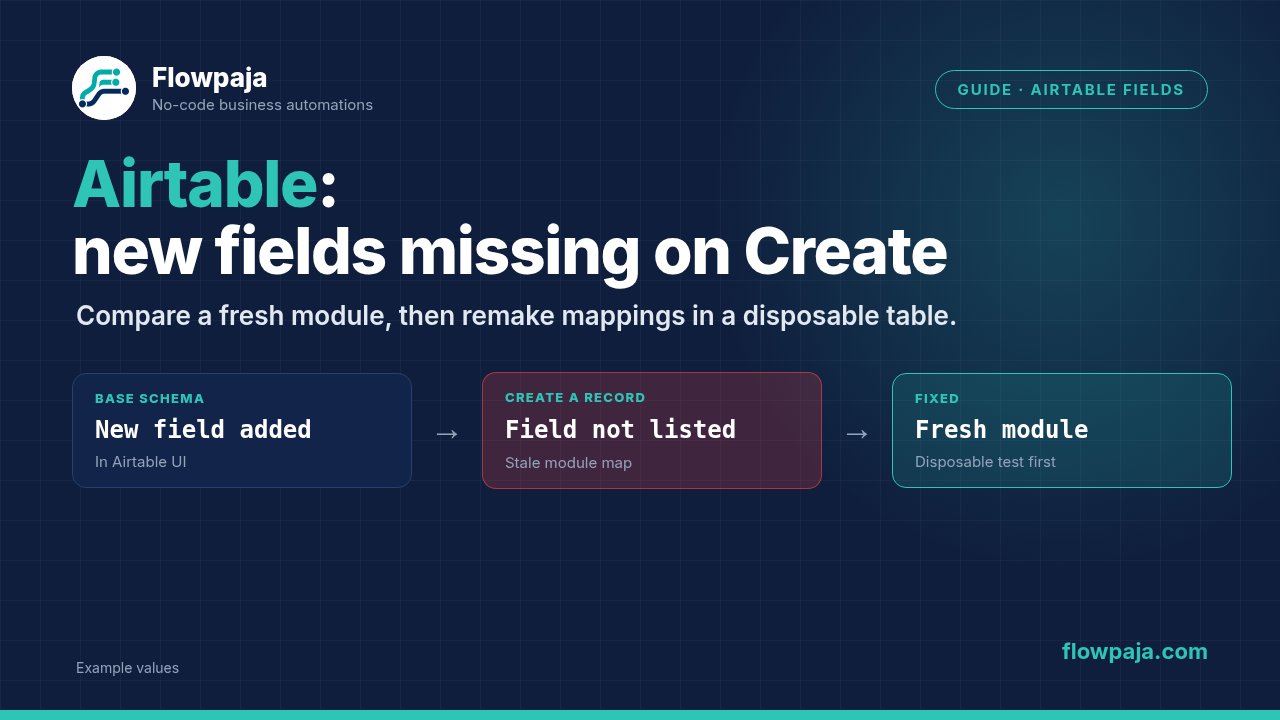
Start with Airtable > Create a Record, the exact base and the exact table. If a newly added field appears in Airtable but is absent from the module's mapping form, do not delete the working module immediately. First prove that a new, unconnected module can see the field with the same connection and table.
A May 2026 community report describes this exact split: the existing module and its clone omitted new fields, while a freshly added module showed them. It reports no error text. Missing fields in the editor are the symptom; do not invent an API error to make the problem look more specific.
The report does not establish that every missing field is a Make cache bug. A different base, permission scope or field type can produce a similar screen. Use the fresh-module comparison as a diagnostic control, not as proof that you should rebuild an entire scenario.
Preserve what already works
Before touching base/table selection, export a disconnected backup or capture every relevant mapping in a written checklist. Record field name, field ID if available, source module number, source token, formula/function and whether the value is required. Include nested collections and filters, not just the visible text fields.
Keep the original module and its connections intact in an inactive test copy. A replacement changes module numbers. Downstream filters, searches and updates may refer to the old module's record ID. A create module that looks correct can still break the rest of the route if those references are not migrated.
Also record Smart links and Use Column ID. These settings change behavior or output shape. Do not switch them during a schema investigation unless you specifically want to test that change. A clean comparison needs the old and new module configured alike.
Step 1: identify the actual base and table
Two Airtable bases can share a display name. A table renamed yesterday can be confused with another table in a development base. Check the concrete base/table identifiers alongside their names. The goal is to compare the field list against the resource actually selected by Make.
Open the base in Airtable and confirm the new field was saved in the intended table. Note its type. A field visible in an interface, a lookup from another table and a writable field in the selected table are different things. Do not assume that every visible interface element becomes an editable Create a Record input.
For the initial test, add one ordinary text field in a disposable table. Give it an unmistakable fixture name such as Test_Intake_Note. Avoid starting with formulas, rollups, linked records or AI-generated fields: their write rules introduce another variable. After the ordinary text case works, test the real field type separately.
Step 2: check the connection's access
Make's Airtable connection documentation describes OAuth access to selected bases and personal-access-token scopes. With token authentication, schema read access is relevant to retrieving a field list. Record read/write access is separate from schema visibility.
Check that the connection grants access to this base, not just the older base where the module first worked. If another connection is selected in your fresh control module, you are not testing the same case. Reauthorization can change which bases are available, but do not rotate credentials or widen permissions merely because one editor field is missing.
Use the least access needed for the intended workflow. The distributed blueprint or handoff must not contain the token. After fixing access, reopen the test module and repeat the field-list comparison before running a record create. Listing fields is a different verification step from permission to write a record.
Step 3: compare with a newly added module
- In an inactive copy, add a brand-new Airtable > Create a Record module from the app picker. Do not clone the existing module for this control.
- Select the same connection, base and table as the original.
- Match Smart links and Use Column ID settings.
- Inspect the new module's available Record fields without executing it.
- Compare the missing fixture field and the real newly added fields.
- Record whether the fresh module sees them.
If both modules omit the field, return to resource identity, permissions and field writability. A rebuild has not proved anything. If only the old module omits it, you have isolated a metadata/configuration difference. Do not claim a specific button fixes the bug unless you observed it in your account.
Save that result before trying another change. A useful support report contains the app version, base/table identifiers redacted as needed, old/new module comparison and the exact missing field type. Repeatedly reopening tabs without recording the result makes the diagnosis harder to reproduce.
Step 4: refresh selection only in the test copy
If the current editor exposes a refresh control beside the resource or field list, try it in the test copy and compare all saved mappings afterward. The important acceptance condition is not that the new field appears. The old field values, formulas and downstream record-ID mapping must also remain correct.
Another bounded test is to reselect the same base/table. Save the old mappings before doing so; dynamic fields may be repopulated. Do not flip production to a different table merely to force an editor reload. That can leave mappings aimed at fields with similar names but different meaning.
If the refresh/selection attempt does not recover the field, stop repeating it. A fresh replacement with explicit remapping is slower than a magic refresh, but it is reviewable. The community's suggested metadata editing is not part of this procedure: an unverified blueprint metadata patch can make an input visible without proving that the connector accepts it.
Step 5: replace one module with a mapping checklist
Copy each intended mapping to the new module, one field group at a time. For a text field, compare the resulting text. For a number or date, compare the actual type and formatting. For linked records, confirm the source provides the intended record IDs rather than labels that could create unwanted records.
Keep Smart links deliberate. Make's module reference explains that matching names can be used for linked records when that option is enabled. That is a behavior choice, not a field-refresh tool. A schema repair should not silently change the way related records are created.
Next remap downstream consumers to the new module's record ID/output. Search the test route for every token that references the old module number. Include branches and error handlers. Do not remove the original until a fixture has passed through all intended consumers without creating duplicate records.
Use Column ID can help persist references across a column rename, but changing it alters entity keys. The official documentation warns that changing this setting breaks existing mappings. If you want ID-based mapping, schedule it as an explicit migration with old/new output comparisons; do not hide it inside a schema refresh.
Test new fields without duplicate production records
Use a small disposable Airtable table and a stable fixture key such as AT-SCHEMA-001. Put that key in a plain text field. Before creating a test record again, search for the same key so you can distinguish a mapping test from an accidental duplicate.
Test three cases: ordinary text, the real newly added field type and an empty optional value. If the scenario creates related records, inspect that relationship as well as the parent. A green create module is not proof that the intended linked record was used.
Check the created record directly in Airtable, then inspect the output Make returned. Save the fixture key and record ID. For cleanup, remove only those known test records through your normal controlled process. Do not run a broad delete against a production table as part of this guide.
For Update a Record, empty mapped values should not be treated as a universal delete instruction. Airtable's Make reference documents erase for deleting field content. Test clearing in the disposable table before applying it to a real record. This Create a Record investigation should not introduce clearing expressions into unrelated update modules.
Common errors and misleading fixes
The new module works but the clone does not. That is consistent with the reported schema symptom. Keep the working control and migrate the specific mappings; cloning again adds no new evidence.
The base name is correct. A name is not a unique identifier. Compare the actual selected base/table and authentication scope.
The field appears but rejects values. Visibility and writability are separate. Check the Airtable field type and connector input type before altering the source data.
The create succeeds but the next update fails. Check downstream references to the old module ID and whether the new output uses column names or IDs.
Refreshing loses mappings. Restore from the saved checklist in the test copy. Do not “repair” an unknown missing mapping with a guessed source field.
A Retry route keeps repeating the same validation failure. Schema/field mismatch is normally a configuration problem. Capture the failing input, correct it and resume only once the actual boundary is known. A transient API outage and an unwritable field need different recovery rules.
Credits and execution limits
A field-list comparison in the editor is not a measured scenario run. For execution planning, count the modules that actually run. Under a one-credit standard-module assumption, Search Records → Create a Record is two executed steps for one new fixture. If you then read the result, that adds another step. Retries and multiple bundles change the total.
Inspect the execution history rather than multiplying every drawn module by one. Filters can stop branches; search results can cause downstream actions to repeat. An API-based workaround may reduce or increase the count depending on the actual calls and bundles. There is no universal “refresh costs X credits” claim here.
Make Free provides 1,000 monthly credits, two active scenarios, a fifteen-minute minimum scheduled interval and five-minute maximum execution. A one-credit fifteen-minute poll totals 2,880 checks in thirty days, before records. This schema comparison does not need a continuously active watcher.
Acceptance before replacing production
Confirm the new field appears, all old mappings match the saved checklist, the fixture record contains the intended values and every downstream reference uses the correct output. Keep a before/after mapping record. If any step remains uncertain, leave production unchanged and send that bounded evidence to support.
Next step: the existing Lead Router is Flowpaja's inventory-listed budget-based lead workflow. It does not require migrating your store to Airtable; use it when the underlying job is lead routing rather than a schema repair.
No Make account yet? Create a free Make account: affiliate link. Flowpaja may earn a commission at no extra cost to you.