 Flowpaja
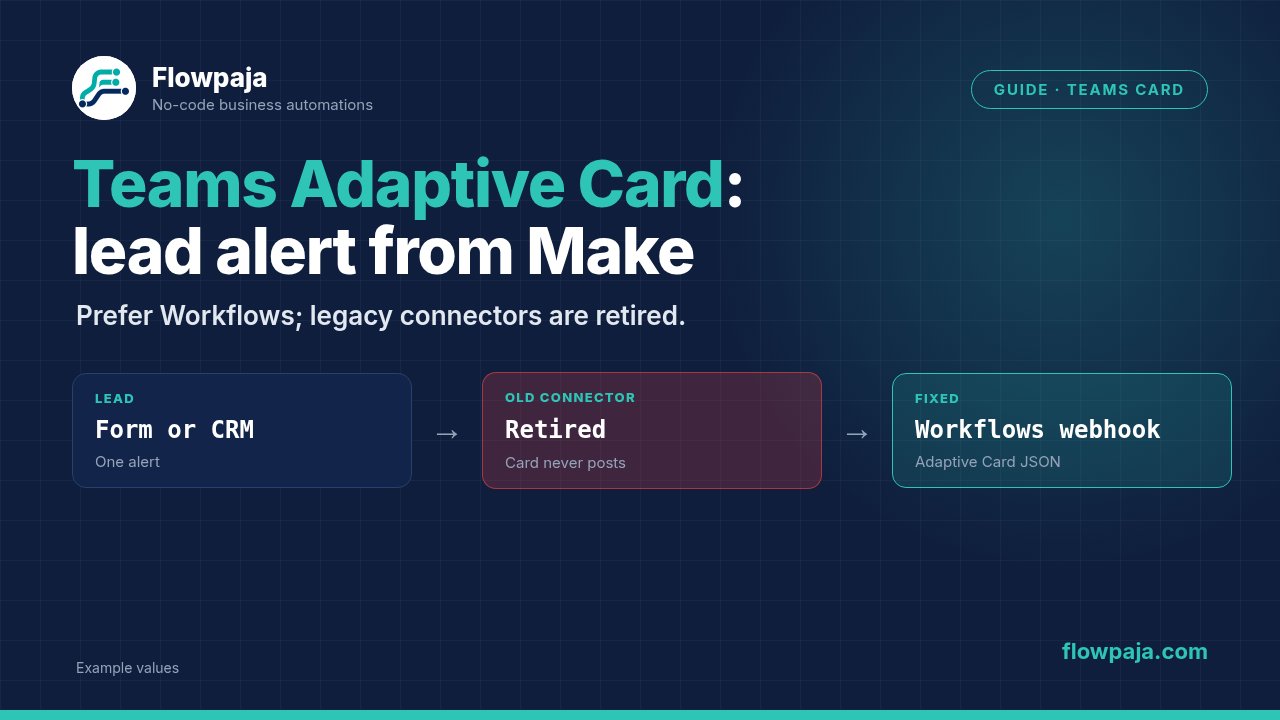
Your lead automation works, but a Teams channel shows raw JSON, nothing appears after a successful HTTP request, or an old webhook URL now fails. An Adaptive Card needs the right receiver, a valid card envelope and a posting action configured for the intended channel.
As of this package's 6 October 2026 check, Microsoft's connector retirement announcement says the legacy Office 365 connector retirement completed in May 2026. Start new work with Teams Workflows, following Microsoft's current webhook guidance.
A Make Community question about Teams Adaptive Cards confirms the integration question has been raised. It is an old unanswered thread, not evidence that its linked legacy approach remains appropriate. This guide supplies a current HTTP-to-Workflow design and explicit acceptance tests.
When this happens
The stack is form/webhook intake → normalized lead → Make HTTP → Teams Workflow → Adaptive Card in a channel. The lead should already have a stable key and an owner. This guide changes the notification destination; it does not create a new lead-routing product.
Use a test channel first. Confirm that the Workflows app is allowed in your tenant and that the workflow connection can post to that channel. A channel ID, a team ID and a webhook URL are different identifiers; do not substitute one for another.
Microsoft's Teams connector reference describes the webhook trigger and card actions. A regular Make Teams text-message module is useful for text alerts, but do not assume it exposes Adaptive Card fields merely because it can send a message.
Step 1: create the supported receiver
In Teams Workflows, use a suitable webhook alert template or create a workflow with When a Teams webhook request is received. Set the destination team/channel or chat deliberately. Save the workflow and obtain its generated request URL.
Check the trigger's permitted caller setting. A receiver that requires authenticated tenant callers needs an appropriate token; a configuration allowing unauthenticated requests requires treating the URL as an access credential. Follow your tenant's approved configuration rather than copying a tutorial's authentication choice automatically.
Keep receiver credentials in the HTTP connection/keychain or approved secret configuration, not in a public guide or shared Sheet.
Add a co-owner where your organization's policy allows it. Workflows are associated with user owners and connections, so ownership changes can interrupt a channel integration. Microsoft's connector management guidance describes this operational dependency.
Step 2: define one lead alert contract
Normalize input through Tools > Set multiple variables with values lead_key, lead_name, lead_email, budget_display, owner_display, source_display and lead_url. Take the key from the source submission identity or your existing ledger.
Require lead_key and an approved recipient/channel decision before the HTTP module. Treat missing optional details as display labels such as “Not provided,” not as factual values. For example, an absent budget must not become a made-up number that changes routing.
Validate lead_url as an approved destination link. A URL supplied by an untrusted form should not automatically become the card's main action. Use a link generated from your CRM or a confirmed Flowpaja workflow record when available, or omit the action.
This invented contract is a useful mapping fixture:
{
  "lead_key": "lead_demo_001",
  "lead_name": "Morgan Example",
  "lead_email": "reader@example.com",
  "budget_display": "Not provided",
  "owner_display": "Intake owner",
  "source_display": "Website form"
}
Replace the fixture values with real tokens only after the literal test card is working. That makes receiver/schema problems distinguishable from missing lead mappings.
Step 3: build the Adaptive Card envelope
Add JSON > Create JSON. Define an outer object with type=message and an attachments array. Each attachment uses contentType=application/vnd.microsoft.card.adaptive, contentUrl=null where required by the receiver, and a content collection holding the card itself.
Use this baseline structure for the controlled literal test:
{
  "type": "message",
  "attachments": [
    {
      "contentType": "application/vnd.microsoft.card.adaptive",
      "contentUrl": null,
      "content": {
        "$schema": "http://adaptivecards.io/schemas/adaptive-card.json",
        "type": "AdaptiveCard",
        "version": "1.2",
        "body": [
          {"type": "TextBlock", "text": "New lead", "weight": "Bolder", "wrap": true},
          {
            "type": "FactSet",
            "facts": [
              {"title": "Name", "value": "Morgan Example"},
              {"title": "Email", "value": "reader@example.com"},
              {"title": "Budget", "value": "Not provided"},
              {"title": "Owner", "value": "Intake owner"},
              {"title": "Reference", "value": "lead_demo_001"}
            ]
          }
        ]
      }
    }
  ]
}
This is an illustrative card request, not a generated Make blueprint. Version 1.2 is a conservative test choice, not a claim about the newest supported schema. Inspect the receiver's expected schema before adding newer actions or inputs.
Step 4: map values through JSON fields
Replace the literal FactSet values with normalized Make tokens. Keep the FactSet values strings. Format numbers and dates into deliberate display strings first, instead of relying on an implicit conversion that may vary across input types.
Let Create JSON escape names containing quotes, line breaks or backslashes. Do not concatenate a raw JSON string with arbitrary form text. A lead named Morgan "Example" should remain a valid string, not break the surrounding card object.
Enable wrap on longer TextBlock content. Keep the card focused on owner action: name, contact reference, routing context and source. Large submitted descriptions can make a card hard to read and increase payload size. Link to the full record rather than inserting every form field.
For an optional Action.OpenUrl, map only a verified lead URL and use a clear title such as “Open lead.” Leave the action out when no approved URL exists. This guide does not implement interactive approvals or Action.Submit responses; those need a separately designed receiver and state model.
Step 5: configure the workflow posting action
The receiver must pass card content to an action that posts cards. Microsoft's connector lists Post adaptive card in a chat or channel. If the trigger delivers a collection of attachments, iterate that collection inside the workflow and pass each attachment's content object to the posting action.
For this guide, there is one attachment and one intended Teams post. Select the supported posting identity and the intended channel. Do not feed the complete outer message envelope into a field that expects only the inner AdaptiveCard object.
Microsoft templates and channel support can vary; the account test is necessary before presenting this as ready to publish.
Check workflow run history if the card does not appear. The HTTP trigger can accept a request while a later posting action fails. Receiver acceptance and channel delivery are separate checkpoints and should remain separate in your ledger.
Step 6: send from Make
Configure HTTP > Make a request with POST, the saved Workflow request URL, application/json body and the Create JSON output. Supply authentication only according to the verified caller mode. Enable Return error if HTTP request fails.
Use the literal fixture first, then map the actual lead values. The Make HTTP reference documents the current error setting. Capture response status and an available receiver reference without assuming a successful body contains a Teams message ID.
Inspect the Teams destination and workflow run after each initial test. If the receiver reports only acceptance, store status=accepted; promote to posted only when you have delivery confirmation through your chosen workflow response or review process. Do not name a receipt timestamp delivered_at unless it represents actual delivery.
Step 7: prevent duplicate alert attempts
Use a Sheets ledger keyed by lead identity plus alert version. Before sending, Google Sheets > Search Rows looks up that key. Route Total number of bundles = 0 to reservation and > 0 to existing-state handling, with one empty output bundle for no match.
Use Process data in order and one sender scenario; Sheets lookup/add is not an atomic uniqueness constraint across several writers.
Reserve the row before HTTP. Completed/confirmed posts stop on replay. Accepted-but-unconfirmed, failed and uncertain rows need recovery. A timeout can occur after the receiver accepted the request, so a blind Retry can create another card.
If the receiver has an additional idempotency check, pass the same lead key through its trigger and log. Otherwise reconcile workflow history and Teams before resending an ambiguous request. There is no cross-system transaction between Make's ledger and Microsoft's posting action.
Common errors and failure paths
HTTP 400 usually requires comparing the serialized body with the receiver schema. Confirm attachment content is an object, not double-encoded JSON text. Fix the payload before retrying.
HTTP 401 or 403 requires examining caller authentication, workflow access and the posting connection. Repeated retries with the same rejected credentials cannot fix a permission problem. A retired legacy connector URL requires migration to Workflows.
For 429 or a transient server failure, preserve the item and inspect the response before bounded Retry. For permanent errors, write a review record and end with Skip if your operational policy allows it. A failure inside the Workflow must be visible even if Make's HTTP module is green.
Credits note
The Make path includes normalization, JSON preparation, ledger operations and one HTTP request per intended card. Measure those actual credits against your 1,000-credit monthly allowance. Microsoft Workflow licensing, request limits and posting constraints are separate from Make credits.
Batching several leads into one card changes alert granularity and recovery semantics; do it only with a defined batch key. Do not remove the event identity merely to reduce the number of HTTP calls.
Testing steps
Send the literal fixture and confirm one visible card in the test channel. Then test quotes, multiline names, missing optional budget and an omitted action URL. The JSON must stay valid and the card readable.
Replay one completed lead alert key and expect no new card. Test a new ledger key to establish the empty path. Test invalid JSON, unauthorized caller configuration, wrong destination permissions and a controlled HTTP failure.
Finally, let the trigger accept a request while its posting action fails. Confirm the ledger does not report delivered. Simulate an ambiguous HTTP timeout and require workflow/channel reconciliation before another send.
No Make account yet? Create a free Make account (affiliate link). Flowpaja may earn a commission at no extra cost to you.