 Flowpaja
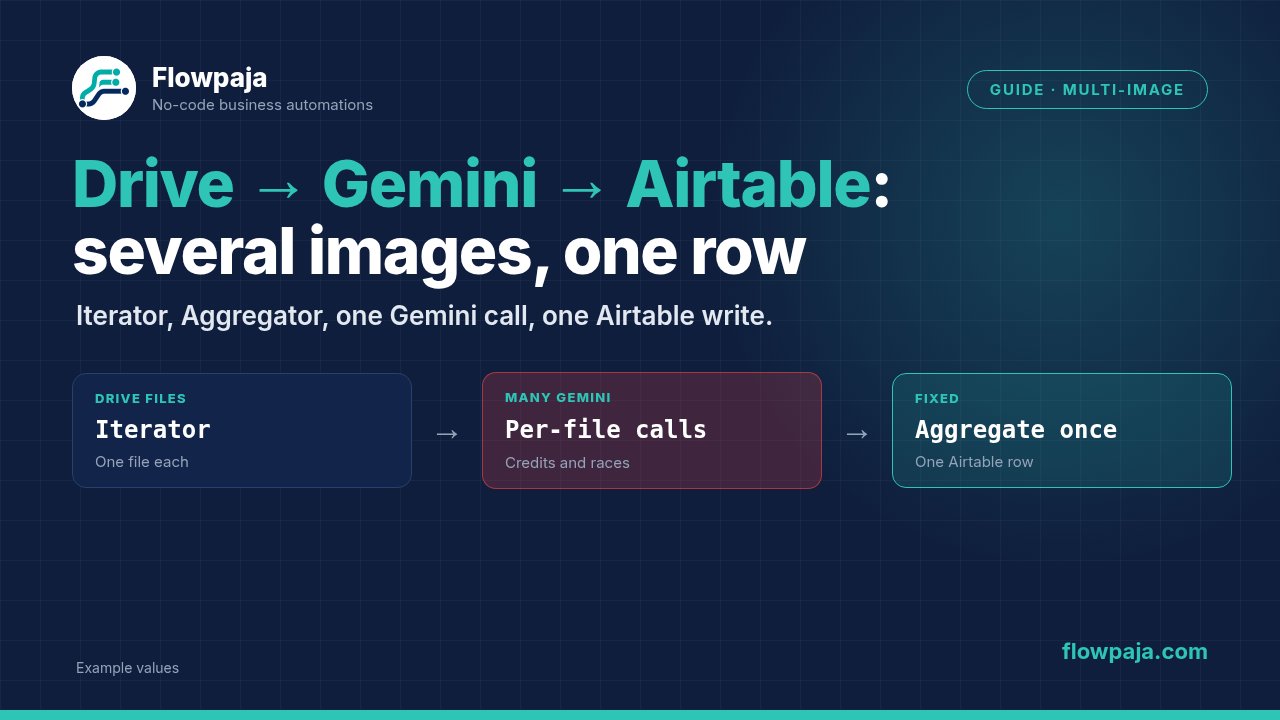
Three product photographs should produce one SKU record with three attachments. If your scenario creates three Airtable records, the record-writing module is receiving three image bundles. If Gemini sees only one photograph, your request probably contains one image part rather than an array of parts.
These are separate boundaries: image retrieval happens once per image, analysis happens once per SKU, and Airtable writing happens once per SKU. A Drive-to-Airtable community thread documents the attachment-array problem. Another multi-image Gemini thread illustrates why aggregator source selection matters. The design below is an implementation proposal grounded in module and API documentation, not a copied community blueprint.
When this happens
The stack is Google Drive files → Make → Gemini image understanding → Airtable. Your starting data should identify one SKU, its Airtable record ID and an array of image descriptors. Each descriptor needs a Drive file ID, filename, MIME type and an approved attachment-download URL.
For the first build, process one SKU per execution. This keeps the image aggregator's boundary obvious. Later, an outer SKU iterator can invoke the same image sequence once for each SKU. Do not start by mixing every file from the entire product catalogue into one unlabelled collection.
Create the SKU record once in your existing intake process or resolve its ID before entering the image loop. This guide's main path uses Airtable > Update a Record with that known ID. It avoids a second create-versus-update problem while you repair image aggregation.
Step 1: define the job contract
Use Webhooks > Custom webhook or your existing SKU intake. Capture a representative job with Detect new values if webhook fields have changed. This invented fixture illustrates the contract:
{
  "sku": "SKU-DEMO-01",
  "airtable_record_id": "REPLACE_WITH_REAL_RECORD_ID",
  "images": [
    {
      "drive_id": "REPLACE_WITH_DRIVE_FILE_ID",
      "filename": "front.jpg",
      "mime_type": "image/jpeg",
      "attachment_url": "https://files.example.com/front.jpg"
    }
  ]
}
The example.com URL is a teaching placeholder and must never be used as a production attachment. Record a job version or processing key as well. A changed image set should have a deliberate version, so a later update does not accidentally overwrite a newer analysis with an older replay.
Filter out jobs missing the SKU or Airtable record ID before file work. Give an empty images array its own review path. An aggregator is appropriate for combining actual image bundles; it is not a substitute for validating a job that contains no photographs.
Step 2: settle file access before analysis
Use the authenticated Google Drive app to retrieve private files. A normal sharing URL may open an HTML viewer or demand a login; neither is an image binary. Do not ask Gemini to authenticate to Drive by passing that viewer URL.
Airtable's URL-based attachment ingestion is another consumer. The Airtable API troubleshooting reference explains that files supplied by URL must be publicly fetchable. A short-lived signed URL can be suitable only if it permits retrieval for long enough to complete ingestion. Do not make confidential product material public merely to simplify mapping.
If your organization cannot expose an approved download URL, implement Airtable's supported direct attachment upload separately before adopting this URL-array path.
Step 3: iterate images and download bytes
Add Flow Control > Iterator with Array mapped to the job's images[]. It produces one bundle per descriptor. Then add Google Drive > Download a File, mapping File ID from the iterator's drive_id. Confirm the output contains actual file data, not just metadata.
Reject unsupported MIME types and zero-length files before constructing a Gemini part. Keep the job's SKU and record ID outside the image loop, where they remain available for the final write. Preserve the iterator descriptor so filename and attachment URL stay paired with the downloaded bytes.
If one image fails, decide whether the SKU requires every photograph. For a complete product review, preserve the failed job and avoid marking a partial analysis complete. For optional supplementary photos, record an explicit missing-image status. Silently filtering failures can make a one-image analysis look like a three-image analysis.
Step 4: build a structured object per image
Add JSON > Create JSON with a data structure containing two collections: part and attachment. Under part, create inlineData with string fields mimeType and data. Under attachment, create string fields url and filename.
Map mimeType from the verified image type and data from the downloaded binary using Make's base64 conversion. Map the approved attachment URL and original filename into the attachment collection. The result should have this shape:
{
  "part": {
    "inlineData": {
      "mimeType": "image/jpeg",
      "data": "BASE64_OF_THIS_IMAGE_ONLY"
    }
  },
  "attachment": {
    "url": "APPROVED_DOWNLOAD_URL",
    "filename": "front.jpg"
  }
}
Follow with JSON > Parse JSON using that same structure so part and attachment become typed mapping collections. This extra pair of modules makes the aggregation explicit and avoids manual string concatenation. Base64-encode each file individually; encoding an array of files produces neither one valid image nor several valid image parts.
Step 5: aggregate at the image iterator boundary
Add Flow Control > Array aggregator after Parse JSON. Set Source Module to the image Iterator, not Download a File. Choose Custom target structure and include the parsed part and attachment collections in Aggregated fields.
For one SKU per invocation of the image iterator, leave Group by empty. The intended output is one bundle containing an Array with one object per accepted image. If you deliberately aggregate a stream containing multiple SKUs in the same source invocation, carry SKU into each object and Group by that stable SKU. Grouping cannot reach backward across separate invocations of the chosen source.
Make's aggregator documentation defines source scope and explains that fields inside the aggregation zone must be included to survive downstream. Inspect the array itself: three downloads and one aggregator output are compatible. The downstream output count, not the number of incoming executions shown on a module, establishes whether grouping worked.
Step 6: make one Gemini request
Add another JSON > Create JSON. Define contents as an array with one item: role is user, and parts is an array of image-part collections. Enable mapping for parts and map:
map(AGGREGATOR_ARRAY_TOKEN; "part")Replace the uppercase placeholder with the aggregator's actual Array token. Add systemInstruction.parts containing one text instruction, for example: compare the supplied views of the same product and report visible attributes and uncertainty. Include SKU as context, not as evidence of an attribute the images cannot show.
Use HTTP > Make a request, POST, with the JSON module output as the application/json body. Configure API-key authentication securely and enable Return error if HTTP request fails. The endpoint pattern is https://generativelanguage.googleapis.com/v1beta/models/MODEL_ID:generateContent.
Google's Generate Content API defines image parts; its image-understanding guide covers supported image input. Keep all image parts in one request rather than mapping the first array element.
Step 7: write one Airtable record
Configure Airtable > Update a Record after the successful HTTP request. Select the intended base and table, and map Record ID from the original SKU job. For the attachment field, enable its Map toggle and supply:
map(AGGREGATOR_ARRAY_TOKEN; "attachment")Map Gemini's returned text into your Analysis field only after inspecting the selected model's response. If several response text parts exist, combine the intended text parts rather than assuming one fixed array index always contains the answer. Record job version, image count and a successful-analysis timestamp.
Replacing an attachment field with this array is a set operation, not an automatic append. If existing images must remain, retrieve the record first and build the complete intended set. Avoid updating a record once for each image: that creates races, repeated writes and last-write-wins surprises.
Common errors
Missing value of required parameter 'file' points to a missing binary or required file mapping, not to an aggregator setting. Inspect the download output before passing it onward.
INVALID_ATTACHMENT_OBJECT is an Airtable attachment-shape error. Check that every array item has the intended URL/filename structure and that the mapped value is an array, not serialized JSON text.
If an attachment appears and then disappears, test the URL without your browser session. If Gemini analyses only one view, inspect the request's contents[0].parts count. If it runs per image, move the HTTP module after aggregation and verify the selected source module.
Credits note
With N images, download and per-image JSON preparation scale with N; the single Gemini request and final Airtable write stay outside that multiplier. Record actual usage because AI costs and app charges are separate from simple module-count estimates. On a 1,000-credit Free allowance, process small batches and measure before scheduling catalogue-wide runs.
An empty job should use no vision request. A failed complete-set job should be retryable without creating another SKU record. The existing Iterator versus Aggregator guide explains the general boundary without rebuilding it here.
Testing steps
Test one SKU with three visually distinct images: expect three downloads, three array items, one Gemini request and one updated record with three attachments. Then test two SKU jobs and ensure their arrays never mix.
Replay the same version and check that record count stays stable. Test an empty array, one inaccessible file, an expired attachment URL and a controlled HTTP failure. Verify that none produces a falsely completed SKU. Finally, replay an older version after a newer version and confirm your version check prevents stale replacement.
No Make account yet? Create a free Make account (affiliate link). Flowpaja may earn a commission at no extra cost to you.